Turn any text, QR code or barcode on your screen into text on your clipboard.
Run ocr, drag a box around anything on screen, and whatever was in that box is
now on your clipboard as text. It works on things you cannot select: a screenshot
someone sent you, a video still, a PDF that will not copy, an error dialog, a
conference badge, a parcel label.

Everything happens on your Mac using Apple's Vision framework. No API keys, no uploads, no account, and it works offline.
brew install schappim/ocr/ocr
ocr- Install
- Quick start
- Command reference
- Reading text
- Languages
- QR codes and barcodes
- JSON output
- Scripting with macOCR
- Recipes
- Launchers, Shortcuts and hotkeys
- Updating
- Requirements
- Building from source
- Troubleshooting
- Who made this?
- License
brew install schappim/ocr/ocrHomebrew is the easiest path because ocr --update can then upgrade you in
place later.
Grab a build from the latest release.
Apple Silicon:
curl -L -o macOCR-arm64.tar.gz \
  https://github.com/schappim/macOCR/releases/latest/download/macOCR-arm64.tar.gz
tar xzf macOCR-arm64.tar.gz
sudo mv ocr /usr/local/bin/ocr
Intel:
curl -L -o macOCR-x86_64.tar.gz \
  https://github.com/schappim/macOCR/releases/latest/download/macOCR-x86_64.tar.gz
tar xzf macOCR-x86_64.tar.gz
sudo mv ocr /usr/local/bin/ocr
Released binaries are ad-hoc signed rather than notarised, so macOS may refuse to run a downloaded copy. Clear the quarantine flag once and it will start:
xattr -d com.apple.quarantine /usr/local/bin/ocrYou can also build it yourself.
macOCR takes a screenshot, so the first run asks for Screen Recording
permission. Grant it, then run ocr again.

If you are calling ocr from another app such as Alfred, Raycast or Shortcuts,
the permission prompt belongs to that app, not to Terminal. Approve it there
too.
ocrYour cursor turns into a crosshair. Drag a box. macOCR then:
- prints what it read to stdout, and
- copies the same text to your clipboard, ready to paste.
Press Esc to cancel the selection. Cancelling copies nothing and leaves your clipboard alone.
By default macOCR reads both the text in the region and the payload of any QR code or barcode it finds, in the order they appear on screen. You do not have to know a code is there or ask for it.
Five more things worth knowing on day one:
ocr -l ja-JP                    # read Japanese instead of English
ocr -i ~/Desktop/receipt.png    # read an image file, no screen capture
ocr --rect 0,0,800,600          # capture a fixed region, no dragging
ocr -b                          # read only the QR codes and barcodes
ocr --json # get structured output for scripts| Option | Short | What it does |
|---|---|---|
--help |
-h |
Show usage, plus where macOCR lives and how to update it |
--version |
-v |
Print the version and the architecture of this binary |
--update |
Check GitHub for a newer release and upgrade via Homebrew | |
| Reading | ||
--language <code> |
-l |
Recognition language, for example de-DE. Needs macOS 11+ |
--list-languages |
List the language codes this Mac can actually recognise | |
--barcodes |
-b |
Read only QR codes and barcodes, ignoring text |
--no-barcodes |
Read only text, ignoring QR codes and barcodes | |
--symbologies <list> |
Only look for these code types, for example QR,EAN13 |
|
--list-symbologies |
List every barcode symbology this Mac can read | |
| Input and output | ||
--rect <x,y,w,h> |
-R |
Capture a fixed region instead of selecting one by hand |
--input <file> |
-i |
Read an image file instead of capturing the screen |
--save-image <path> |
-s |
Also keep the screenshot that was captured |
--json |
Print structured JSON to stdout instead of plain text |
Whatever stdout looks like, the clipboard always gets the plain text. That is the point of macOCR.
Text comes out in the order Vision found it, one line per line of text:
$ ocr
Invoice #10428
Due 30 September
Total $1,240.00
That output is also on your clipboard, so you can go straight to ⌘V.
If macOCR reads nothing, it prints nothing and leaves your clipboard untouched, so a misjudged selection costs you a second attempt rather than whatever you had copied earlier.
macOCR recognises English out of the box. Pass -l to read something else:
ocr -l ja-JP            # Japanese
ocr -l zh-Hans          # Simplified Chinese
ocr --language de-DE    # German
To see what your Mac supports:
ocr --list-languagesThe list depends on your macOS version, which is why the flag asks the system rather than reciting a fixed list. macOS 13 (Ventura) and later recognise around thirty languages, including Japanese, Korean, Russian, Ukrainian, Thai, Vietnamese, Arabic and Turkish. macOS 11 and 12 recognise eight: English, French, Italian, German, Spanish, Portuguese, and Simplified and Traditional Chinese.
Choosing a language needs macOS 11 (Big Sur) or later. On macOS 10.15 the -l
flag is not available at all and macOCR reads English.
English stays in the list as a fallback when you pick another language, so a mostly-Japanese screenshot with an English URL in it still reads both.
macOCR reads codes as well as text by default. Both come out of a single pass over the image, so reading codes costs nothing over the text-only recognition macOCR has always done. You just stop missing the QR code that was sitting in the region.
Codes are placed among the text by where they sit on screen. Point macOCR at a poster with a heading, a QR code in the middle and a footer, and it reads top to bottom:
LITTLE BIRD ELECTRONICS
Scan to shop
https://littlebirdelectronics.com.au
Free shipping over $99
Sydney, Australia
The URL in the third line was the QR code.
ocr -b                  # only the codes, ignoring any text
ocr --no-barcodes       # only the text, the way macOCR behaved before 1.3.0
--symbologies restricts which kinds of code count, which helps when a label
carries both a product barcode and a QR code and you only want one of them:
ocr --symbologies QR
ocr -b --symbologies EAN13,UPCE,Code128
Names are matched loosely, so QR, qr, GS1-DataBar and
VNBarcodeSymbologyGS1DataBar all land on the same symbology. A name macOCR does
not recognise is an error rather than a silent fall back to scanning for
everything.
ocr --list-symbologiesEvery supported macOS reads Aztec, Code39 (and its checksum and full-ASCII variants), Code93, Code93i, Code128, DataMatrix, EAN8, EAN13, I2of5, ITF14, PDF417, QR and UPCE.
macOS 12 (Monterey) adds Codabar, MicroQR, MicroPDF417 and the GS1 DataBar family (plain, Expanded and Limited). macOS 14 (Sonoma) adds MSI Plessey.
Some codes carry raw bytes rather than text. There is nothing sensible to put on
the clipboard for those, so macOCR notes it on stderr instead of dropping the
code silently. On macOS 14 and later the raw bytes are available as
payloadBase64 in --json output.
A bare payload does not tell you which code it came from, or where on screen it
was. --json gives you the details:
ocr --json[
{
"boundingBox" : {
"height" : 0.0619,
"width" : 0.5535,
"x" : 0.2232,
"y" : 0.8790
},
"confidence" : 1,
"text" : "LITTLE BIRD ELECTRONICS",
"type" : "text"
},
{
"boundingBox" : {
"height" : 0.4193,
"width" : 0.3714,
"x" : 0.3142,
"y" : 0.2822
},
"confidence" : 1,
"payload" : "https://littlebirdelectronics.com.au",
"symbology" : "QR",
"type" : "barcode"
}
]Reading the fields:
| Field | Notes |
|---|---|
type |
"text" or "barcode" |
text |
The recognised line. Text entries only |
payload |
The decoded contents. Barcode entries only |
payloadBase64 |
Raw bytes for a non-text code. macOS 14+, barcode entries only |
symbology |
QR, EAN13, Code128 and so on. Barcode entries only |
confidence |
0 to 1, rounded to four places |
boundingBox |
Position within the captured image |
Bounding boxes use Vision's normalised coordinates: 0 to 1 across the
captured image, with the origin at the bottom left rather than the top left.
Treat that as a guide rather than a guarantee. From macOS 14, Vision can report a
code that runs off the edge of the image, and those boxes go slightly negative or
past 1.
Entries come out in reading order, the same order the plain text output uses.
--rect takes a region in screen coordinates and skips the interactive
selection, which is what you want from a cron job, a hotkey or a test:
ocr --rect 100,200,500,300 # x, y, width, heightAll four numbers are required and must be integers, in screen points. The values
are passed straight to /usr/sbin/screencapture -R. If the captured region is
not where you expected, run it once with --save-image and look at the result to
calibrate.
ocr -i ./screenshot.png
ocr -i ~/Documents/scan.jpg
Anything Core Image can decode works: PNG, JPEG, TIFF, HEIC and so on. ~ is
expanded for you.
ocr --save-image ~/Desktop/capture.pngNormally the screenshot is written to a private temporary file, decoded, and
deleted immediately, so macOCR does not leave copies of your screen lying around.
--save-image keeps a copy where you ask for it. It has nothing to save when
combined with --input, and says so.
| Command | Found something | Found nothing | Error |
|---|---|---|---|
ocr |
0 |
0 |
1 |
ocr --no-barcodes |
0 |
0 |
1 |
ocr -b |
0 |
1 |
1 |
ocr -b is the only mode that treats an empty result as failure, because it is
the one mode that exists solely to find codes. That lets a script tell "nothing
there" from a successful read.
Errors also exit 1 and explain themselves on stderr: an unreadable file, an
unknown symbology, a cancelled capture, two contradictory flags. So check that
you actually got a payload rather than trusting the status on its own:
if payload=$(ocr -b) && [ -n "$payload" ]; then
  open "$payload"
else
  echo "No QR code in that region"
fi
With --json, ocr -b still prints [] before exiting 1, so a pipe into jq
never sees a syntax error.
Open the URL in a QR code on screen
ocr -b --symbologies QR | head -1 | xargs openPull just the barcode payloads out of a mixed capture
ocr --json | jq -r '.[] | select(.type == "barcode") | .payload'Drop low-confidence lines
ocr --json | jq -r '.[] | select(.confidence > 0.8) | .text // .payload'Watch a fixed part of the screen and log changes
while :; do
  ocr --rect 0,0,600,80 --no-barcodes
  sleep 5
done | uniq
Batch a folder of images into text files
for f in ~/Scans/*.png; do
  ocr -i "$f" --no-barcodes > "${f%.png}.txt"
done
Stock-take: scan a shelf label straight into a lookup
sku=$(ocr -b --symbologies EAN13,Code128) && open "https://example.com/sku/$sku"macOCR is a plain command line binary, so anything that can run a command can run it: Alfred, Raycast, LaunchBar, Hammerspoon, Quicksilver, Keyboard Maestro, or macOS Shortcuts.
Ready-made integrations:
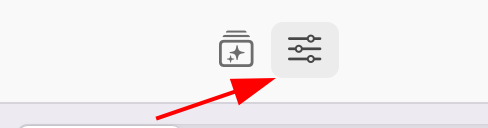
- Open Shortcuts and create a new Shortcut.
- Add a Run Shell Script action.
- Set the script to the full path of the binary:
/opt/homebrew/bin/ocrfor Homebrew on Apple Silicon/usr/local/bin/ocrfor Homebrew on Intel, or a manual install
- Open Shortcut Details and tick Pin in Menu Bar.
Use the full path. Shortcuts does not load your shell profile, so a bare ocr
will not be found.

Check what you have:
ocr --version # version, architecture, and this repository's URLUpdate:
ocr --update--update asks GitHub for the latest release. If macOCR was installed with
Homebrew it hands over to brew upgrade schappim/ocr/ocr. If you installed
manually it prints the exact commands to replace the binary where it actually
lives, and installs nothing you did not ask for.
If macOS has told you macOCR is an Intel app, --update notices it is running
under Rosetta and points you at the native Apple Silicon build, even when the
version itself is current.
- 1.3.0 added barcode and QR scanning,
--json,--symbologiesand--list-symbologies. It also stopped macOCR clearing your clipboard when it read nothing, and made--list-languagesreport the languages the recogniser actually supports rather than a fixed shorter list. Scripts that want the old text-only behaviour should add--no-barcodes. - 1.2.0 added
--help,--versionand--update. Ifocr --helpprints nothing useful, you are on an older build and should reinstall using the commands in Install.
All releases are listed on the releases page.
- macOS 10.15 (Catalina) or later
- Screen Recording permission, for capturing the screen. Not needed for
--input
Feature availability by version:
| Feature | Needs |
|---|---|
| Text recognition, QR and barcode scanning | macOS 10.15 |
Choosing a language with -l |
macOS 11 (Big Sur) |
| Codabar, MicroQR, MicroPDF417, GS1 DataBar | macOS 12 (Monterey) |
| Around thirty recognition languages | macOS 13 (Ventura) |
MSI Plessey, and payloadBase64 for non-text codes |
macOS 14 (Sonoma) |
Universal builds are published for Apple Silicon and Intel.
macOCR uses CocoaPods for two dependencies:
ScreenCapture, which shells out
to /usr/sbin/screencapture, and ArgumentParserKit.
git clone https://github.com/schappim/macOCR.git
cd macOCR
pod install
xcodebuild -workspace ocr.xcworkspace -scheme ocr -configuration Release \
  -derivedDataPath build \
  CODE_SIGN_IDENTITY="-" CODE_SIGNING_REQUIRED=NO CODE_SIGNING_ALLOWED=NO
sudo cp build/Build/Products/Release/ocr /usr/local/bin/ocr
Open ocr.xcworkspace rather than ocr.xcodeproj if you are working in Xcode.
Releases are cut by GitHub Actions, which builds
x86_64 and arm64 on every push and publishes both when a v* tag is pushed.
The release job refuses to publish a tag that disagrees with ocrVersion in
ocr/main.swift, so bump the constant and the tag together.
Nothing happens, or nothing is recognised
Check Screen Recording permission under System Settings → Privacy & Security →
Screen Recording. Grant it to the app that launches ocr, which may be Alfred,
Raycast or Shortcuts rather than Terminal. Quit and reopen that app afterwards.
"ocr" cannot be opened because Apple cannot check it for malicious software
Released binaries are ad-hoc signed rather than notarised. Clear the quarantine flag:
xattr -d com.apple.quarantine /usr/local/bin/ocrmacOS says macOCR is an Intel application
You have the x86_64 build on an Apple Silicon Mac. Run ocr --update, which
detects Rosetta and points you at the arm64 build.
command not found: ocr from Shortcuts, Alfred or a launcher
Use the full path (/opt/homebrew/bin/ocr or /usr/local/bin/ocr). Those tools
do not read your shell profile.
-l is rejected as an unknown option
Choosing a language needs macOS 11 or later. Below that, macOCR does not register the flag at all.
A language works with -l but is missing from --list-languages
That was a bug in builds before 1.3.0: the list was pinned to an older recogniser revision and under-reported what the Mac could do. Update to 1.3.0 or later.
Recognition quality is poor
Vision reads rendered text far better than small or blurry text. Zoom in before capturing, or capture at a larger size. Selecting a tighter region around just the text also helps.
macOCR was made by Marcus Schappi. I build software, and sometimes hardware, for real-world businesses:
- Little Bird Electronics is Australia's electronics and STEM store, shipping Australia-wide. We sell Arduino, Raspberry Pi, micro:bit, STEM and STEAM education kits, e-textiles, robotics, sensors and electronic components.
- Struth.app is field service management, CRM and AI for trade businesses.
Contributions are welcome. Open an issue or a pull request.
Apple, please sherlock this software!
MIT. Copyright 2021 Marcus Schappi.
Permission is hereby granted, free of charge, to any person obtaining a copy of this software and associated documentation files (the "Software"), to deal in the Software without restriction, including without limitation the rights to use, copy, modify, merge, publish, distribute, sublicense, and/or sell copies of the Software, and to permit persons to whom the Software is furnished to do so, subject to the following conditions:
The above copyright notice and this permission notice shall be included in all copies or substantial portions of the Software.
THE SOFTWARE IS PROVIDED "AS IS", WITHOUT WARRANTY OF ANY KIND, EXPRESS OR IMPLIED, INCLUDING BUT NOT LIMITED TO THE WARRANTIES OF MERCHANTABILITY, FITNESS FOR A PARTICULAR PURPOSE AND NONINFRINGEMENT. IN NO EVENT SHALL THE AUTHORS OR COPYRIGHT HOLDERS BE LIABLE FOR ANY CLAIM, DAMAGES OR OTHER LIABILITY, WHETHER IN AN ACTION OF CONTRACT, TORT OR OTHERWISE, ARISING FROM, OUT OF OR IN CONNECTION WITH THE SOFTWARE OR THE USE OR OTHER DEALINGS IN THE SOFTWARE.