Remote game launching bridge between luducat and Playnite.
luducat is a cross-platform game catalogue browser that aggregates games from Steam, GOG, Epic, and other stores into a unified browsing interface. It focuses on cataloguing and organization — all data stays local, no telemetry, no cloud dependencies. Game launching is delegated to native platform launchers (Steam, Heroic, etc.) or, via this bridge, to Playnite.
luducat Bridge is a Playnite plugin that enables remote game launching from luducat to Playnite over the local network. After securing an encrypted channel and bonding both applications, games can be started by library name and game ID.
This works in any direction:
- Linux to Windows — browse your catalogue on Linux, launch Windows games via Playnite
- Windows to Windows — run luducat and Playnite on separate Windows machines
- Same machine — luducat and Playnite on the same Windows host (localhost)
Only the game library name and game ID are transmitted — no credentials, no game data, no personal information crosses the wire.
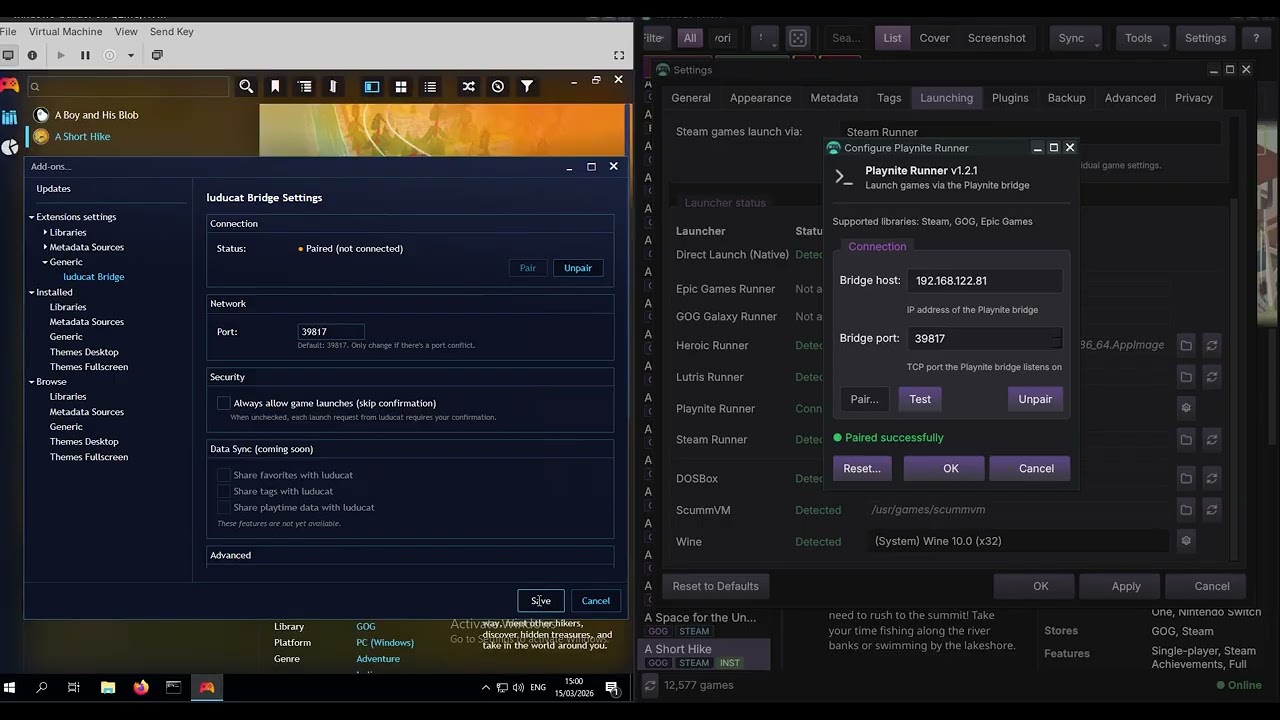

Both sides during the pairing handshake — Playnite bridge settings with code entry (left) and luducat pairing code dialog (right):

Launch confirmation dialog on Playnite with luducat's "Launching" overlay:

The game running on Windows (left), launched from luducat on Linux (right):

- Communication secured via TLS 1.3 with ECDSA P-256 key exchange
- Session management via HMAC-TOTP (silent reconnect without re-pairing)
- Restricted to RFC 1918 private addresses (LAN only, no WAN exposure)
- Pairing secrets and TLS certificates stored in Windows Credential Manager (DPAPI-protected) via AdysTech.CredentialManager
The bridge is one half of a complete Linux-to-Windows game streaming setup. Combined with game streaming software, you can browse your entire catalogue on Linux, launch a Windows game with one click, and stream it back to your Linux desktop:
| Machine | Software |
|---|---|
| Linux (your desktop) | luducat with Playnite Runner plugin enabled |
| Linux (your desktop) | Moonlight (game stream client) |
| Windows (gaming PC / VM) | Playnite with luducat Bridge installed |
| Windows (gaming PC / VM) | Sunshine (game stream host) |
- Browse your game catalogue in luducat on Linux
- Launch a game — luducat sends the launch command to Playnite via the bridge
- Playnite starts the game on the Windows machine
- Sunshine captures the game and streams it over your network
- Moonlight displays the stream on your Linux desktop
This gives you a seamless experience: a native Linux catalogue browser with full access to your Windows game library, without needing to switch desks or remote into the Windows machine manually.
- Install and configure Sunshine on your Windows machine
- Install and configure Moonlight on your Linux machine, pair it with Sunshine
- Install luducat Bridge in Playnite (see Installation below)
- Enable the Playnite Runner plugin in luducat (Settings > Launching)
- Pair luducat with Playnite using the pairing code
- Open your Moonlight stream, then launch games from luducat
- Playnite (Windows)
- luducat 0.5.0+ with the Playnite Runner plugin enabled
- Both machines on the same local network (or localhost)
On first connection, Windows may show a firewall prompt for Playnite. Allow it on Private networks to enable bridge communication.
If pairing or launching fails with no obvious error:
- Open Windows Settings > Privacy & Security > Windows Security > Firewall & network protection > Allow an app through firewall
- Find Playnite in the list and ensure it is allowed on Private networks
- If Playnite is not listed, click Allow another app and browse to
Playnite.DesktopApp.exe
The bridge listens on a configurable TCP port (default: 52836) and only accepts connections from RFC 1918 private addresses.
Via Playnite: Add-ons browser > search "luducat Bridge" > Install
Manual: Download the .pext file from
GitHub Releases, then
drag it onto the Playnite window or place it in Playnite's Extensions directory.
See CONTRIBUTING.md for guidelines.
This plugin was developed with AI-assisted tooling. See CONTRIBUTING.md for details on what that means in practice.