Learn how to:
- Use the developer tools to identify a particular element
- Use Javascript's selector methods to select particular pieces of the dom
- Learn about CSS selectors to select elements by id, class, html tag, or ancestry
Ok, you may not feel like it yet, but you're a pretty good developer. So it's time to have you start building a search engine.
I'm serious.
Let me explain. As you may know, search engines are built by looking at web pages and inferring page relevancy based on HTML. In 2005, Google acquired a small search engine called Aardvark, which answered users questions by connecting them with a chatbot to those they thought might have an answer.
In building Aardvark, the team had a problem: it wanted to connect not just question and answerers from the same subject but also related subjects. For example, it needed to know that if a user had a question about cooking, but no one was available, that someone who knew about cuisine may have the answer.
How did it do that? It scraped the data from the Wikipedia page on cooking and looked to find what cooking was related to, and from there it could connect someone asking about cooking to someone who knew about cuisine. Yes, not a perfect solution, but good enough to get the job done (and sell to Google for 50 million dollars).
In this lesson we'll also use information from Wikipedia to find out related topics, a topic summary, and relevant pictures of the topic.
We have copied the HTML from a page on Ada Lovelace from Wikipedia. You can view it below.
<iframe height='314' scrolling='no' title='Ada LoveLace WP' src='//codepen.io/joemburgess/embed/JWMgEY/?height=314&theme-id=0&default-tab=result&embed-version=2' frameborder='no' allowtransparency='true' allowfullscreen='true' style='width: 100%;'>See the Pen Ada LoveLace WP by Joe Burgess (@joemburgess) on CodePen. </iframe>If you scroll to the very bottom of the screen above, you will see a section called Categories. Now, we want to write some code to retrieve the first category from the list.
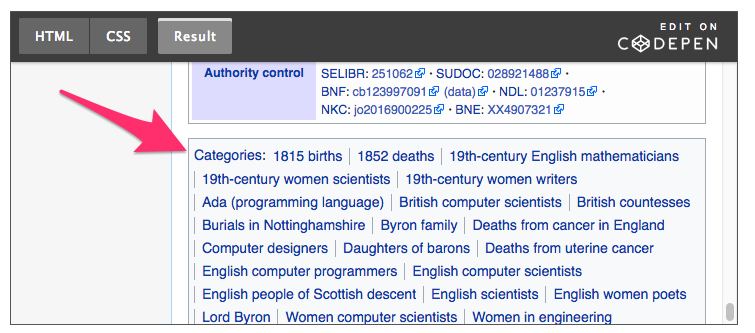
Once we do that, we can assume that not only will this code work on this particular webpage, but it will also work on every Wikipedia page.
Alright so how do we pull out that first category?
Well remember that if we open up the console (right click on the page, click inspect), and type in document then we will see a current representation of the Document Object Model. However, that contains everything - the entire page. We want to scope this down so that we just select the categories.
So we'll use our document.querySelector() code just like we did in the last section. But how do we know what to select?
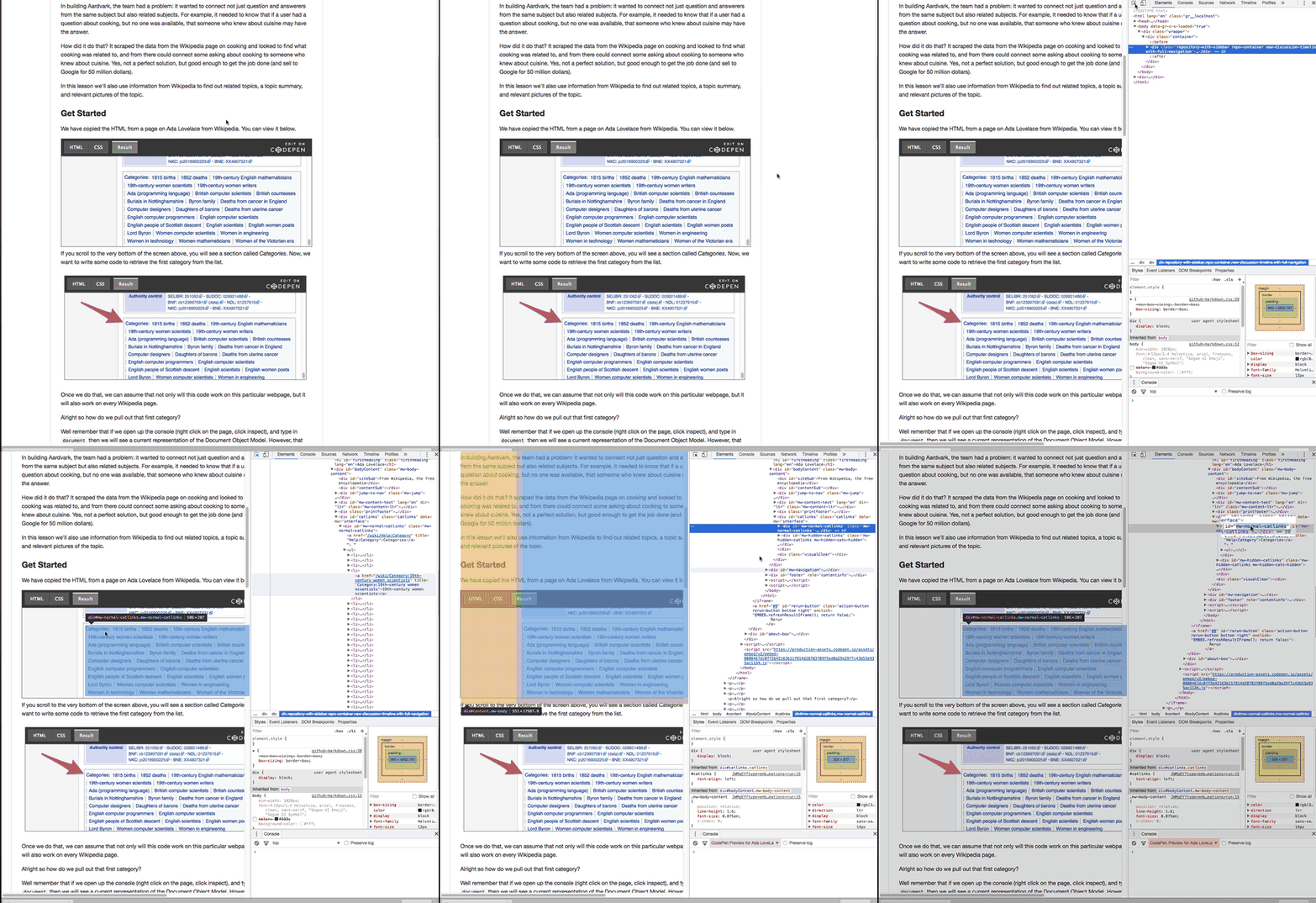
From the browser, right click (or two fingers click) on the categories box, and then click on inspect from the dropdown menu. Your Inspecter may come up on the right or the bottom. Select the Icon two icons to the left of the "Elements" Header. You can look at the animated gif above to see what it looks like. Once you hit that, select the categories section of the Wikipedia page. Then click on the id attribute, and press command+c on Mac or Ctrl+c on Windows to copy the id attribute. Ultimately, we'll use that id attribute with our query selector to select the correct element from our document.
Now that we have the identifier for the categories information, we can place that into our query selector method. From the Console, type in document.querySelector('#mw-normal-catlinks'), and you'll see that this selects the appropriate element.
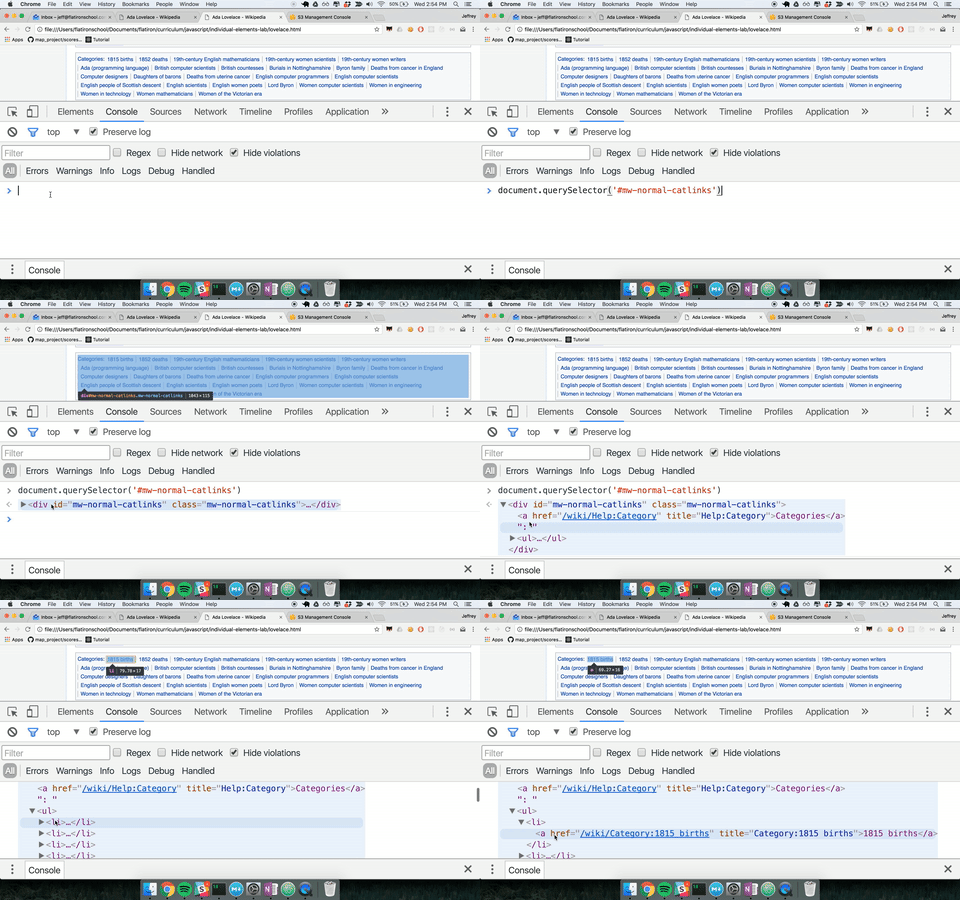
You may be wondering where the # came from in document.querySelector('#mw-normal-catlinks'). It's there because mw-normal-catlinks is the id attribute of the element we want to select. To tell the query selector method that we are selecting an element by its id attribute, we use the pound sign.
Now that we have covered that the css selector for selecting by an id attribute is the # sign, let's cover some of the others. Below is some HTML content, and afterwards is a table displaying different ways to select the paragraph element.
<div>
	<p id="content" class="red"> Select this content!</p>
</div>
<ul>
	<li>Don't </li>
	<li>Select </li>
	<li>This </li>
</ul>| Attribute | CSS Selector | querySelector Code |
|---|---|---|
| id | "#" | document.querySelector('#content') |
| class | "." | document.querySelector('.red') |
| html tag | "" | document.querySelector('p') |
So you can see that we prepend the # sign to the id attribute name to select an item by its id. We prepend the . to the class attribute name to select an item by its class name. And we prepend nothing when selecting by tag name.
We can also select elements using other methods. Let's add in those other methods to our chart.
| Attribute | CSS Selector | querySelector Code | Alternative Method |
|---|---|---|---|
| id | "#" | document.querySelector('#content') | document.getElementById('content') |
| class | "." | document.querySelector('.red') | document.getElementByClassName('red') |
| html tag | "" | document.querySelector('p') | document.getElementByTagName('p') |
Notice that when we use a method like
getElementByIdwe do not need to start with a # sign. This is because Javascript already knows that we are selecting by the id attribute by virtue of using a method that only accepts an id. Query selectors take different types of attributes, so there we do need to specify the type of attribute we are selecting by.
Moving back to our Ada Lovelace Wikipedia page, we have a problem. We can use the document.querySelector('#mw-normal-catlinks') to scope down the page to the list of categories.
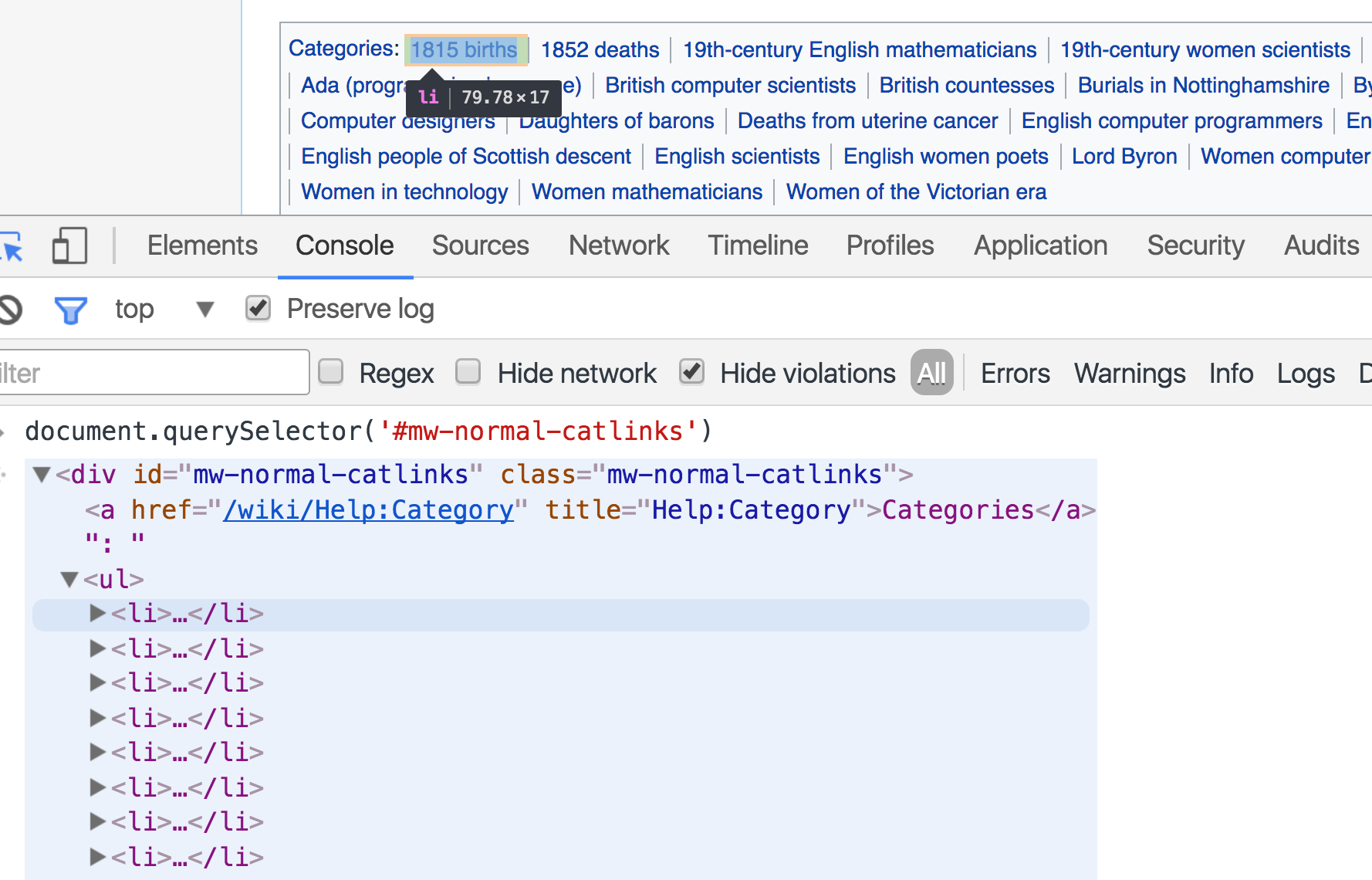
To just select the first category, we want get even more specific. The way we do this is by saying that we want to retrieve the ul inside of the div, and the li inside of that div.
Type the following code into your console.
document.querySelector('#mw-normal-catlinks ul li')
Now that code selects precisely the correct element. And we just learned something new. We learned that by placing a space and then another element, Javascript will select only the matching element inside of (ie. a descendant of) previously matched element. For example, here even though there were are other ul and lis on the page, we properly told Javascript to only select the ul inside of the div with an id mw-normal-catlinks, and the li inside of the ul. Doing so retrieved the following element.
<li>
	<a href="/wiki/Category:1815_births" title="Category:1815 births">1815 births</a>
</li>
Try to get even further. How would you get to the link inside of that first list element.
Did you get it?
document.querySelector('#mw-normal-catlinks ul li a')
We just specify that we want an a tag inside of that li. That is the element we want to work with.
<a href="/wiki/Category:1815_births" title="Category:1815 births">1815 births</a>Now that we have selected the proper HTML element, we can ask Javascript about specific attributes of that element.
So to select the correct element we typed in and press Enter.
document.querySelector('#mw-normal-catlinks ul li a') You should see the following in return
<a href="/wiki/Category:1815_births" title="Category:1815 births">1815 births</a>
Now to get the text out of that element we just use the code
document.querySelector('#mw-normal-catlinks ul li a').textYou'll get:
"1815 births"
To get the title attribute we type in
document.querySelector('#mw-normal-catlinks ul li a').titleNow say you want to retrieve the href attribute, how would you figure out that?
The magic of guessing: Programmers guess a lot more than you might think. The reason why is because the consequences are really low, and you can often quickly find out if you are right or wrong. So if you're unsure if some code will work, just guess and try it. The consequence of guessing incorrectly is that you learn something new about the language.
Ok, so to retrieve the href attribute you type in:
document.querySelector('#mw-normal-catlinks ul li a').hrefwhich returns
"/wiki/Category:1815_births"
In this section we learned how to use Javascript and our developer console to ask questions about our HTML. Here is our process:
-
From the browser, click inspect element on the HTML element you are interested in to find an identifying attribute to select the HTML.
-
Depending on the type of attribute, you can then use document.querySelector() method, and in the parenthses pass through proper CSS selector in combination with the attribute name to select that element.
Or you can use a different Javascript method like document. getElementByClassName() to select the correct element.
-
You can further scope down to exactly the element you want by placing a space, and then providing a CSS selector of an element further inside. Eg. document.querySelector('#mw-normal-catlinks ul li a')
-
Once you have properly targeted the element, you can then call other methods to identify attributes of that element. Eg. document.querySelector('#mw-normal-catlinks ul li a').text
After going through that process, we see we can then type in document.querySelector('#mw-normal-catlinks ul li a') to any Wikipedia page, and retrieve a related category.
View Selecting Single Elements Readme on Learn.co and start learning to code for free.