This project demonstrates a basic implementation of an MCP (Model Context Protocol) server using .NET. It provides endpoints for interacting with MCP clients and includes tools for testing and debugging, such as the MCP Inspector. The example also shows how to integrate with external services like GitLab using user secrets for configuration.
Logs the HTTP User-Agent header for every incoming request, including the HTTP method and path. Registered before MapMcp() so it covers all MCP traffic. Output example:
Incoming request POST /mcp — User-Agent: claude-ai/1.0 mcp-client/0.4
- GetAzureSubscriptionsAsync: Retrieves a list of Azure subscriptions and their IDs.
- GetListOfResourceGroupsAsync: Retrieves a list of Azure resource groups for a given subscription.
- GetVirtualMachinesMatchTagKeyAsync: Retrieves all virtual machine names and their tags from a subscription where the VM has a tag that matches a specified tag key.
- GetResourcesInResourceGroupAsync: Retrieves all resources within a specified resource group.
- GetResourcePropertiesAsync: Retrieves a dictionary of properties and metadata for a specific Azure resource based on its resource ID.
Note
Prompts:
- retrieve a list of azure subscriptions and their ids
- retrieve a list of resource groups in ???
- retrieve all the resource ids and types in resource group ???
- retrieve all the properties and metadata for azure resource ???
Actual prompt: retrieve all resource groups in the developmentsub subscription. For each resource group, retrieve all resources. Cross-check the resource types with those that can integrate with Azure Key Vault. Finally, produce a markdown table that includes the resource group, resource ID, resource name, and resource type.
- WhoIs: Provides domain registration and ownership information for a given domain.
- GuessTheNumber: A simple interactive game demonstrating the elicitation feature where the user is prompted to guess a number between 1 and 10. This tool showcases how to use the MCP server's
ElicitAsyncmethod to request structured input from users, including boolean responses, enum options, string inputs with validation (max length), and date inputs with specific formats. - BrowseAzureResourcesAsync: A guided, multi-step tool that walks the user through selecting an Azure subscription (single-select), then choosing resource groups (multi-select) and a resource type filter (dropdown —
All resource typesor a specific deployed type), and returns all matching resources within those groups as structured JSON. Each resource is keyed asResourceType/Nameto avoid collisions.
Note
This tool demonstrates the elicitation capability of MCP, which allows the server to request additional information from the user through a structured schema. The example shows:
- Boolean schema for yes/no questions
- Enum schema for multiple choice options (accept/decline)
- String schema with length constraints and descriptions
- Date schema with format validation (DD/MM/YYYY)
- SetASecretForDemoPurposes: Demonstrates handling sensitive data by setting a secret for a username and automatically masking it in the response (showing only the first 4 characters).
- AAAEcho: A simple echo tool that returns the provided text (defaults to "Hello, World!").
- SetAnApiKeyForDemoPurposes: Demonstrates handling API keys by associating them with URLs and automatically masking the key in the response (showing only the first 4 characters).
Note
This tool demonstrates best practices for handling sensitive information in MCP tools. The ToPartialMask() extension method ensures that secrets and API keys are never fully exposed in responses, showing only the first 4 characters followed by asterisks.
- SearchGroupsAsync: Returns a list of GitLab groups based on a search pattern.
- GetProjectsInGroupAsync: Returns a list of projects in a specified GitLab group.
- GetVariablesInProjectAsync: Returns a list of variables in a GitLab project, masking variable values if they are set as masked (leaving the last 4 characters visible).
- AddAzureConsumptionBudgetAsync: Checks for and adds an Azure consumption budget to a GitLab project via a Merge Request
Note
Prompts:
- retrieve list of projects in gitlab from the ??? group
- retrieve a list of projects in a specified GitLab group.
- retrieve a list of variables in a specified GitLab project
- using the ??? gitlab project, check for an azure consumption budget in the ??? branch, and add if not found
Actual prompts:
- retrieve list of projects in gitlab from the upe group
- retrieve a list of variables in a specified GitLab project, masking variable values if they are set as masked (leaving the last 4 characters visible).
- using the subscription-siem gitlab project, check for an azure consumption budget in the "feat/kitcheng/init" branch, and add if not found
- Get a list of GitLab groups using the search pattern upe as a markdown table with name, web_url (as 'click me'), parent_id, and an emoji for has_subgroups. Group by parent id. Include group id in brackets after the name. Then create a tree structure nesting groups by parent id and group id.
- kitchen://appliances/all: Returns the full kitchen appliance catalogue as a JSON table (10 rows).
- kitchen://appliances/{id}: Returns a single appliance by numeric ID (1–10).
Each appliance row includes: id, name, category, powerWatts, priceGbp, brand, hasDigitalControls.
This project exposes YAML-formatted user data via two MCP resources:
- user://{userId}: Returns user data as YAML for a specific user.
- users://all: Returns all users as YAML.
This project also exposes three simple MCP prompts (see Prompts/TextPrompts.cs):
- ReverseWord(word): Reverse a single word and return only the reversed word.
- OneSentenceSummary(text): Return a single concise sentence summarizing the provided text.
- SummaryBenefitsAndReferences(topic): Return a short summary paragraph, a bullet list of benefits, and a bullet list of references for the given topic.
How to try them with the MCP Inspector:
- Start this server (see How to run below) and connect the Inspector via Streamable HTTP as shown later in this README.
- Click List Prompts and select one of the above prompt names.
- Provide the parameter value(s) when prompted and run it.
Note
To run the GitLabTool tools it requires both a PAT and a domain. Please follow the instructions here
dotnet build
dotnet run
You'll see an output similar to this:
Building...
info: Microsoft.Hosting.Lifetime[14]
      Now listening on: http://localhost:5168
info: Microsoft.Hosting.Lifetime[0]
      Application started. Press Ctrl+C to shut down.
info: Microsoft.Hosting.Lifetime[0]
      Hosting environment: Development
Copy the Http URL as you'll need this when you run the MCP Inspector (see the next section).
MCP Explorer X is the recommended way to test and interact with this MCP server outside of your IDE. It provides a browser-based UI for browsing tools, invoking them with arguments, and inspecting responses — including full elicitation support.
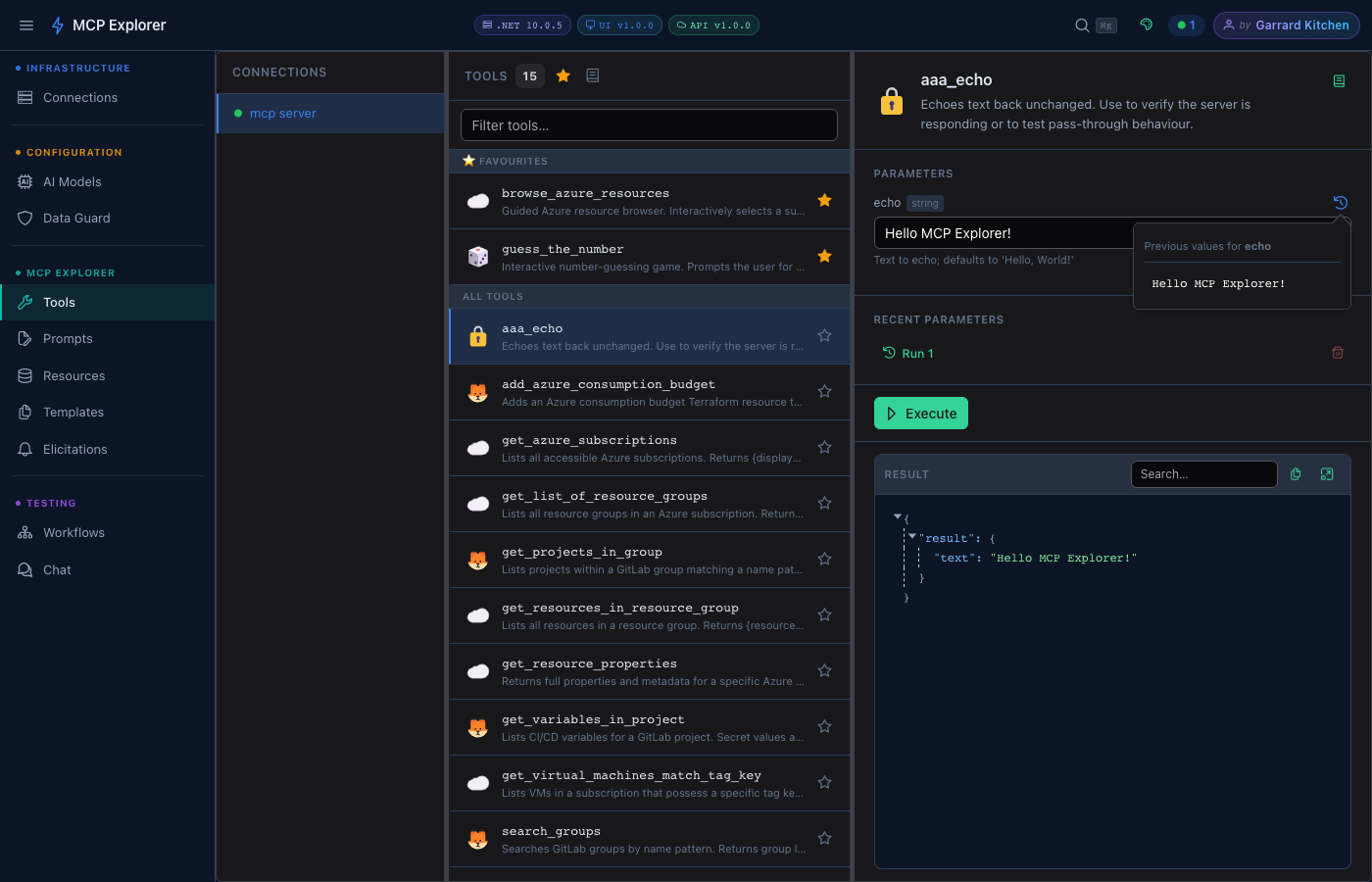
Pick the command for your OS, run it in a terminal, then open http://localhost:8091:
macOS
dataRoot="$HOME/Library/Application Support/McpExplorerX-docker"
mkdir -p "${dataRoot}"

docker run --rm -it \
  -p 8091:8080 \
  -v "${dataRoot}:/root/.local/share/McpExplorer" \
  -v ~/.azure:/root/.azure \
  -e AZURE_CONFIG_DIR=/root/.azure \
  -e HOST_AZURE_CONFIG_DIR=${HOME}/.azure \
  -e PREFERENCES__StoragePath=/data/settings.json \
  -e ASPNETCORE_ENVIRONMENT=Production \
  garrardkitchen/mcp-explorer-x:latest
Linux
dataRoot="$HOME/.config/McpExplorerX-docker"
mkdir -p "${dataRoot}"

docker run --rm -it \
  -p 8091:8080 \
  -v "${dataRoot}:/root/.local/share/McpExplorer" \
  -v ~/.azure:/root/.azure \
  -e AZURE_CONFIG_DIR=/root/.azure \
  -e HOST_AZURE_CONFIG_DIR=${HOME}/.azure \
  -e PREFERENCES__StoragePath=/data/settings.json \
  -e ASPNETCORE_ENVIRONMENT=Production \
  garrardkitchen/mcp-explorer-x:latest
Windows (PowerShell)
$dataRoot="$HOME\AppData\Local\McpExplorerX-docker"
New-Item -ItemType Directory -Force -Path $dataRoot | Out-Null

docker run --rm -it `
  -p 8091:8080 `
  -v "${dataRoot}:/root/.local/share/McpExplorer" `
  -v ~/.azure:/root/.azure `
  -e AZURE_CONFIG_DIR=/root/.azure `
  -e HOST_AZURE_CONFIG_DIR=${HOME}/.azure `
  -e PREFERENCES__StoragePath=/data/settings.json `
  -e ASPNETCORE_ENVIRONMENT=Production `
  garrardkitchen/mcp-explorer-x:latest
Once running, add this server as a connection using http://localhost:5168 (Streamable HTTP transport) and browse the available tools, resources, and prompts.
Note
For full setup options including Docker Compose, environment variable reference, and Azure credential mounting, see the MCP Explorer X quickstart docs.
If the project is missing a <UserSecretsId> then run this to setup user secrets for this project:
dotnet user-secrets init
GitLab PAT
dotnet user-secrets set "GitLab:Token" "<your-token-value>"GitLab Domain
dotnet user-secrets set "GitLab:Domain" "<your-domain-value>"