
Themed styles for PowerShell (5.1 and 7+) in Windows Terminal.
Install once, then run tstyles to switch — arrow keys preview each style
live in your current tab, Enter keeps it, Esc cancels.
umbrella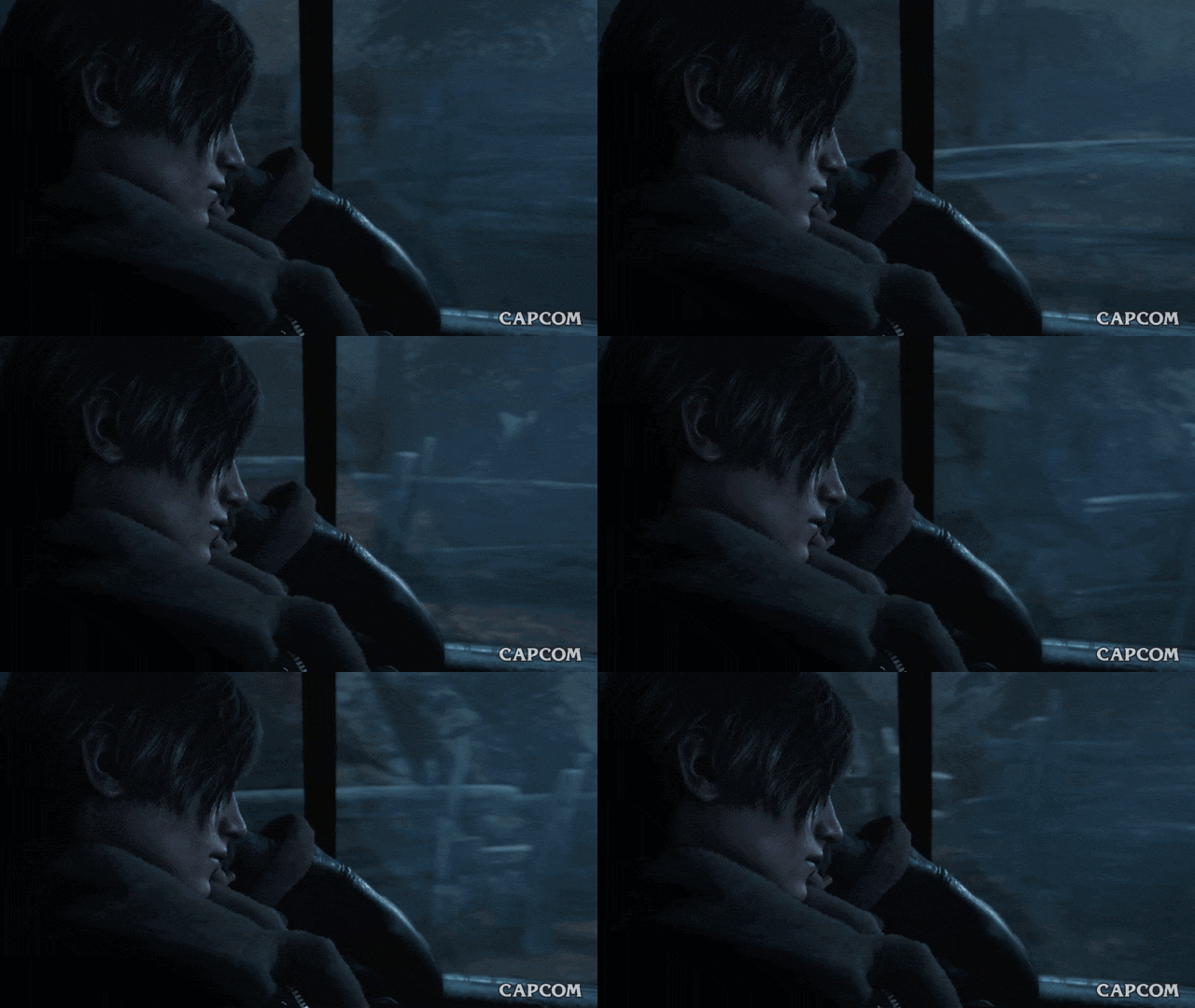 |
eva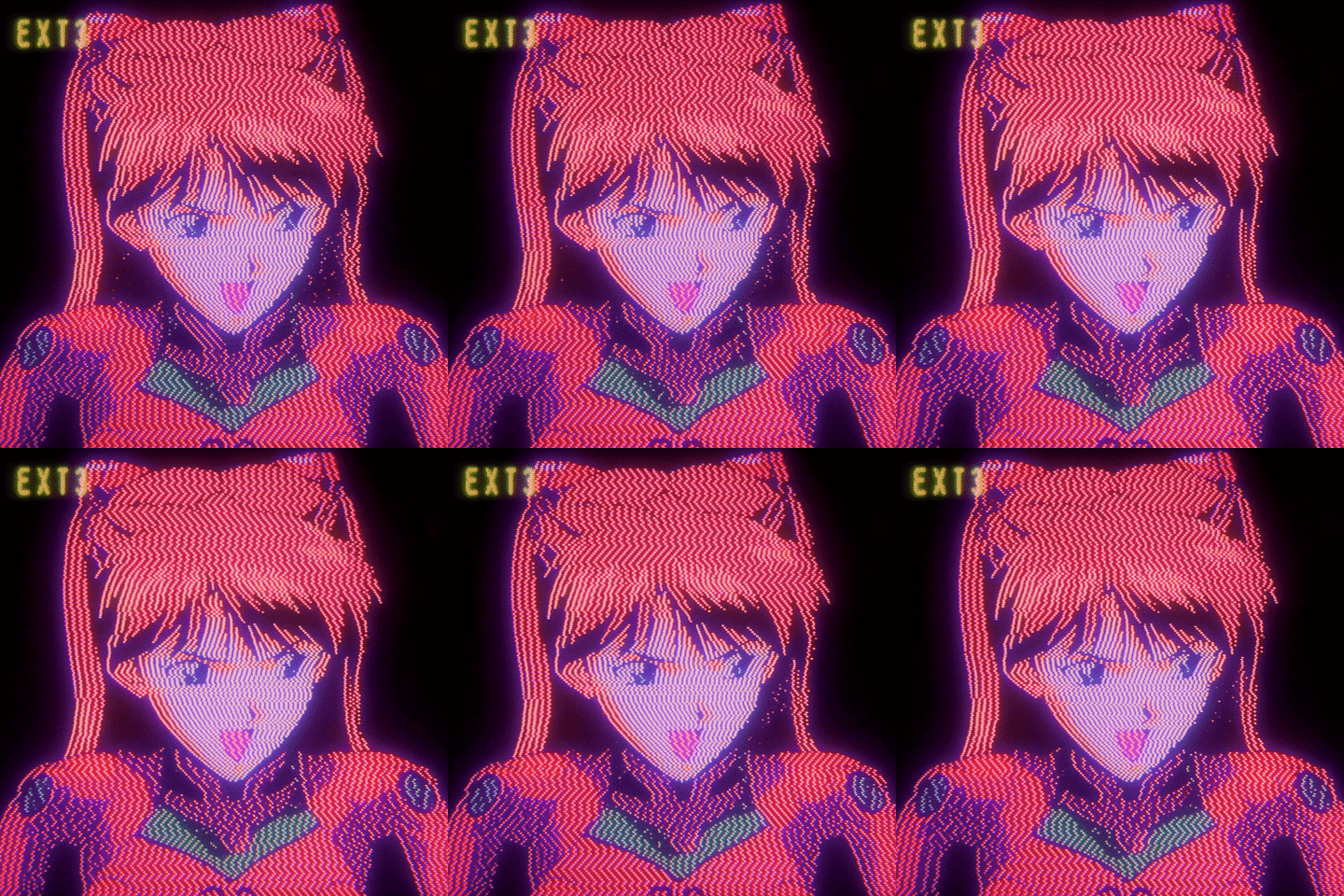 |
ex-machina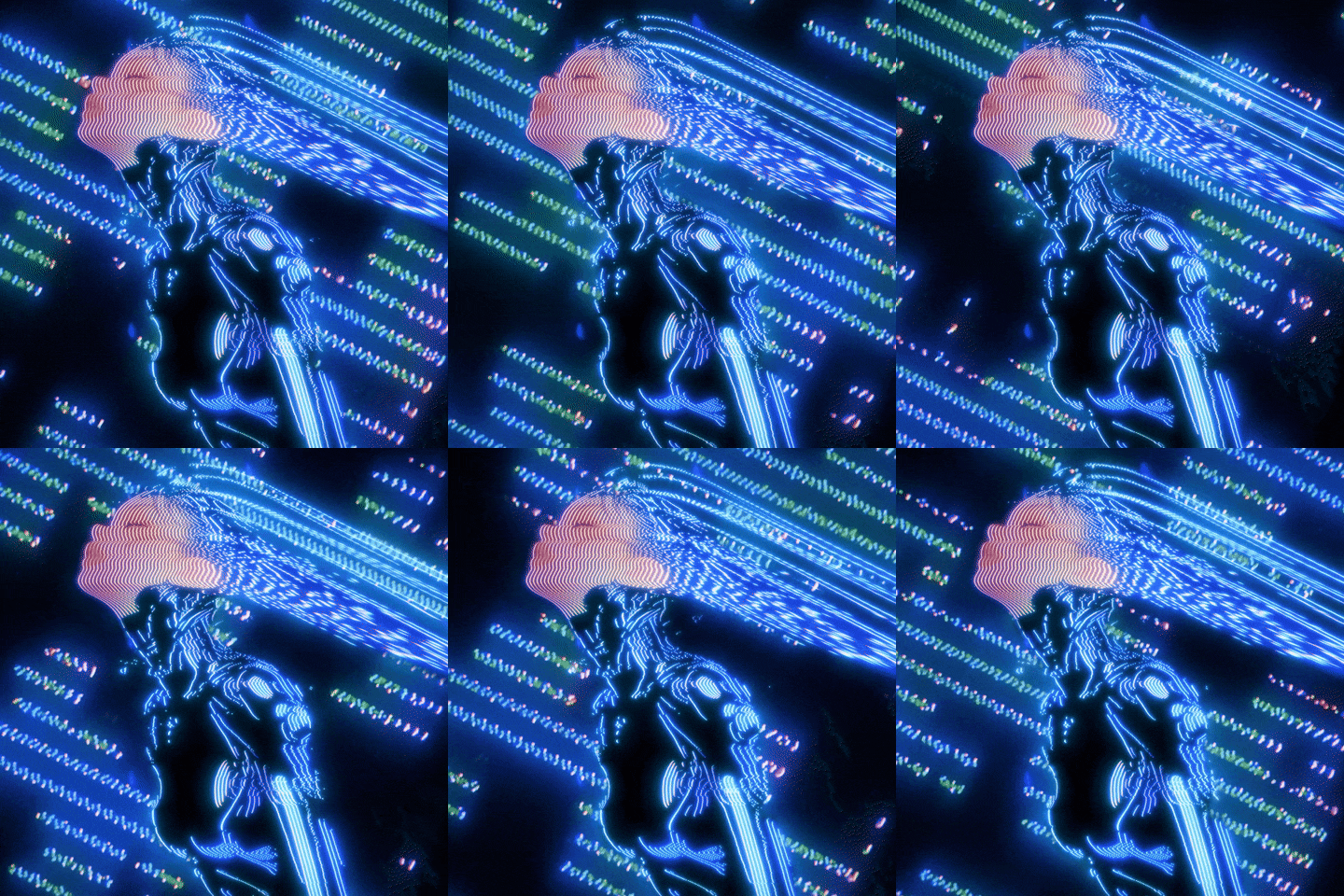 |
forest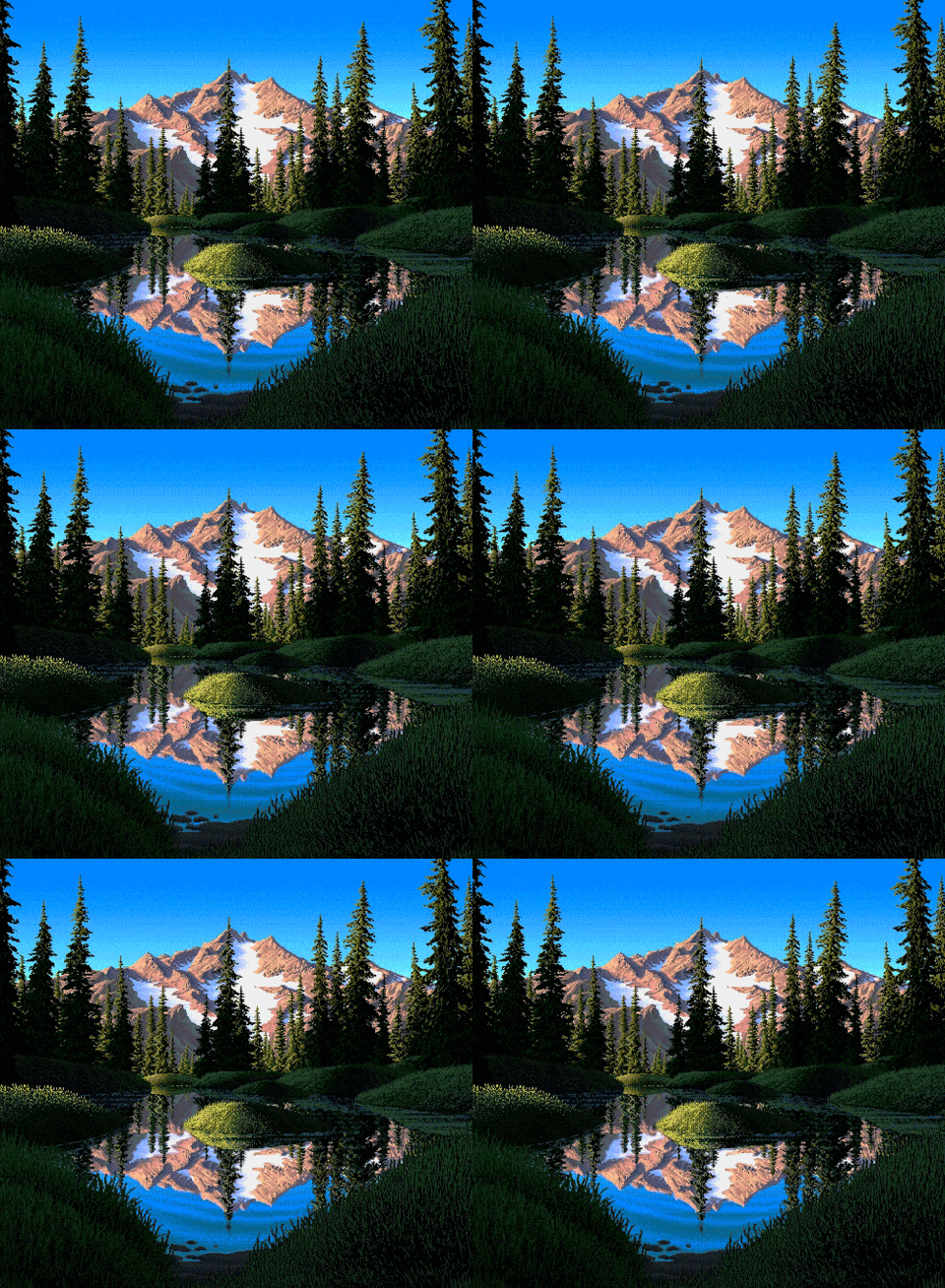 |
garden-rain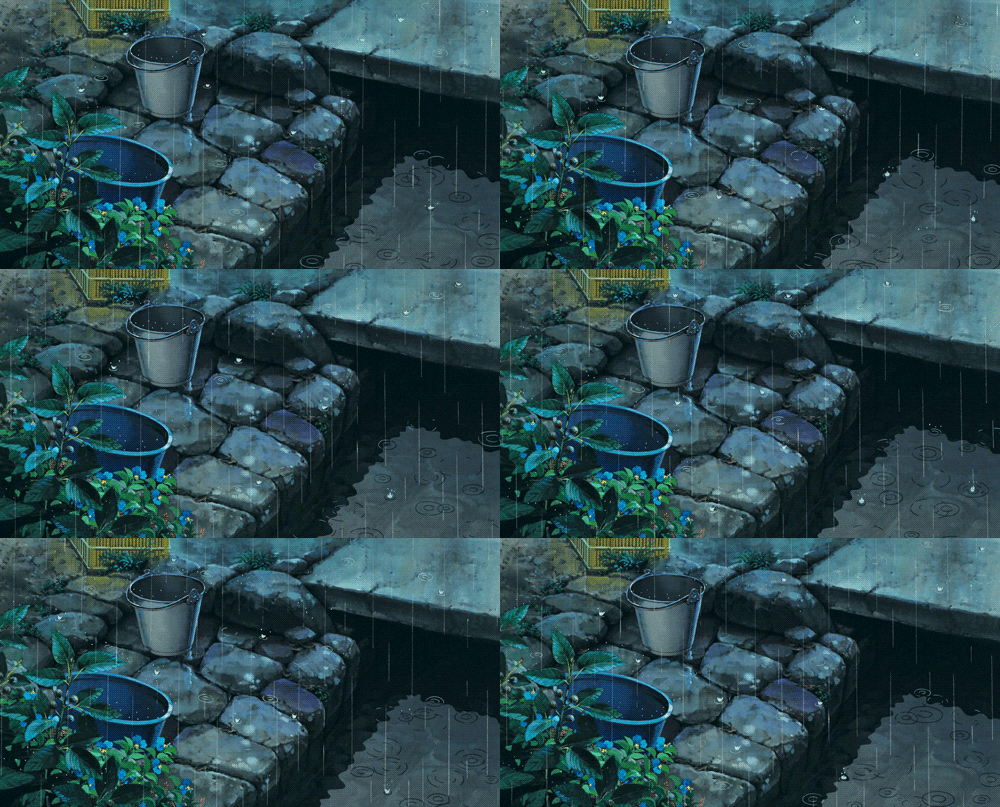 |
gitbash |
golden-forest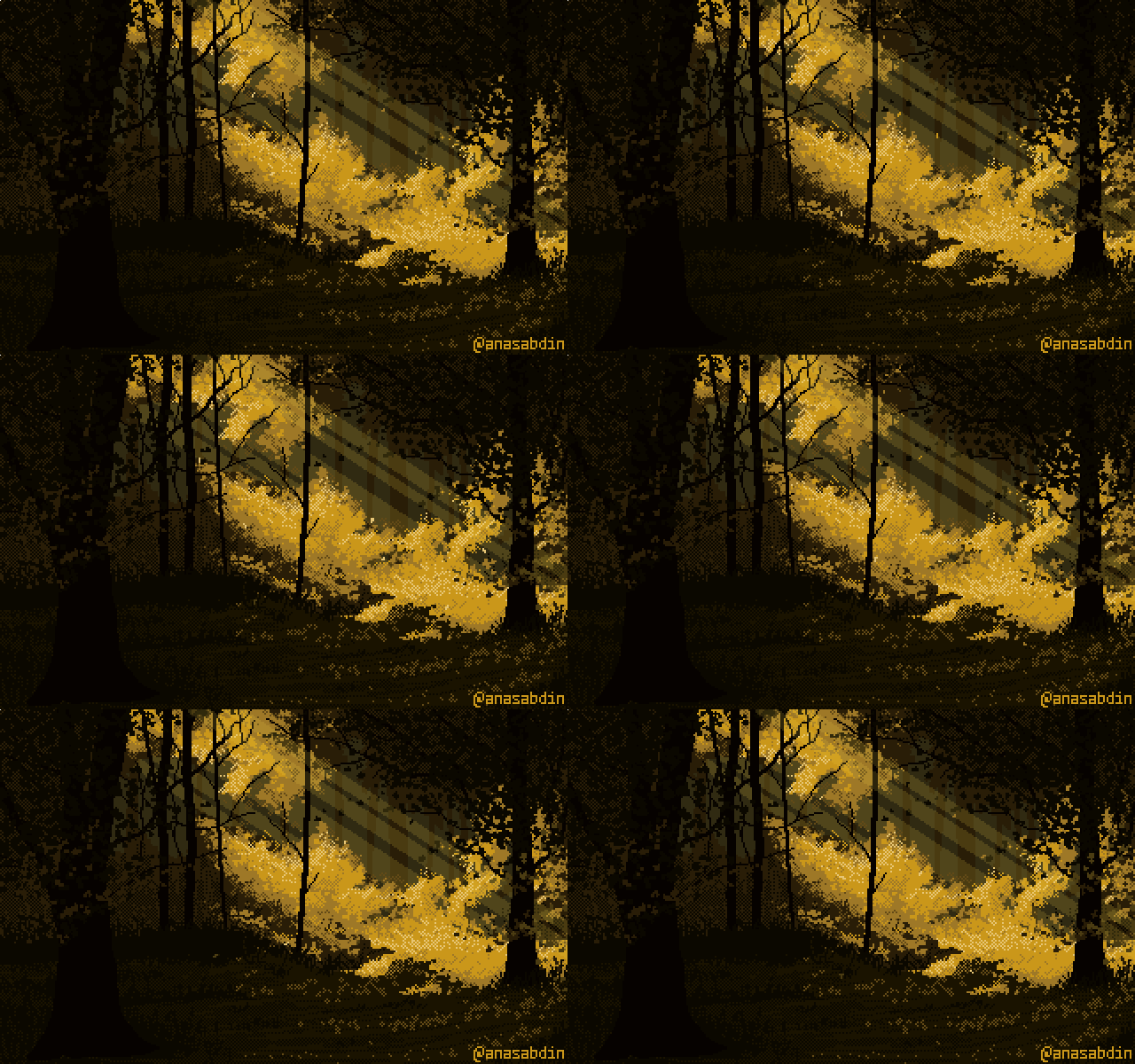 |
halo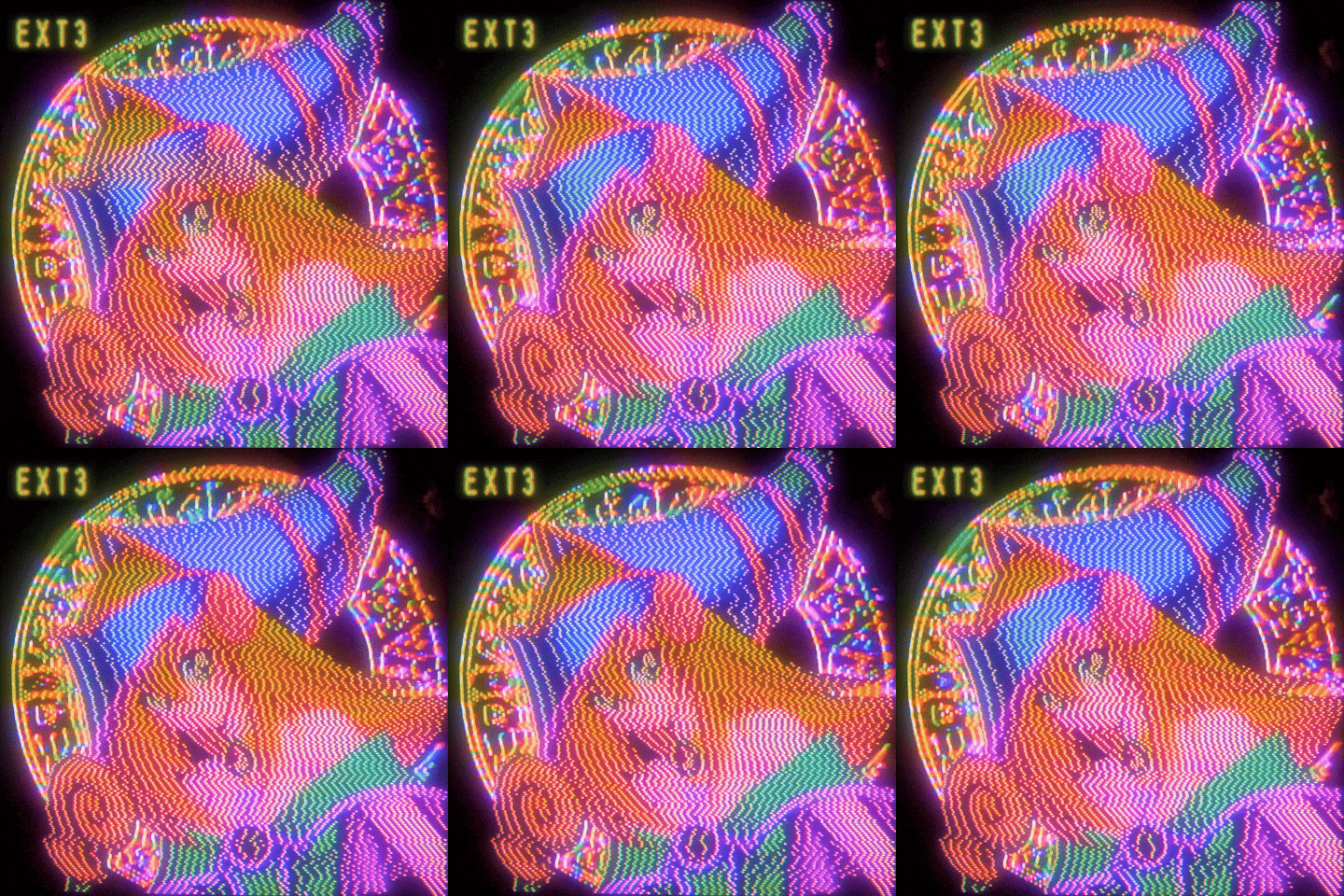 |
kitty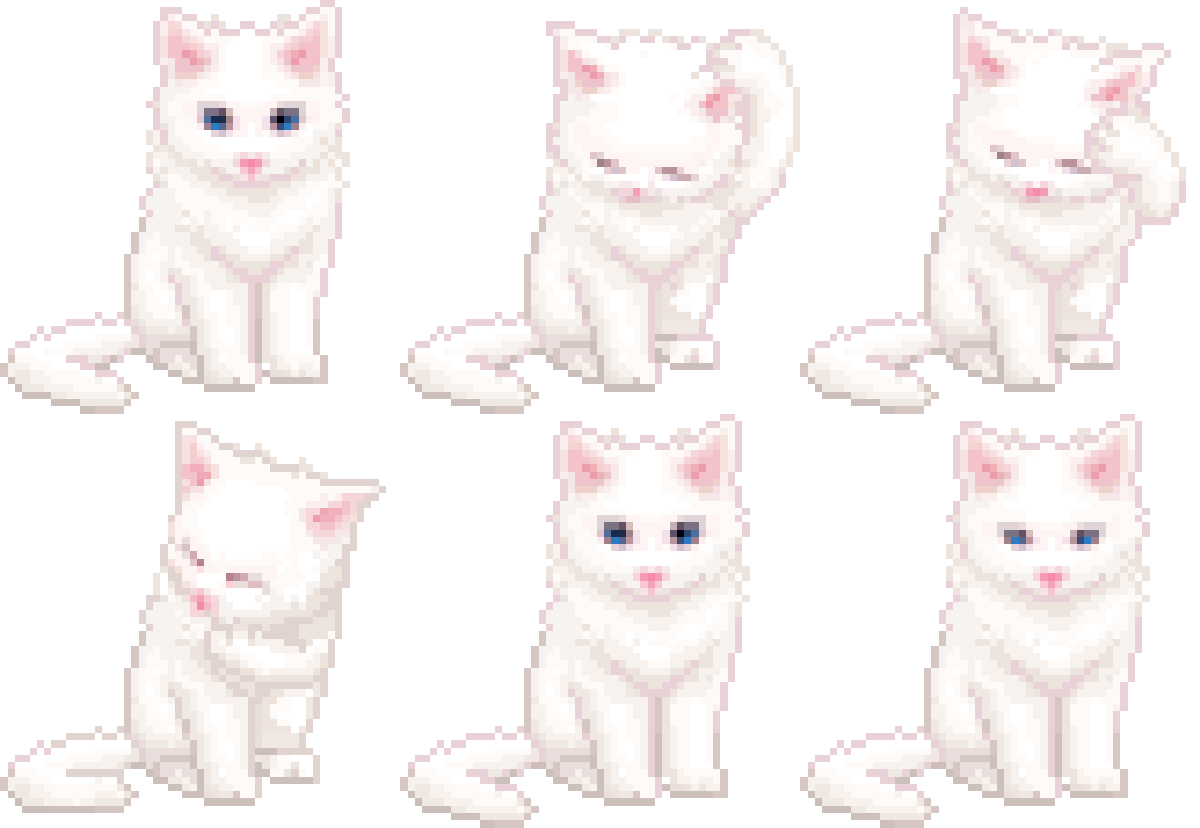 |
lain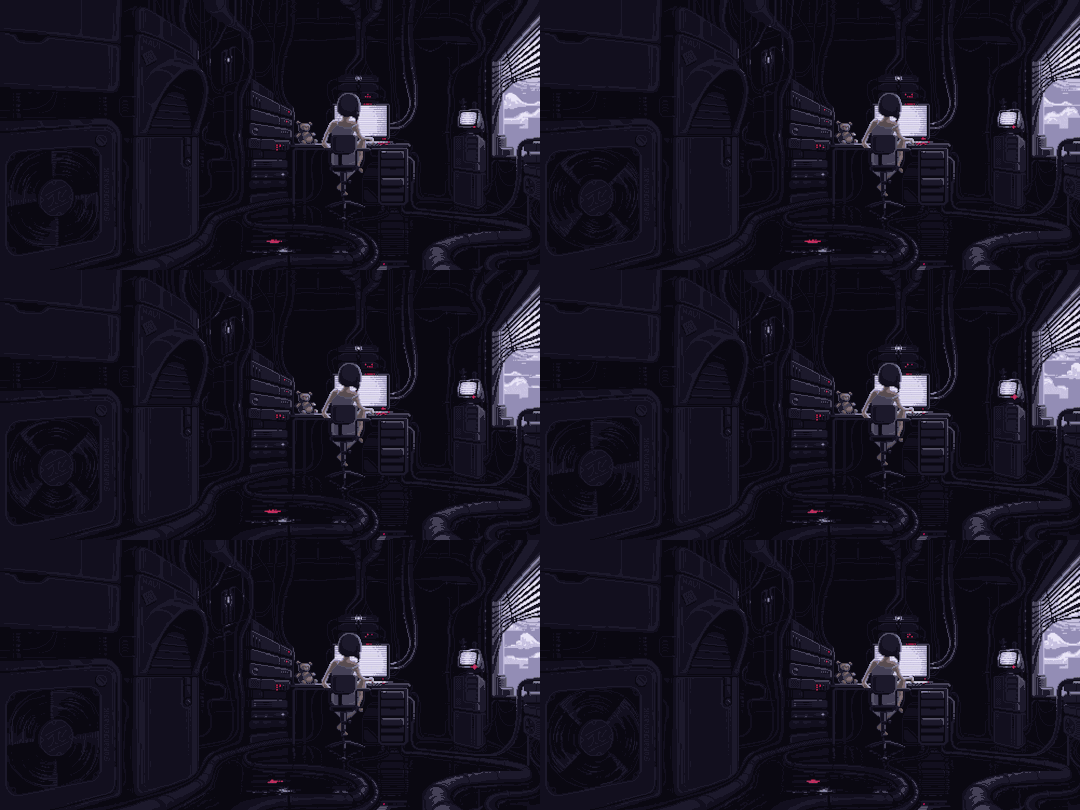 |
marquee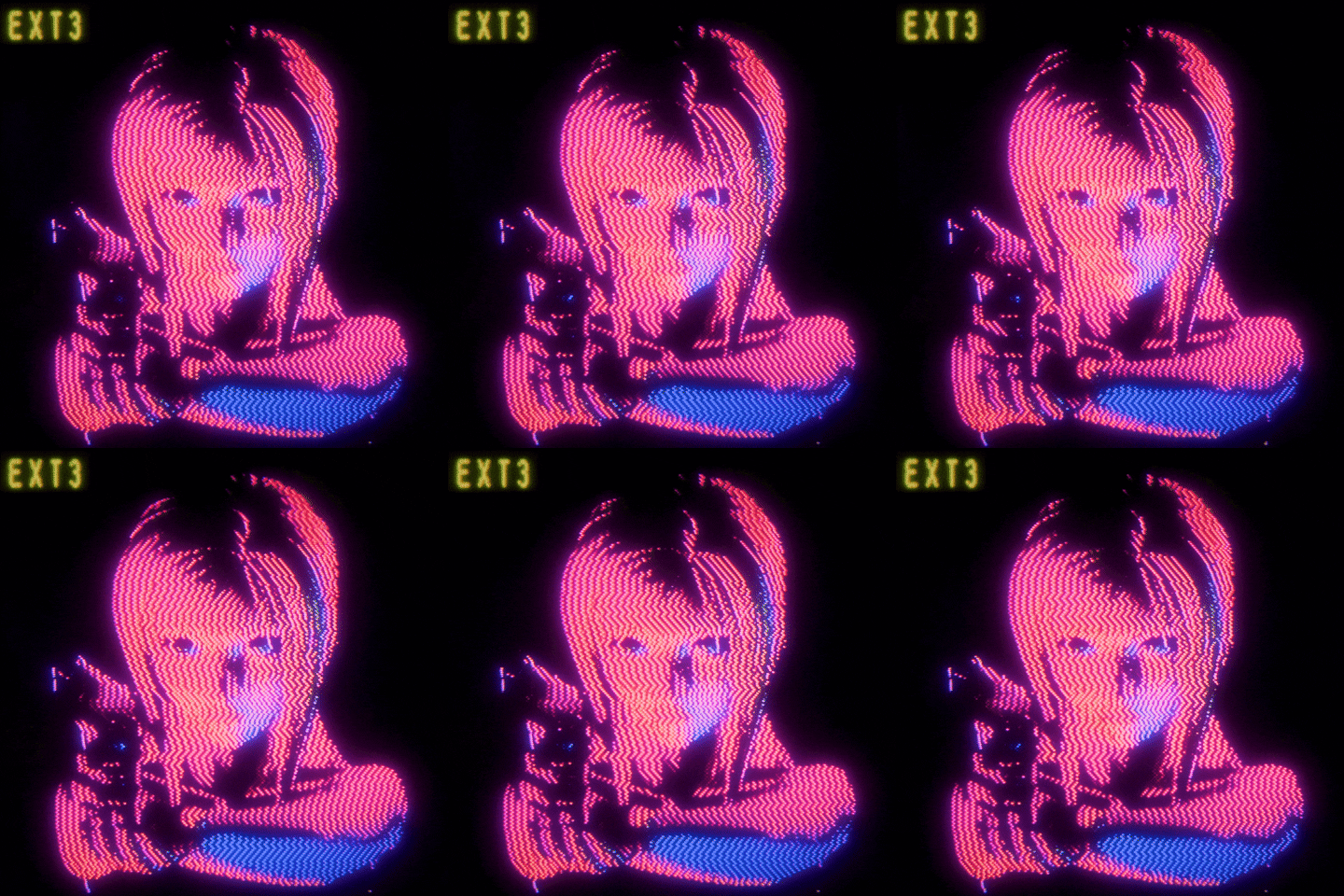 |
neon-rain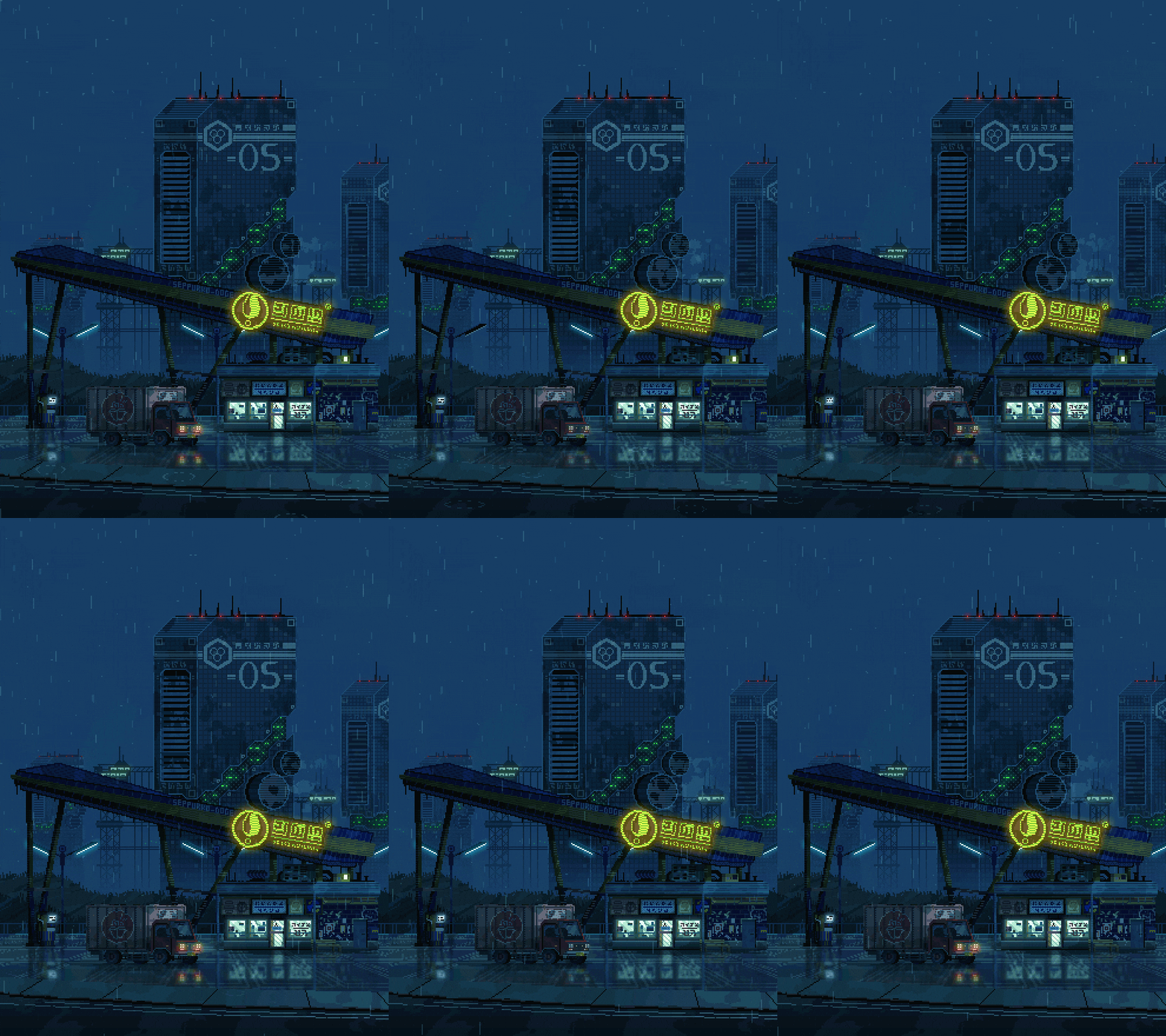 |
rain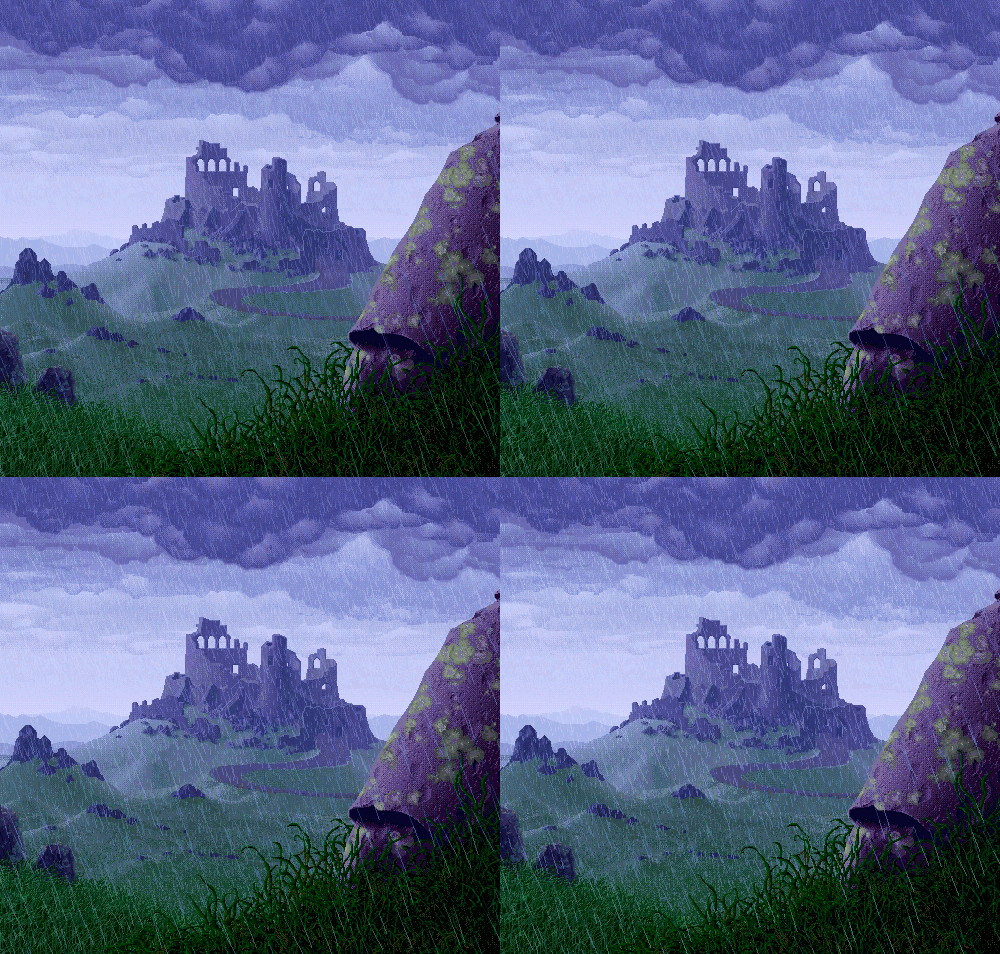 |
snowday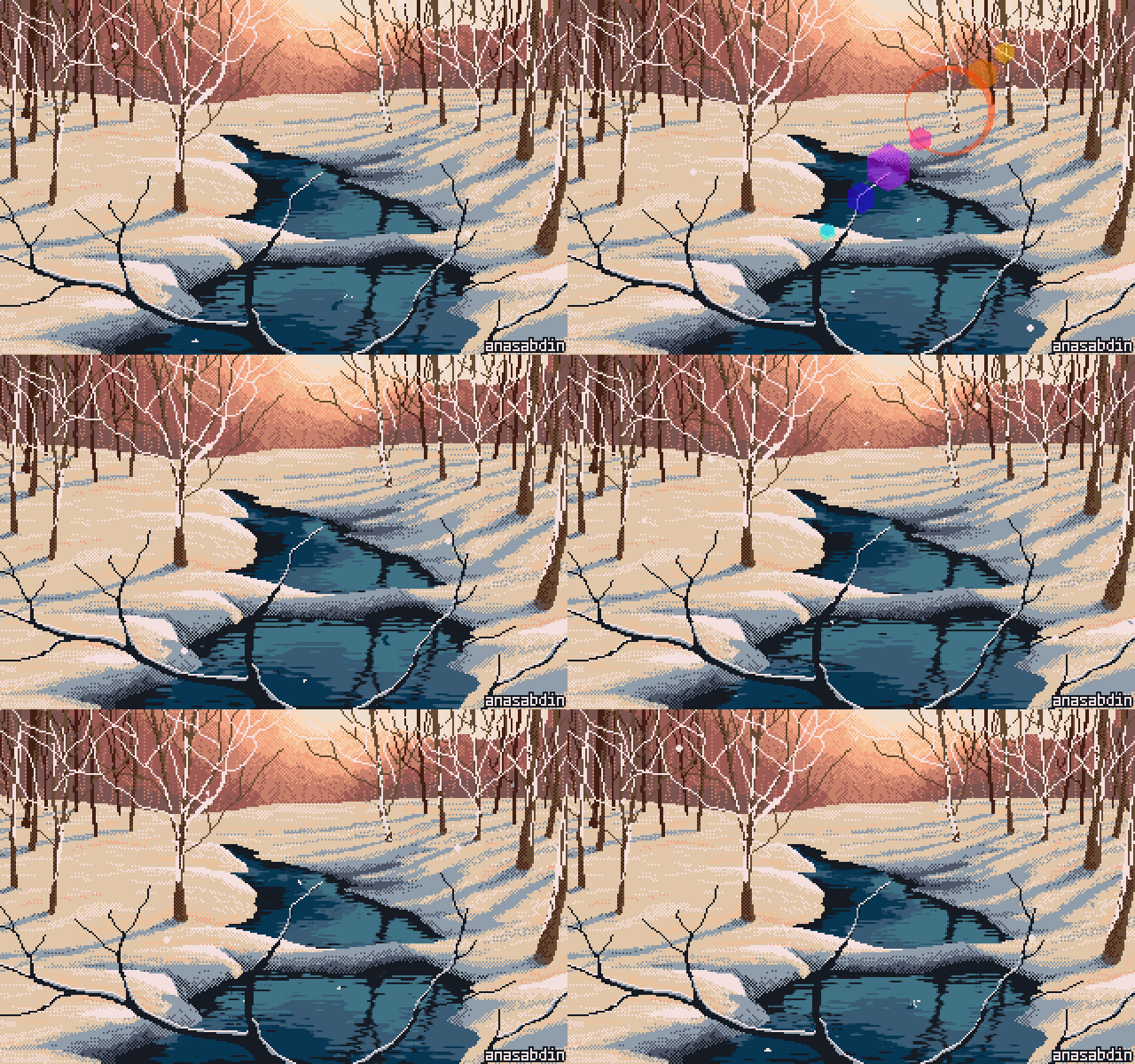 |
sober |
tombraider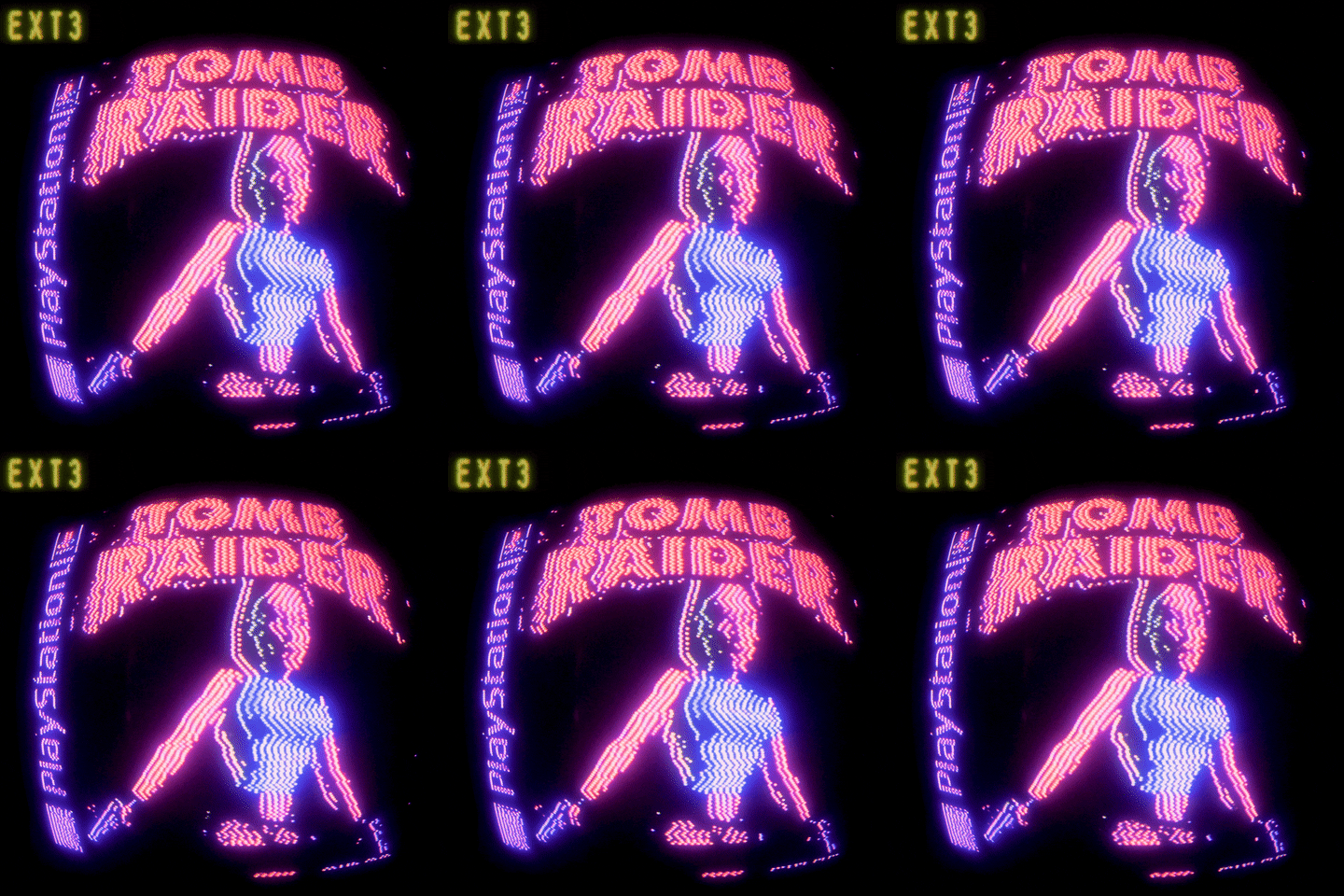 |
Install-PSResource -Name TerminalStyles
Import-Module TerminalStyles -DisableNameChecking
Add the Import-Module line to your $PROFILE so it loads on every
new shell tab — or run tstyles register once and it does that for
you (both pwsh 7 and Windows PowerShell 5.1 $PROFILE files, with a
confirm prompt first). Then:
tstylesArrow keys preview each style live, Enter keeps it, Esc cancels.
For setups without PSResourceGet
(rare on modern Windows; ships natively in pwsh 7.4+), use the
bootstrap one-liner installer instead. It also auto-registers the
loader in your $PROFILE:
iwr -useb https://raw.githubusercontent.com/fcreme/TerminalStyles/main/install.ps1 | iexThis downloads to %LOCALAPPDATA%\TerminalStyles\, registers a
loader for every PowerShell engine it finds, and offers to fix
restrictive execution policies if needed. Once it finishes, run
tstyles immediately in the same tab.
The bootstrap install and the PSGallery install can coexist —
whichever your $PROFILE loads wins; the other is orphaned silently.
PS C:\> tstylesArrow-key menu, with a 5-color swatch next to each style so you can see the palette before previewing:
  Choose a style for 'PowerShell'
  Up/Down to preview, Enter to keep, Esc to cancel

   > umbrella         ██████████
     eva              ██████████
     ex-machina       ██████████
     ...
As you arrow up/down, the terminal actually changes in real time — color
scheme, cursor, font, background GIF, opacity. Press Enter to keep
the highlighted style, Esc to revert to how things looked before
you ran tstyles.
tstyles umbrella                  # Apply a specific style directly (no picker)
tstyles list                      # List all themes; '*' marks the active one
tstyles current                   # Print just the active style name
tstyles random                    # Pick a random style and apply it
tstyles reset                     # Revert the active profile to its unstyled default
tstyles tune [name]               # Live-tune brightness/saturation/opacity/font; save as a style
tstyles register                  # Auto-add `Import-Module TerminalStyles ...` to both $PROFILE files
tstyles update                    # PSGallery: Update-PSResource. Bootstrap: re-run installer.
tstyles uninstall                 # Remove module + strip $PROFILE loader. Preserves user state.
tstyles uninstall -DeleteData     # As above, plus delete %LOCALAPPDATA%\TerminalStyles\ entirely.
tstyles help [command]            # Show all commands, or details for one
Tab completion works on the subcommand and style names:
tstyles u<TAB> cycles umbrella, uninstall, update.
tstyles tune            # tune the active style
tstyles tune eva        # tune a specific style
Opens a live editor with arrow-key sliders for brightness, saturation, opacity, font face, and font size. Up/Down selects a knob, Left/Right adjusts it, R resets colors, Enter saves, Esc reverts. Colors retint instantly; opacity/font follow a beat later (one Windows Terminal reload).
The font face knob cycles every monospace font installed on your machine (curated favorites first), so your own coding fonts show up automatically.
On save you choose Overwrite (shadows the theme you tuned) or Save
as a new name. The result lands in your user-styles dir as a full style
— so it shows up in tstyles list, the picker, and tab-completion, and
survives updates. It inherits the base theme's background, and a small
tune.json remembers your adjustments so tstyles tune <name> resumes
where you left off.
Applying a style normally also sets that style's prompt and banner. If you run
a prompt engine like Oh My Posh or Starship, add -KeepPrompt to get
the style's colors, cursor, font, and background without touching your
prompt:
tstyles eva -KeepPrompt # eva's look; your prompt staysThe scriptable apply.ps1 accepts the same flag (apply.ps1 -KeepPrompt,
with -NoProfile kept as an alias). Note: a -KeepPrompt apply isn't reported
by tstyles current / the * in tstyles list, because active-style detection
is prompt-based.
To undo theming and return a profile to Windows Terminal's plain default:
tstyles reset                  # the active profile
tstyles reset -Target 'Ubuntu' # a specific profile
This strips the colors, cursor, font, opacity, and background a style added,
removes the now-unused color scheme, and restores your own prompt (open a new
tab to see it). It's the inverse of applying a style, and writes a
settings.json.bak first. Fields you set on the profile by hand are left alone.
Sixteen themes ship out of the box. Click any name to jump to that style's folder for full palette / prompt / theme.json details.

Resident-Evil / survival-horror. Blood-red brackets, bone-white text, three-line classified-doc prompt with a startup banner. "Welcome to Umbrella Corporation. Status: FINE."

Evangelion / Asuka body-scan. Coral-red CRT palette with mustard yellow status overlay. NERV operations banner. "Anta baka?"

Ava body-scan / Bluebook research. Cold electric cyan wireframe with a coral pink accent. "You've been programmed and fed by another. Are you bothered?"

Quiet alpine wilderness. Pixel-art mountain vista — snow-tipped peaks at golden hour, deep evergreen forest, mirror lake. Cool blue-green base, peach accents. No banner — gentle for long sessions.

Ghibli-style garden rainfall. Wet stone steps, a metal bucket and a blue plastic one catching rainwater, leafy plants with blue flowers. Cool slate-blue base, plant-green cursor, no banner.

Git Bash / MinTTY recreation. White background, near-black text, bar cursor, the classic multi-color prompt with live git-branch detection. The only light-mode theme in the catalog.

Warm sepia autumn. Amber and moss palette over deep dark green. Quiet — no banner, gentle for long sessions.

EXT3-series LED halo portrait. Third in the EXT3 dot-matrix series alongside tombraider and marquee. Psychedelic multi-color portrait inside a circular halo ring — coral primary, gold EXT3 label, blue and lavender accents. Right-aligned on pure black, vintage CRT cursor. "Look up. Look closer."

Soft pastel CRT. Pink, lavender, mint pastels. Retro / vintage cursor, acrylic. The most playful theme in the set.

Serial Experiments Lain. Lain at her Navi — tangled cables, faint red status lights, the teddy bear. Deep blackish base, lavender-pink monitor glow, vintage CRT cursor. "Present day, present time. Hahaha."

EXT3-series LED marquee. Hot magenta dot-matrix portrait, blue arm accents, gold EXT3 label. Pure black canvas, right-aligned image so text sits on the left half. Sister piece to tombraider. "Through the glass, after hours."

Cyberpunk rainy night. District-05 corporate tower, neon yellow sign, matrix-green displays, lone delivery truck under steady rain. Deep blue base, neon yellow cursor, matrix-green status accents. "The neon never sleeps."

Contemplative highland-storm. Slate-purple stormy sky, moss-yellow accents, rust for the lone cloaked traveler. Field-journal banner. "Still no sign of the others."

Quiet winter sunset. Pixel-art creek through a snow-dusted birch grove, peach-coral light through bare branches, soft dusty mountain in the distance. Deep dusk-blue base, sunset peach cursor, no banner.

Minimalist monochrome. Grayscale with one subtle teal accent, no banner, single-line prompt. The opposite of umbrella's drama.

90s arcade marquee. LED-pixel TOMB RAIDER sign in hot neon magenta with Lara's silhouette, gold EXT3 label, cyan highlights. Pure black base, neon magenta cursor, vintage CRT cursor. "Press start."
Screenshots are generated by scripts/capture-screenshots.ps1 (see
Adding your own style below). If they're missing or out of date, run
that script from inside Windows Terminal and commit the output.
Each bundled style has its own animated background, hosted on the
gifs branch of
this repo. tstyles lazy-fetches each one on first use of the style and
caches it under %LOCALAPPDATA%\TerminalStyles\styles\<name>\, so the
install ZIP stays small (~100 KB instead of ~10 MB). Picking a style
auto-applies the image — arrow keys cycle the background live alongside
the colors / cursor / font.
To override the bundled image with your own:
tstyles -BackgroundImage "C:\Users\me\Pictures\moody.gif"To disable backgrounds for this style:
tstyles -BackgroundImage ""Styles without a bundled image leave your existing background untouched
unless you pass -BackgroundImage.
- Windows 10 / 11
- Windows Terminal (live preview only shows up here — VS Code's integrated terminal etc. won't reflect the changes)
- Either Windows PowerShell 5.1 (ships with Windows) or
PowerShell 7+ (
pwsh). Both engines work. - For the PSGallery install path (
Install-PSResource), PowerShell 7.4+ ships PSResourceGet natively. Older shells can use the bootstrapiwr | iexone-liner instead — it auto-registers a loader in every PowerShell engine it finds.
If you see UnauthorizedAccess / "ejecución de scripts deshabilitada"
on shell startup, your CurrentUser execution policy is Restricted.
The installer asks to fix this for you. To do it manually:
Set-ExecutionPolicy -Scope CurrentUser RemoteSigned(GPO-locked machine policy can override CurrentUser. If the install
shows that, ask your admin or run an elevated Set-ExecutionPolicy at
LocalMachine scope.)
For dotfiles managers, CI, or anything that needs a one-shot apply (no menu), there's a direct script:
pwsh -File "$env:LOCALAPPDATA\TerminalStyles\apply.ps1" -Style umbrella -Target "PowerShell" -BackgroundImage "C:\img.gif"apply.ps1 is the same logic as the interactive picker but driven
entirely by flags. It writes a timestamped settings.json.bak-<timestamp>
(and a $PROFILE.bak-<timestamp> when overwriting one) before applying,
keeping a full audit trail of every run. See apply.ps1 -? for the
full parameter list.
tstyles <name> and tstyles random write a rolling backup to
settings.json.bak (no timestamp — overwritten on each direct apply)
in the same directory as settings.json before each change. To restore
the last-known-good state:
$wt = "$env:LOCALAPPDATA\Packages\Microsoft.WindowsTerminal_8wekyb3d8bbwe\LocalState\settings.json"
Copy-Item "$wt.bak" $wt -Force
The picker (tstyles with no arg) doesn't write a .bak — pressing
Esc reverts in-memory to the exact prior bytes. If you need a full
history of changes (rather than just "undo the most recent direct
apply"), use apply.ps1 instead — it keeps timestamped backups per run.
tstyles updatetstyles update detects how the module was installed and delegates:
- PSGallery (
Install-PSResource) → runsUpdate-PSResource -Name TerminalStyles. - Bootstrap (
iwr | iex) → re-runs the bootstrap one-liner.
After update, open a new tab (or run Import-Module TerminalStyles -Force -DisableNameChecking) for the new version to take effect.
For bootstrap installs only, tstyles issues at most one
unauthenticated HTTP GET per 24 hours per machine to
api.github.com/repos/fcreme/TerminalStyles/commits/main (capped at
2 seconds), comparing the returned commit SHA against the one
recorded at install time in
%LOCALAPPDATA%\TerminalStyles\.installed-sha. The 24h throttle is
tracked in %LOCALAPPDATA%\TerminalStyles\.last-update-check and
applies even on failure. No authentication, no payload sent, no
analytics.
PSGallery-installed copies skip this check entirely — Update-PSResource
handles version comparison internally when you run tstyles update.
tstyles uninstalltstyles uninstall detects how the module was installed and delegates:
- PSGallery → runs
Uninstall-PSResource -Name TerminalStyles+ strips theImport-Moduleloader from your$PROFILE. - Bootstrap → removes the install-managed files from
%LOCALAPPDATA%\TerminalStyles\(script files, bundled styles) and strips the loader.
Either path preserves your user state by default — your active
style (current-style.ps1), update-check throttle, and cached
background images stay at %LOCALAPPDATA%\TerminalStyles\. You can
reinstall (either path) and pick up where you left off.
To also remove the user state, pass -DeleteData:
tstyles uninstall -DeleteDataNeither path modifies Windows Terminal's settings.json — your
current color scheme / cursor / background stays whatever it was
last set to.
If you want a clean default look back, either restore a
settings.json.bak-<timestamp> file from
%LOCALAPPDATA%\Packages\Microsoft.WindowsTerminal_8wekyb3d8bbwe\LocalState\,
or open WT Settings → "Open JSON file" and edit by hand.
Drop a folder into %LOCALAPPDATA%\TerminalStyles\styles\<name>\
with:
<name>/
├── scheme.json        # Windows Terminal color scheme (required)
├── theme.json         # profile-level overrides (optional)
├── profile.ps1        # custom pwsh $PROFILE (optional)
├── background.gif     # default background image (optional, .png/.jpg also accepted)
└── README.md          # description (optional)
tstyles picks it up automatically on next module load — no
registration needed. The dir is the same regardless of install path
(bootstrap or PSGallery), and folders here survive updates: both
tstyles update (bootstrap re-install) and Update-PSResource
leave %LOCALAPPDATA%\TerminalStyles\ untouched.
If you drop in a folder with the same name as a bundled theme (e.g.
eva/), your version wins — useful for tweaking a bundled theme's
prompt or palette without forking the repo.
For contributing back:
- Fork the repo, add the code-only folder (scheme.json / theme.json /
profile.ps1 / README.md — no background) under
styles/<name>/onmain, and open a PR. - If your theme ships a background, also switch to the
gifsbranch and drop the file at the root as<name>.<ext>(flat naming, no subfolder).mainstays code-only;tstyleslazy-fetches the background on first use of your style.
- scheme.json must contain a unique
name. See Microsoft's docs. - theme.json uses the literal string
"{{BACKGROUND_IMAGE}}"for the background image field;tstylessubstitutes the bundledbackground.*(or the user's-BackgroundImageflag if passed) and strips the field if neither is available. - profile.ps1 is copied to
current-style.ps1on apply and dot-sourced from$PROFILEon shell startup. - background.gif / .png / .jpg / .jpeg is auto-applied when the style
is selected. Priority order if multiple exist:
.gif > .png > .jpg > .jpeg. Only contribute images you have the right to redistribute.
After adding a new style, regenerate the screenshot gallery so your theme shows up in the README:
# Must be run from inside a Windows Terminal tab
pwsh -File .\scripts\capture-screenshots.ps1
git add docs/screenshots/
git commit -m "Refresh theme screenshots"
capture-screenshots.ps1 iterates every installed theme, applies it,
takes one PNG of the WT window, then restores your original theme.
- One
$PROFILEper host. Confirming a style with a custom prompt replacescurrent-style.ps1. Switching styles changes the prompt globally — there's no per-tab prompt configuration. - Preview carryover for bundle-less styles. Arrow-keying from a style
with a bundled
background.*onto a style without one leaves the previous GIF visible (the bundle-less path doesn't touch background fields). Pass-BackgroundImage ""to clear, or just confirm the selection. - Repo size grows with styles. Bundled GIFs are committed binaries; contributors should keep each under ~2 MB and only submit images they have the right to redistribute.
- Windows-Terminal-only styling. A style's colors, cursor, font, and
background apply through Windows Terminal's
settings.json, which other hosts (VS Code, Visual Studio, conhost) don't read. To avoid a half-themed look there, the style's prompt/banner (profile.ps1) is loaded only in Windows Terminal — non-WT hosts stay plain by design. The module's commands still work everywhere; the picker also warns when run outside Windows Terminal. - JSON reformatting. Each apply reformats
settings.jsoncosmetically (PowerShell'sConvertTo-Jsonstyle). Functionally identical; Windows Terminal rewrites the file on its next save anyway. - User state lives at
%LOCALAPPDATA%\TerminalStyles\regardless of install method. This dir holds your active style, cached background images, and the update-check throttle. It survives uninstall (unless you pass-DeleteData) and version upgrades. - Bootstrap + PSGallery installs can coexist. If you've run both,
whichever your
$PROFILEloads first wins; the other is orphaned silently. To clean up:tstyles uninstallremoves whichever is currently loaded; run it twice (switching shells between runs if needed) to clean both.
MIT — see LICENSE.