Overlays suck, but if you need one, consider using Parvus. Parvus is an open source, dependency free image lightbox with the goal of being accessible.
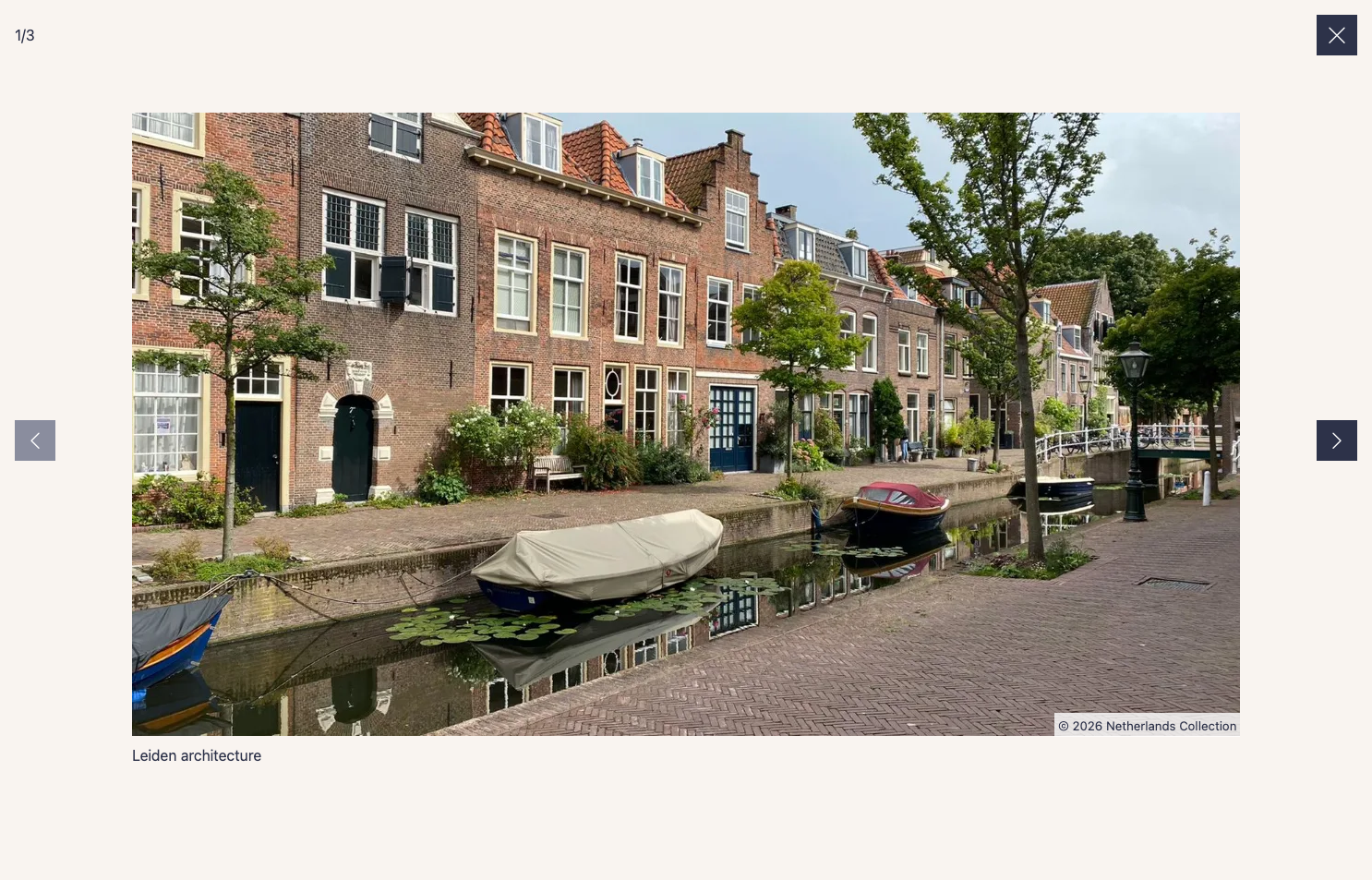
- CSS:
dist/css/parvus.min.css(minified) ordist/css/parvus.css(un-minified)
- JavaScript:
dist/js/parvus.min.js(minified) ordist/js/parvus.js(un-minified)
Link the .css and .js files in your HTML:
<!DOCTYPE html>
<html lang="en">
<head>
  <meta charset="UTF-8">
  <meta name="viewport" content="width=device-width, initial-scale=1">
  <title>Page title</title>

  <!-- CSS -->
  <link href="path/to/parvus.min.css" rel="stylesheet">
</head>
<body>
  <!-- HTML content -->

  <!-- JS -->
  <script src="path/to/parvus.min.js"></script>
</body>
</html>You can also install Parvus using npm or yarn:
npm install parvusor
yarn add parvusAfter installation, import Parvus into your JavaScript codebase:
import Parvus from 'parvus'Be sure to include the corresponding SCSS or CSS file.
Link a thumbnail image with the class lightbox to a larger image:
<a href="path/to/image.jpg" class="lightbox">
  <img src="path/to/thumbnail.jpg" alt="">
</a>
Initialize the script:
const prvs = new Parvus()There are three ways to add a caption to an image:
You can add an ID to your caption element and reference it from the trigger element using the data-caption-id attribute.
<figure>
  <a href="path/to/image.jpg" class="lightbox" data-caption-id="caption-1">
    <img src="path/to/thumbnail.jpg" alt="">
  </a>

  <figcaption id="caption-1">
    I'm a caption, and I live outside the link.
  </figcaption>
</figure>You can add a data-caption attribute directly to the trigger element.
<a href="path/to/image.jpg" class="lightbox" data-caption="I'm a simple caption">
  <img src="path/to/thumbnail.jpg" alt="">
</a>Alternatively, set the option captionsSelector to select a caption from a child element's innerHTML.
<a href="path/to/image.jpg" class="lightbox">
  <figure class="figure">
    <img src="path/to/thumbnail.jpg" alt="">

    <figcaption class="figure__caption">
      I'm a caption inside a child element
    </figcaption>
  </figure>
</a>
const prvs = new Parvus({
captionsSelector: '.figure__caption',
})There are three ways to add copyright information to an image:
You can add an ID to your copyright element and reference it from the trigger element using the data-copyright-id attribute.
<a href="path/to/image.jpg" class="lightbox" data-copyright-id="copyright-1">
  <img src="path/to/thumbnail.jpg" alt="">
</a>

<small id="copyright-1" hidden>
  © 2026 Photographer Name
</small>You can add a data-copyright attribute directly to the trigger element.
<a href="path/to/image.jpg" class="lightbox" data-copyright="© 2026 Photographer Name">
  <img src="path/to/thumbnail.jpg" alt="">
</a>Alternatively, set the option copyrightSelector to select a copyright from a child element's innerHTML.
<a href="path/to/image.jpg" class="lightbox">
  <figure class="figure">
    <img src="path/to/thumbnail.jpg" alt="">

    <small class="figure__copyright">
      © 2026 Photographer Name
    </small>
  </figure>
</a>
const prvs = new Parvus({
copyrightSelector: '.figure__copyright',
})To group related images into a set, add a data-group attribute:
<a href="path/to/image.jpg" class="lightbox" data-group="Berlin">
  <img src="path/to/thumbnail.jpg" alt="">
</a>

<a href="path/to/image_2.jpg" class="lightbox" data-group="Berlin">
  <img src="path/to/thumbnail_2.jpg" alt="">
</a>

//...

<a href="path/to/image_8.jpg" class="lightbox" data-group="Kassel">
  <img src="path/to/thumbnail_8.jpg" alt="">
</a>
Alternatively, set the option gallerySelector to group all images with a specific class within a selector:
<div class="gallery">
  <a href="path/to/image.jpg" class="lightbox">
    <img src="path/to/thumbnail.jpg" alt="">
  </a>

  <a href="path/to/image_2.jpg" class="lightbox">
    <img src="path/to/thumbnail_2.jpg" alt="">
  </a>

  // ...
</div>
const prvs = new Parvus({
gallerySelector: '.gallery',
})Specify different image sources and sizes using the data-srcset and data-sizes attributes:
<a href="path/to/image.jpg" class="lightbox"

data-srcset="path/to/small.jpg 700w,
             path/to/medium.jpg 1000w,
             path/to/large.jpg 1200w"

data-sizes="(max-width: 75em) 100vw,
            75em"
>
  <img src="path/to/thumbnail.jpg" alt="">
</a>Import the language module and set it as an option for localization:
import de from 'parvus/src/l10n/de'

const prvs = new Parvus({
  l10n: de
})Customize Parvus by passing an options object when initializing:
const prvs = new Parvus({
  // Clicking outside does not close Parvus
  docClose: false
})
Available options include:
{
  // Selector for elements that trigger Parvus
  selector: '.lightbox',

  // Selector for a group of elements combined as a gallery, overrides the `data-group` attribute.
  gallerySelector: null,

  // Display zoom indicator
  zoomIndicator: true,

  // Display captions if available
  captions: true,

  // Selector for the element where the caption is displayed; use "self" for the `a` tag itself.
  captionsSelector: 'self',

  // Attribute to get the caption from
  captionsAttribute: 'data-caption',

  // Display copyright if available
  copyright: true,

  // Selector for the element where the copyright is displayed; use "self" for the `a` tag itself.
  copyrightSelector: 'self',

  // Attribute to get the copyright from
  copyrightAttribute: 'data-copyright',

  // Clicking outside closes Parvus
  docClose: true,

  // Close Parvus by swiping up/down
  swipeClose: true,

  // Accept mouse events like touch events (click and drag to change slides)
  simulateTouch: true,

  // Touch dragging threshold in pixels
  threshold: 100,

  // Hide browser scrollbar
  hideScrollbar: true,

  // Icons
  lightboxIndicatorIcon: '<svg xmlns="http://www.w3.org/2000/svg" viewBox="0 0 24 24" aria-hidden="true" focusable="false"><path d="M8 3H5a2 2 0 00-2 2v3m18 0V5a2 2 0 00-2-2h-3m0 18h3a2 2 0 002-2v-3M3 16v3a2 2 0 002 2h3"/></svg>',
  previousButtonIcon: '<svg xmlns="http://www.w3.org/2000/svg" viewBox="0 0 24 24" aria-hidden="true" focusable="false"><path stroke="none" d="M0 0h24v24H0z"/><polyline points="15 6 9 12 15 18" /></svg>',
  nextButtonIcon: '<svg xmlns="http://www.w3.org/2000/svg" viewBox="0 0 24 24" aria-hidden="true" focusable="false"><path stroke="none" d="M0 0h24v24H0z"/><polyline points="9 6 15 12 9 18" /></svg>',
  closeButtonIcon: '<svg xmlns="http://www.w3.org/2000/svg" viewBox="0 0 24 24" aria-hidden="true" focusable="false"><path d="M18 6L6 18M6 6l12 12"/></svg>',

  // Localization of strings
  l10n: en
}Parvus provides the following API functions:
| Function | Description |
|---|---|
open(element) |
Open the specified element (DOM element) |
close() |
Close Parvus |
previous() |
Show the previous image |
next() |
Show the next image |
select(index) |
Select a slide with the specified index (integer) |
add(element) |
Add the specified element (DOM element) |
remove(element) |
Remove the specified element (DOM element) |
destroy() |
Destroy Parvus |
isOpen() |
Check if Parvus is currently open |
currentIndex() |
Get the index of the currently displayed slide |
use(plugin, options) |
Register a plugin |
addHook(hookName, callback) |
Add a hook callback |
getPlugins() |
Get list of registered plugins |
Bind and unbind events using the .on() and .off() methods:
const prvs = new Parvus()

const listener = () => {
  console.log('eventName happened')
}

// Bind event listener
prvs.on(eventName, listener)

// Unbind event listener
prvs.off(eventName, listener)
Available events:
| eventName | Description |
|---|---|
open |
Triggered after Parvus has opened |
select |
Triggered when a slide is selected |
close |
Triggered after Parvus has closed |
destroy |
Triggered after Parvus has destroyed |
Parvus supports a plugin system that allows you to extend its functionality.
To use a plugin, call the .use() method after initialization:
import Parvus from 'parvus'
import MyPlugin from './my-plugin.js'

const prvs = new Parvus()

// Register plugin
prvs.use(MyPlugin, {
  // Plugin-specific options
  option1: 'value1',
  option2: 'value2'
})A plugin is an object with a name and an install function:
const MyPlugin = {
  name: 'MyPlugin',

  install(parvus, options = {}) {
    // Plugin initialization code
    console.log('Plugin installed with options: ', options)
  }
}

export default MyPluginPlugins can hook into various lifecycle events:
| Hook Name | When Triggered | Provided Data |
|---|---|---|
afterInit |
After lightbox DOM is created (once) | { state } |
afterOpen |
After lightbox opens | { element, state } |
afterClose |
After lightbox closes | { state } |
slideChange |
When slide changes | { index, oldIndex, state } |
Example using hooks:
const MyPlugin = {
  name: 'MyPlugin',

  install(parvus, options) {
    // Add a custom button on init
    parvus.addHook('afterInit', ({ state }) => {
      const btn = document.createElement('button')

      btn.classList.add('parvus__btn')
      btn.classList.add('parvus__btn--my-plugin')
      btn.textContent = 'Custom'
      btn.type = 'button'

      // Add to controls as first element
      if (state.controls) {
        state.controls.prepend(btn)
      }
    })

    // Track slide changes
    parvus.addHook('slideChange', ({ index, oldIndex }) => {
      console.log(`Changed from slide ${oldIndex} to ${index}`)
    })
  }
}Parvus is supported on the latest versions of the following browsers:
- Chrome
- Edge
- Firefox
- Safari