x42 Tipbot for Ubuntu
I explain an easy way and a hard way to add the x42 tipbot to discord, both have pros/cons at the end.
Have an admin of the server add the setup and configured x42 tipbot:
https://discord.com/api/oauth2/authorize?client_id=755172394548854824&permissions=2048&scope=bot
Note: I wrote this guide using Ubuntu 20.04.1 LTS It may or may not work on other distros.
-
Install the x42 wallet on your Desktop.
-
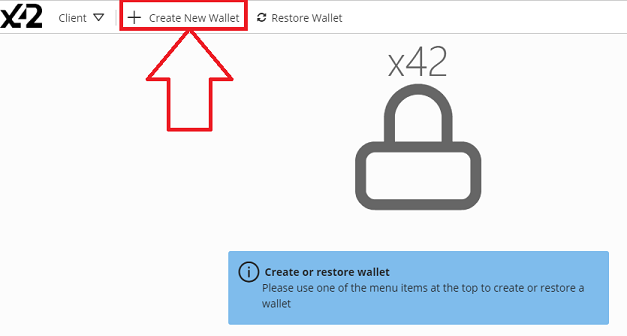
Create the wallet (And back it up) on your desktop
- Open xCore, and create your wallet.
- IMPORTANT: Write down your seed words and your recovery passphrase in more than one place, so that you can recover it later.
-
Install the x42 wallet/node on your Ubuntu installation
- Get latest xCore for your ubuntu by running the following command:
wget https://github.com/x42protocol/xCore/releases/download/v5.0.0-b21/xCore-v5.0.0-b21-linux-amd64.deb - Then this command: sudo dpkg -i xCore-v5.0.0-b21-linux-amd64.deb
- If error dpkg: dependency problems prevent configuration of xcore the run:
sudo apt-get install -f
- If error dpkg: dependency problems prevent configuration of xcore the run:
- Run the node in either a screen session or write a script to run the service.
- To run the node, use:
/opt/xCore/resources/daemon/x42.Node
- To run the node, use:
- Get latest xCore for your ubuntu by running the following command:
-
Install MSSQL Database
- Download and install MSSQL
- You need SQL Server AND SQL Server command-line tools (Guide to setup both in link above)
- The command line tools failed for Ubuntu 20, because you need to instead run
curl https://packages.microsoft.com/config/ubuntu/20.04/prod.list | sudo tee /etc/apt/sources.list.d/msprod.list - Then Run:
sudo apt-get updatebefore installing command line tools.
- The command line tools failed for Ubuntu 20, because you need to instead run
-
Copy wallet file or restore wallet to your Ubuntu installation.
-
Configure Staking:
- Open the config:
nano ~/.blockcore/x42/x42Main/x42.conf- Add the following three lines to your config:
- stake=1
- walletname=yourWalletName
- walletpassword=xxxxx
- Add the following three lines to your config:
- Stop your node if it is running, then start it again to apply the changes.
- To run the node, run command:
/opt/xCore/resources/daemon/x42.Node
- Open the config:
-
Setup your discord bot in the discord apps.
- Follow these steps here to guide you through the Discord Applications Portal. Discord instructions
-
Download and uncompress the tipbot.
- Run the command:
wget https://github.com/block-core/blockcore-tipbot/releases/download/0.0.4/Blockcore.TipBot-0.0.4-linux-x64.tar.gz - Create Directory by running:
mkdir tipbot - Then run:
tar -xzf Blockcore.TipBot-0.0.4-linux-x64.tar.gz -C tipbot
- Run the command:
-
Configure the tipbot.
- Open the config:
nano tipbot/appsettings.json - Replace with this:
- Open the config:
{
  "Logging": {
    "IncludeScopes": false,
    "LogLevel": {
      "Default": "Information",
      "System": "Information",
      "Microsoft": "Information"
    }
  },
  "TipBot": {
    "Discord": {
      "Enabled": true,
      "Token": "", // The applications token given to you from Discord: https://discord.com/developers/applications
      "SupportUsername": "", // Discord Username
      "SupportDiscriminator": "", // Discord Unique Number
      "SupportUserId": 0 // Discord Unique Identifier, can be used instead of Username/Discriminator combination.
    },
    "Twitch": {
      "Enabled": false,
      "ClientId": "", // Client ID for the Twitch API.
      "AccessToken": "", // Access Token for the Twitch API.
      "Username": "", // Username of the Twitch Bot (regular Twitch user account).
      "OAuth": "", // OAuth as alternative to password.
      "Channels": [ "" ] // List of Twitch channels to host the bot.
    },
    "Twitter": {
      "Enabled": false
    },
    "Reddit": {
      "Enabled": false
    },
    "TipsEnabled": false, // If you want to disable tips, set this to false. It is true by default.
    "Ticker": "x42", // The coin/token ticker for the current chain of the TipBot.
    "NetworkFee": "0.00000000", // The network fee for withdraws
    "ApiUrl": "http://localhost:42220/", // URL of API server. Usually http://127.0.0.1:<API port>/
    "UseSegwit": false, // Enable use of Segwit addresses or legacy.
    "BotOptionalPrefix": "", // The prefix that the bot triggers to and will use as username.
    "ConnectionString": "Server=localhost;Database=x42TipBot;Integrated Security=False;User Id=SA;Password=PutYourPasswordHere;MultipleActiveResultSets=True", // To configure the database
    "WalletName": "tipJar",
    "WalletPassword": "", // Wallet password.
    "WalletRecoveryPhrase": "", // OPTIONAL: Wallet recovery phrase (mnemonic).
    "MinConfirmationsForDeposit": 6, // Number of confirmations before balance is available for tipping.
    "PregeneratedAddressesCount": 8000,
    "MinWithdrawAmount": "0.1m",
    "MinQuizAmount": "0.1m",
    "MinMakeItRainTipAmount": "0.1m",
    "MinTipAmount": "0.001m",
    "MaxChartUsersCount": 3,
    "MaxDaysChartCount": 30,
    "EnableMigrations": true, // Specifies if bit should attempt to update the database on startup.
    "SelfDestructedMessagesDelaySeconds": 20 // Default time in which self destructed messages are deleted.
  }
}
- Run the tipbot.
-
IMPORTANT: Verify you are in the tibot directory before running the tipbot:
cd ./tipbot/ - Then run:
./Blockcore.TipBot --chain=X42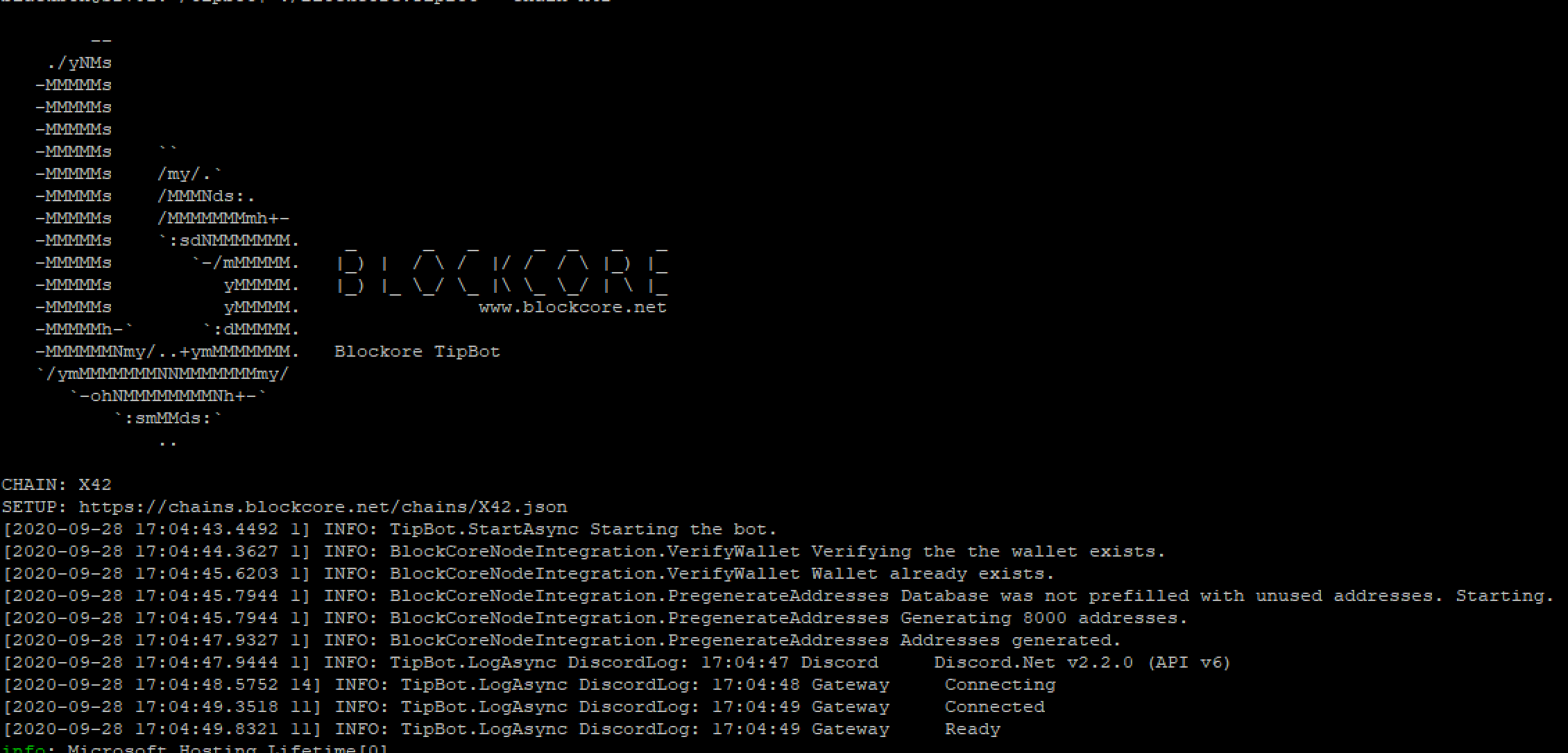
Pros:
- It's easy it setup and go
- It's maintained by the blockcore foundation, and is online without any hosting costs to keep it on 24/7.
Cons:
- You don't get the staking rewards for staking the funds.
- You do not have access to the configuration of the bots.
Pros:
- You keep the staking rewards, this can help offset the fee's of hosting.
- You have full control of the funds, and wallet. (This can be a con if you don't properly secure the server the wallet is hosted on.)
- You can configure it however you want.
Cons:
- You have to pay to host it on a stable host so it can be available to your community 24/7
- You have to secure the server to make sure the funds stay safe, patching, make sure the wallet is in good health, etc..