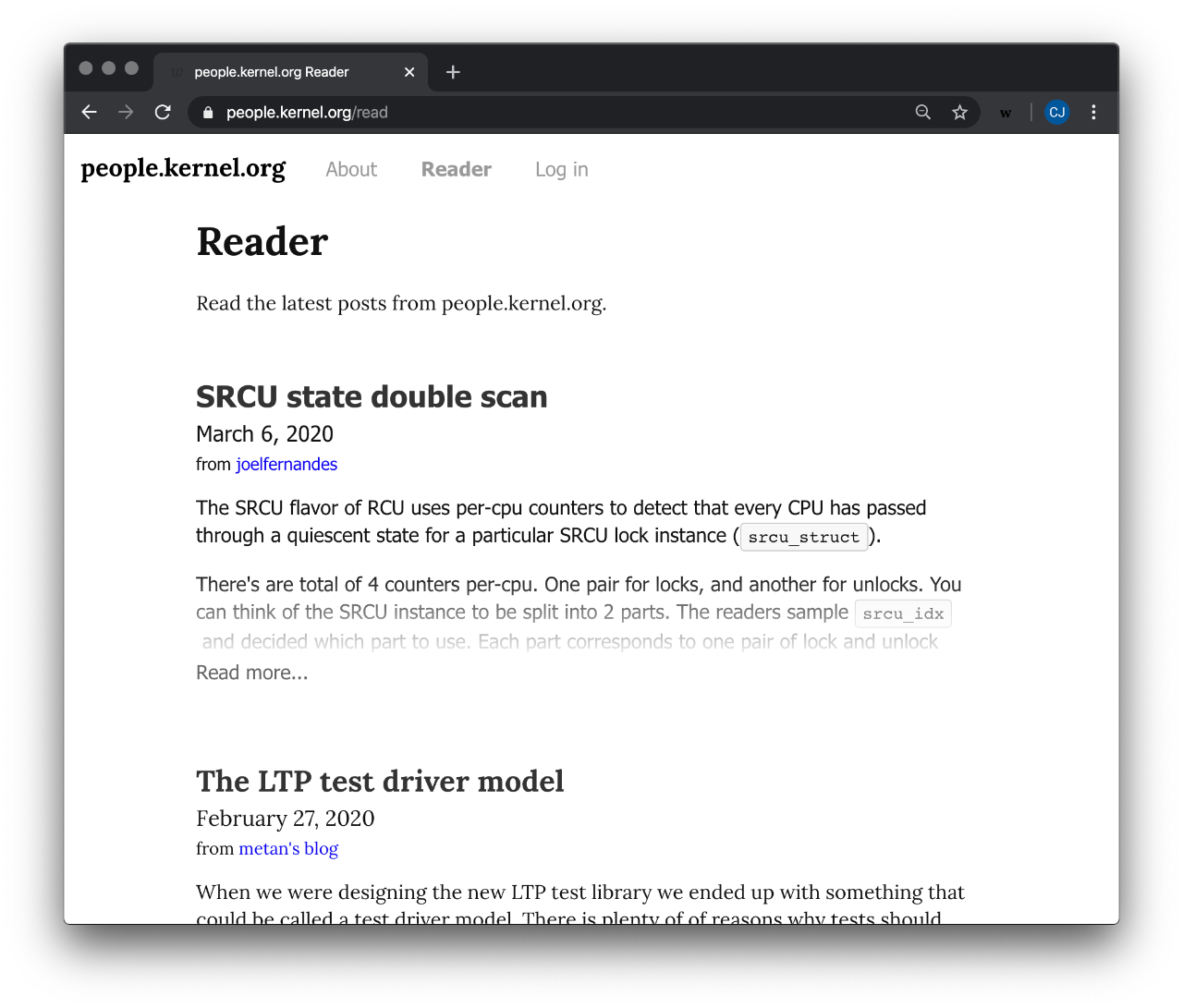
How can you keep up with all the writing produced on your WriteFreely site? This is where the site Reader comes in. The Reader acts as the feed for all the posts published on your site. These posts come from blogs across your site that have a particular setting. The Reader can be set to be accessed by anyone with an account on your site or anyone on the wider web. We are going to explore how to enable the Reader for your WriteFreely site and different settings for it.
Once you're logged in, go to the pulldown menu on the top left and select Admin Dashboard. From there, go to "Settings" and scroll down to the "Reader" option. Toggle the "Reader" checkbox and click "Save Changes" at the bottom. This setting will enable the Reader for your WriteFreely site. To access the your Reader, take your WriteFreely site's address and add "/read" to it.
As mentioned previously, only certain blogs can also be published to the reader. Those blogs are on a particular blog visibility setting - "Public." You can make this the default blog visibility setting for writers. That way anyone who creates a blog will have their blog posts show up in the Reader. To make this setting, stay in the "Settings" of the Admin Dashboard and scroll down to the "Default blog visibility" option. Here you will want to click the "Public" option and then and select "Save Changes."
You can configure the Reader to be the landing page for your WriteFreely site, whether someone is logged in or out. In the "Settings" of the Admin Dashboard will be a "Landing Page" option. All you need to do is type in "/read" and click "Save Changes." This now means that, whether you're a writer or a reader, you will be taken to the Reader page when you access the WriteFreely site's address.
If the posts on your Reader should only be for those writers on your WriteFreely site to read, you can make your site "Private." This means that all blogs and posts, including the Reader, will only be readable by other writers who are logged in. This setting option is in the "Settings" on your Admin Dashboard. Scroll down until you see "Private Instance." Click the "Private Instance" checkbox to enable and then select "Save Changes." If someone tries to access the Reader while logged out, they will be taken to your site's "Log in" page.