template: ../media/TB4Template.pptx
- Learn what a simulation is in the context of robotics.
- Learn what Ignition is and where it came from.
- Select the appropriate installation procedure your computer
- Setup the Ignition and TurtleBot4 simulation for Ignition
- Understand the steps involved in the setup process
- Learn basic controls for both Ignition and TurtleBot.

- A simulation is a virtual world that includes a subset of features from the real world.
- In the context of robotics, simulations are virtual worlds that allow roboticists to be more productive.
- Simulations are very similar to modern video games in that they include realistic physics simulations, a notion of time, and graphical representations of the real world.
- A second way to think of a simulation is a robot's imagination. Your robot can experience a particular scenario and try different approaches to solve a problem.
- Simulations are also a productivity tool for roboticists; making it easier to perform a variety of tasks.

- It is often said that robots are best suited to dull, dirty, and dangerous tasks, and by extension so is the process of developing a robot.
- A simulation allows a robot developer to increase their productivity in a variety of ways.
- With a simulation you can create a arbitrary number of robots and put them an arbitrary number of scenarios, without worrying about costs.
- Working on robots can get dirty. Simulations allow us to work from our desks.
- Robots can be dangerous! It is much safer to test your algorithms in simulation before applying them to a real robot.
- Simulation is cost effective. Building a gaming computer is much cheaper than building a robot from scratch.
- Simulation has become ubiquitous in the field of robotics. Competitions like DARPA SubT, NIST ARIAC, VRX, and many others now use simulation for robotics competitions.

- Ignition, is a collection of simulation software maintained by the same group that maintains ROS, Open Robotics.
- At its core Ignition consists of game engine, a physics engine, a plug-in library, and the infrastructure necessary to interface ROS.
- Ignition is latest incarnation of the Gazebo simulator. Ignition is to Gazebo as ROS 1 is to ROS 2
- The Ignition simulator is called Ignition Gazebo, while the other software tools are referred to as Ignition.
- Ignition supports a number of infrastructure tools that support developers:
- Ignition Fuel -- A collection of drag-and-drop 3D assets and environments for scenario development.
- Cloud Sim -- A tool for running simulations on a cloud instance
- SDFormat -- A specification for creating rich simulation elements.
- Just like ROS, Ignition has a yearly release where odd year releases are considered long term support (LTS) releases.
- The TurtleBot4 Simulation use the Ignition Fortress LTS release.
- The full installation notes for Ignition Fortress can be found on the Ignition Website.
- Ignition, like ROS 2, is free and open source software, and you should be able to run it on most systems, but that doesn't mean it works perfectly on every computer!
- Due to frequent changes in the software libraries used in Ignition, not every operating system will have binary packages for Download.
- If your host OS is listed in the installation notes you should be able to install Fortress natively; otherwise we recommend that you install Fortress in a virtual machine.
| Host OS |Recommended Installation |Configuration|Note| | Ubuntu 20.04 | Standard Install | Binary / Apt | **Recommended ** | | Ubuntu < 20.04 | VM with Ubuntu 20.04 | VM | ROS 2 H/G Requires 20.04 | | Other Linux | VM with Ubuntu 20.04 | VM | Binary installation possible | | Windows 10 | Standard Windows Install | Binary / Conda | Ubuntu VM is alternative | | Other Windows | VM with Ubuntu 20.04 | VM | | | macOS | VM with Ubuntu 20.04 | VM | Ignition will work, ROS won’t |

- As you can see from the chart above most host operating systems will require a virtual machine.
- While ROS and Ignition can run on a wide variety of operating systems many of them require compilation from source code.
- New users often run in to difficulties compiling from source. This is why we recommend a virtual machine.
- While a container is also a possible solution we recommend a VM as they are usually easier to navigate for new users.
- We recommend VirtualBox, but VMWare or any other VM client should work.
- The steps for VM installation are as follows:
- For the rest of the lesson we'll assume you are running Ubuntu 20.04.
- The next step is to install the Ignition Fortress binaries.
- Installation process is simple:
- Install tools
- Add GPG key for apt repositories
- Update package list
- Install Binaries
- Apt is the Ubuntu installation tool, it is like an app-store for Linux.
- Open a terminal and run the following commands (Window-Key+terminal):
sudo apt-get install lsb-release wget gnupg
sudo wget https://packages.osrfoundation.org/gazebo.gpg -O /usr/share/keyrings/pkgs-osrf-archive-keyring.gpg

echo "deb [arch=$(dpkg --print-architecture) \
	signed-by=/usr/share/keyrings/pkgs-osrf-archive-keyring.gpg] \
	http://packages.osrfoundation.org/gazebo/ubuntu-stable \
	$(lsb_release -cs) main" | \
	sudo tee /etc/apt/sources.list.d/gazebo-stable.list \
	> /dev/null
sudo apt-get update
sudo apt-get install ignition-fortress
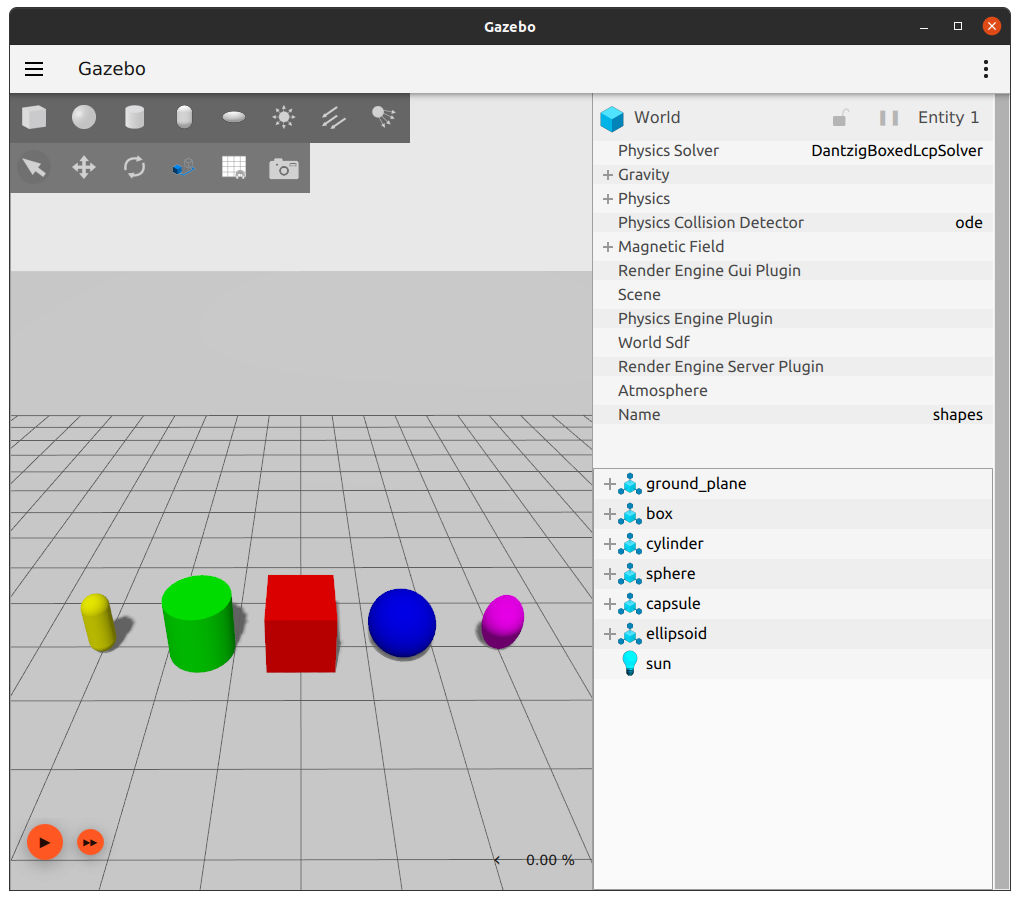
- If everything installed correctly you can now start Ignition.
- Open a terminal and type the command
ign gazebo shapes.sdf. - If everything worked you should see the image
pip install colcon-common-extensions
pip install rosdep
pip install vcstool
- The first step in the process is installing ROS 2 Galactic.
- You should have done this in the prior lesson.
- We will also need three ROS tools,
colcon-common-extensions,rosdep, andvcs colcon-common-extensionsare add-ons to the ROS build tool Colconrosdepis a python tool for managing ROS dependencies.vcsis a Python tool that automates checking out and updating collections of repositories.- You can verify that these tools are installed using
pip list | grep vcstool

- Follow installation directions from iRobot
- Create a workspace if you don't already have one.
- Clone the Create 3 repository into the src directory.
- Navigate to the workspace and install ROS 2 dependencies
mkdir -p ~/turtlebot4_ws/src
vcs import ~/turtlebot4_ws/src/ < ~/turtlebot4_ws/src/create3_sim/dependencies.repos
cd ~/turtlebot4_ws
rosdep install --from-path src -yi
colcon build --symlink-install
source install/local_setup.bash
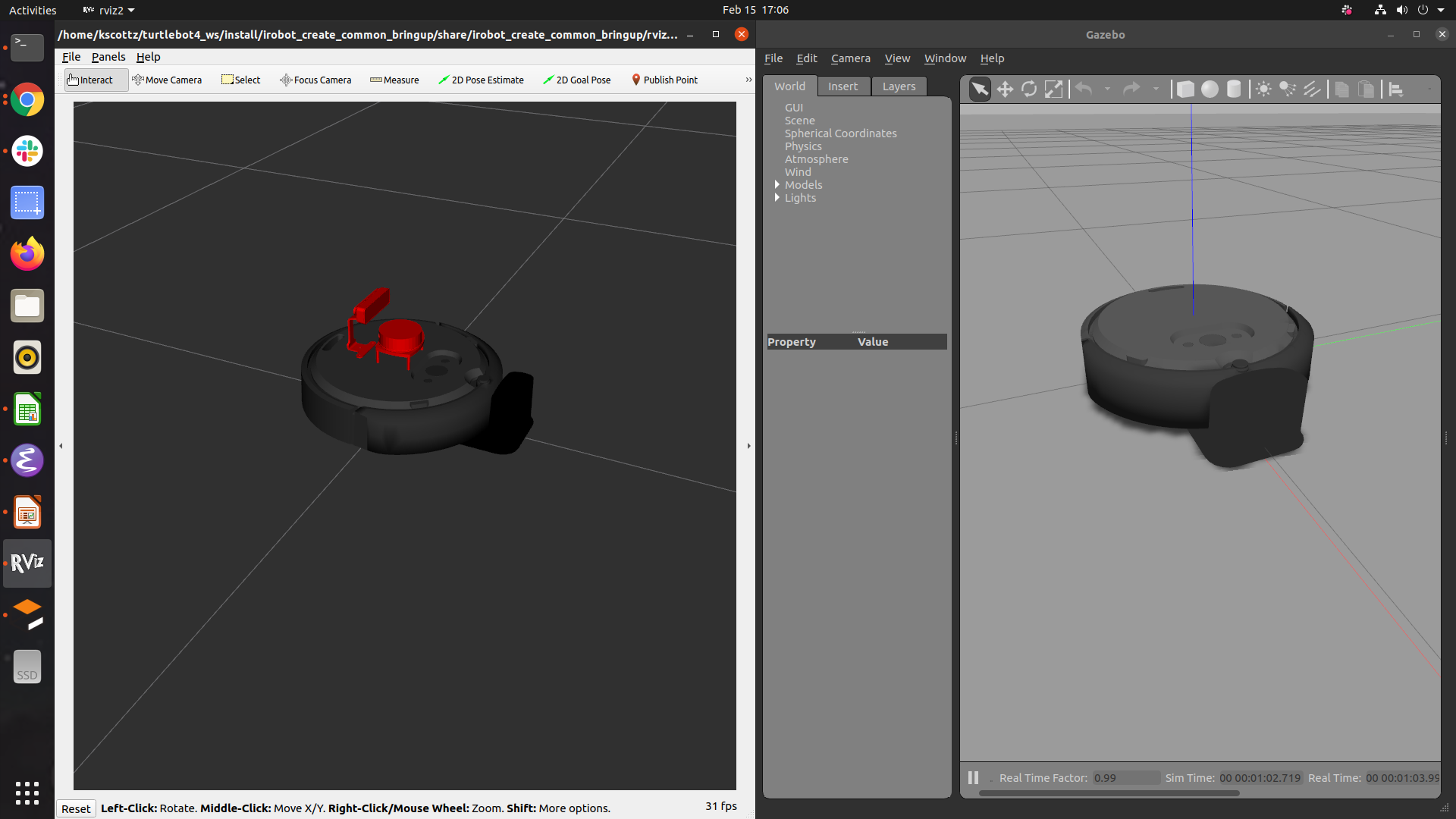
- If everything worked you can run the command below to see the Create3 mobile robot base."
ros2 launch irobot_create_gazebo_bringup create3_gazebo.launch.py
- Now that we have installed the Create3 Simulation and ROS packages installed we can install the TurtleBot 4 software.
- We'll be working in the same workspace we created for the Create 3
~/turtlebot4_ws. - We'll be checking out three Github repos, installing their dependencies, and building
- The Turtlebot simulator package
- The Turtlebot messages package
- The Turtlebot core package
- TODO: Update repos
cd ~/turtlebot4_ws/src
git clone git@github.com:turtlebot/turtlebot4_sim.git
vcs import ~/turtlebot4_ws/src/ < ~/turtlebot4_ws/src/turtlebot4_sim/dependencies.repos
git clone git@github.com:turtlebot/turtlebot4_msgs.git
git clone git@github.com:turtlebot/turtlebot4.git
cd ~/turtlebot4_ws
rosdep install --from-path src -yi
- Now that we have all the source code all that is left to do is to build it.
- We're going to source our setup.bash file and then use run Colcon, ROS's build tool.
- This step may take some time depending on your system.
source ~/ignition_ws/install/setup.bash
colcon build --symlink-install
source install/local_setup.bash
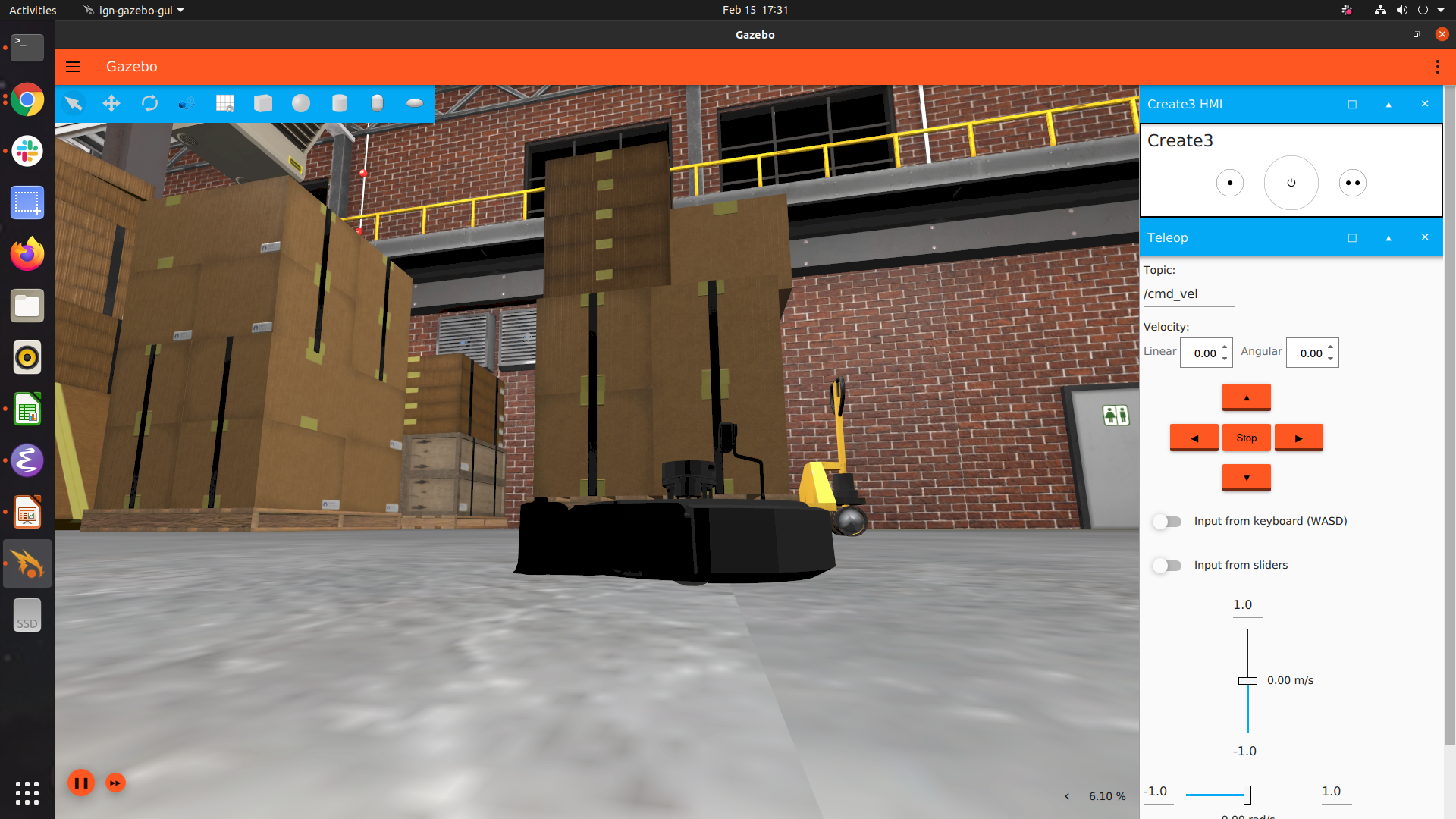
- To start the default simulation run:
ros2 launch turtlebot4_ignition_bringup ignition.launch.py
- You can pick your TB4 configuration using the
modelparam. Current options areliteandstandardros2 launch turtlebot4_ignition_bringup ignition.launch.py model:=lite
- TB4 comes with two simulation worlds, "depot.sdf" and "maze.sdf." You can select them with the
worldflag.ros2 launch turtlebot4_ignition_bringup ignition.launch.py world:=depot.sdf
- You can launch the simulation directly into SLAM mode by running:
ros2 launch turtlebot4_ignition_bringup ignition.launch.py slam:=lidar rviz:=true- You can then start Nav 2 using the following command:
ros2 launch turtlebot4_ignition_bringup nav2.launch.py
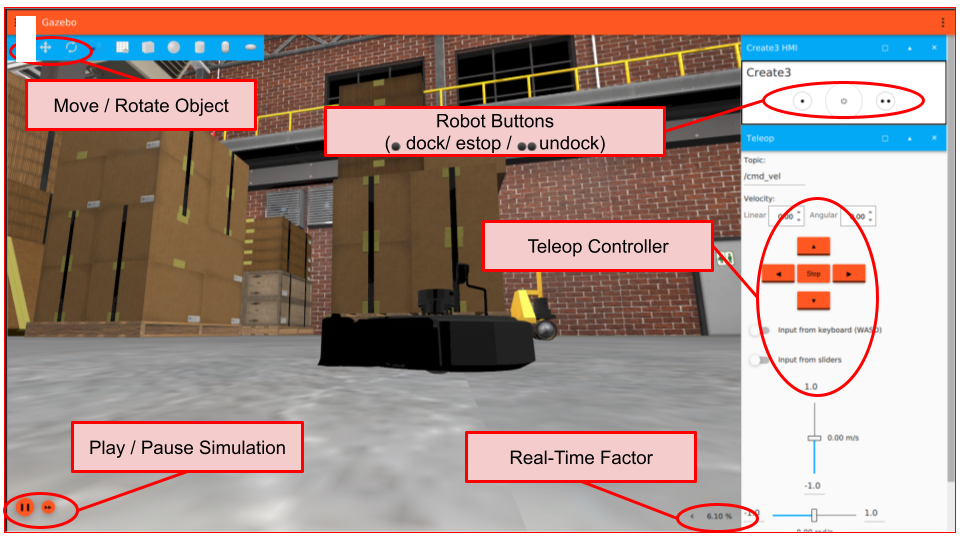
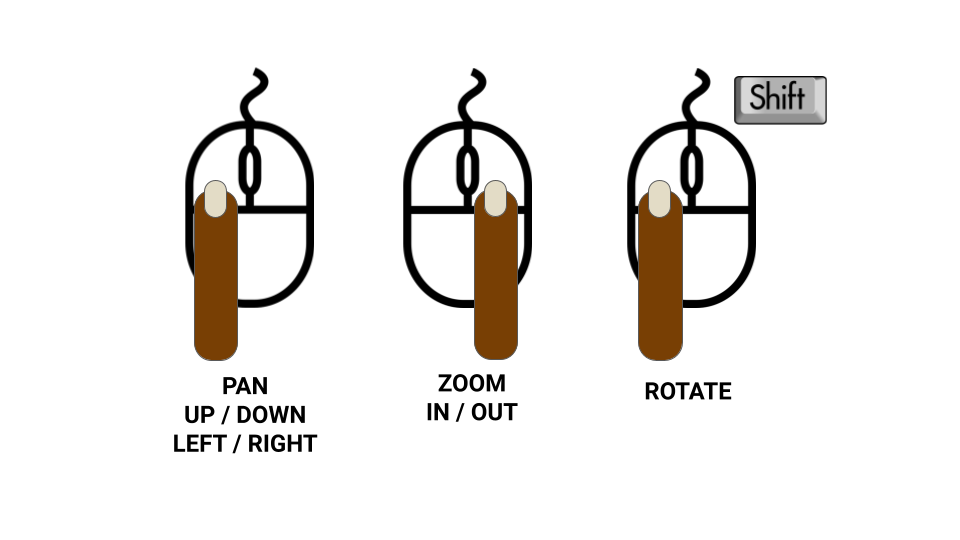

- Let's try the simulation out.
- First start the simulation by pressing the start button in the lower left hand corner.
- Then press the undock button on the create three. Wait for the robot to complete docking.
- Set the velocity under the Teleop controller and move the robot away from the dock.
- Press dock and watch the robot move back to the dock.