This guide explains how-to white-label the Compass application using the supported configuration system.
It documents which parts of the application can be customized, how configuration is applied, and how to validate changes.
Compass supports white-label customization through a JSON-based configuration file. This configuration controls branding, selected features, reports, and language settings.
Configuration values are injected into both the frontend and backend during deployment.
All supported customization options are defined in config/default.json.
This file is the source of truth for what can and cannot be customized.
The configuration file is organized into the following top-level namespaces:
- branding: Application name, logos, colors, and SEO metadata
- auth: Authentication behavior
- cv: CV feature availability
- skillsReport: Skills report branding, formats, and content
- i18n: Language and locale settings
Only options exposed in these namespaces are customizable. Core application logic, workflows, and layouts are fixed.
- appName: Name displayed throughout the application
- browserTabTitle: Text shown in the browser tab
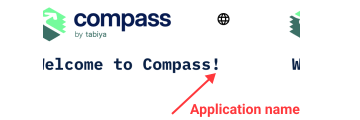
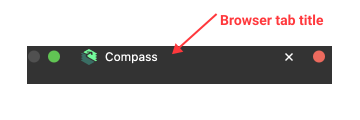
Figure 1: Application name and browser tab title
- metaDescription: Search engine description
- seo.name: Site name for search results
- seo.url: Public application URL
- seo.image: Image used for social sharing
- seo.description: Detailed SEO description
- assets.logo: Main logo (SVG recommended)
- assets.favicon: Browser favicon
- assets.appIcon: Application icon

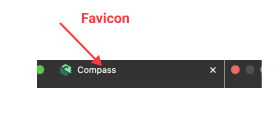
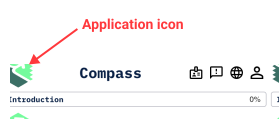
Figure 2: Logo and icon assets
Assets can be placed in the frontend public directory or hosted externally.
colors are defined using RGB values (for example: "0 255 145").
The following colors can be customized:
- Primary and secondary brand colors (including light, dark, and contrast text)
- Primary, secondary, and accent text colors
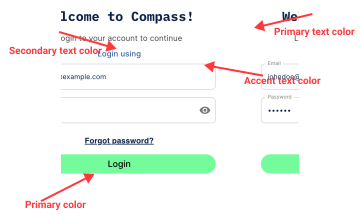
Figure 3: Theme color application
Accessibility requirement:
After updating colors, run Storybook locally with the chosen configuration and run the accessibility tests to ensure WCAG AA contrast compliance. Non-compliant color combinations will fail accessibility checks.
- cv.enabled: Enable or disable CV functionality
When disabled, all CV-related UI elements are hidden and CV APIs are not registered.
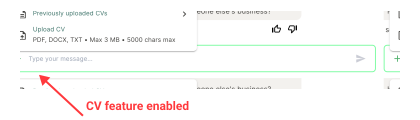
Figure 4: CV feature enabled
- auth.disableLoginCode: Disable login code requirement
- auth.disableRegistrationCode: Disable registration code requirement
These settings control how users authenticate in the application.
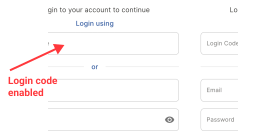
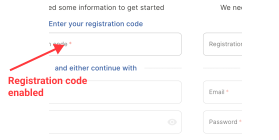
Figure 5: Login with code and registration with code enabled
The skills report supports branding, format, and content customization.
- skillsReport.logos: One or more logos displayed in generated reports
- Separate sizing is supported for DOCX and PDF formats
This allows single-brand or co-branded reports.
- skillsReport.downloadFormats: Control which formats are available (DOCX and/or PDF)
Partners can control which sections and fields appear in the report, including:
- Summary section
- Experience title
- Company name
- Date range
- Location
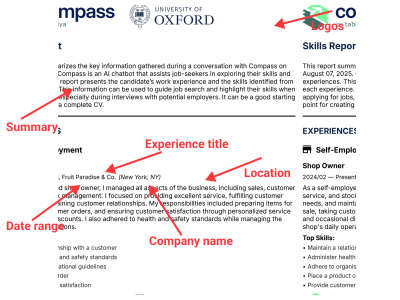
Figure 6: Skills report customization
Compass supports multiple languages through configuration.
- i18n.ui.defaultLocale: Default UI language
- i18n.ui.supportedLocales: Available UI languages
- i18n.conversation.default_locale: Default conversation language
- i18n.conversation.available_locales: Locale-specific configuration, including date format

Figure 7: Language switcher interface
For full translation setup, see the Language Guide.
The sensitive data form fields can be customized to collect different user information.
- sensitiveData.fields: Configuration for sensitive data collection fields
This allows customization of:
- Which fields are displayed (name, email, gender, age, etc.)
- Field types
- Validation rules and error messages
- Localized labels and values
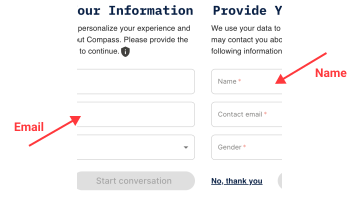
Figure 8: Sensitive data collection fields
For the complete schema documentation and examples, see the Sensitive Data Fields Configuration Guide.
The configuration is applied using the inject-config.py script.
Navigate to the config directory and run:
cd config
python3 inject-config.py
This script reads the configuration file and injects values into:
- Backend
.envfile - Frontend
public/data/env.jsfile
You can also apply only specific namespaces:
python3 inject-config.py --config default.json --namespaces branding authRefer to default.json for the complete configuration structure and all supported options.
- If a configuration value is missing or contains a typo, the application will fall back to its default value
- If changes do not appear after deployment, verify injected environment variables
- Configuration keys must match the structure in default.json exactly