


Important: If the app gets stuck on startup, delete the OAuth cache file Documents/naarvent's projects/Spotify_TUI/.cache_spotify_token to force re-authentication.
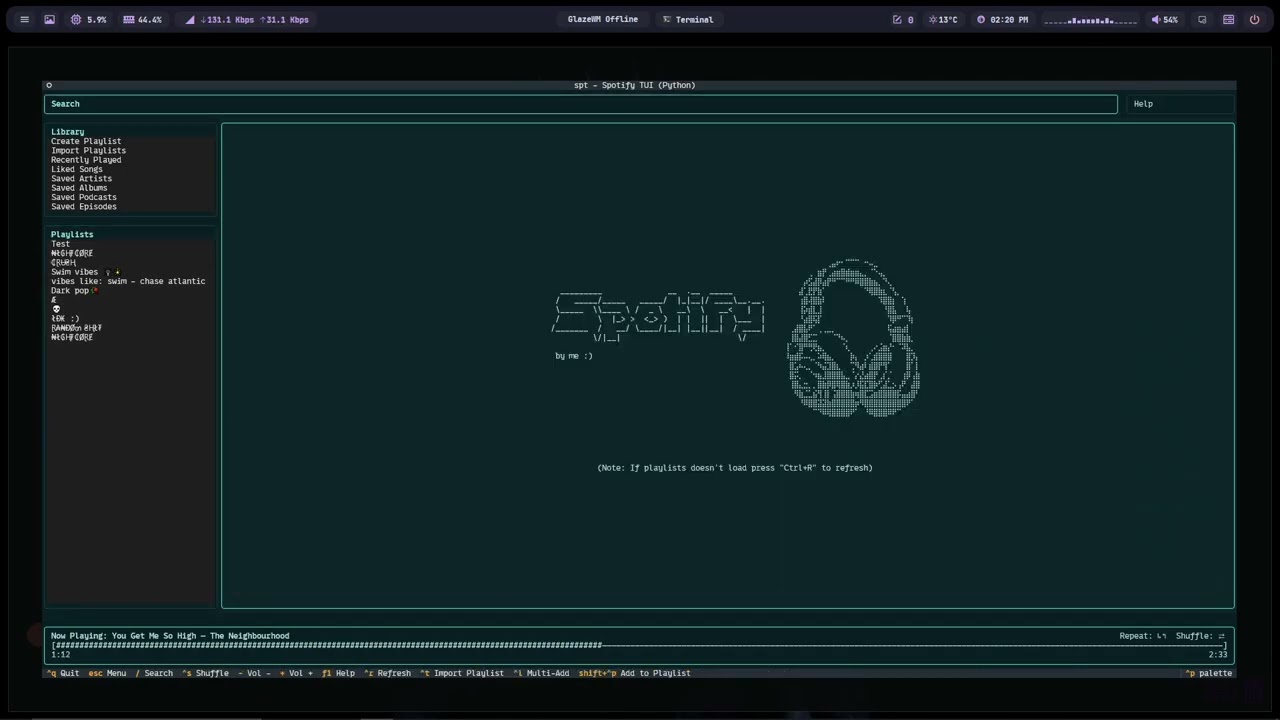
A terminal-based Spotify client built with Python, Spotipy and Textual. It provides a keyboard-driven TUI for searching, browsing and controlling Spotify playback, viewing synced lyrics, managing playlists and devices, and more.
- Summary 📝
- Features ✨
- Requirements & Installation 🛠️
- Environment & Credentials 🔐
- How it works (high level) ⚙️
- APIs & External Services 🌐
- Keybindings / Controls ⌨️
- Configuration & Cache 📂
- Troubleshooting & Notes 📝
- License 📄
spt is a full-featured TUI for Spotify built using:
- Textual for the terminal UI
- Spotipy for the Spotify Web API
- Requests for lyrics and metadata providers
It supports search, playback, playlists, devices, lyrics, multi-selection workflows, and rich UI panels.
- Full Spotify search (tracks, albums, artists, playlists)
- Playback control: play / pause / next / previous / seek / shuffle / repeat
- Synced LRC lyrics when available; plain lyric fallback
- Multi-review / multi-add batch playlist operations
- Playlist creation, import, and modification
- Device selection and playback transfer
- Real-time playback sync with progress bar
- Persistent cache + config + OAuth token storage
- Expandable / collapsible Library & Playlists panels via keyboard
Recommended: Python 3.10+
Install dependencies:
pip install spotipy textual requests rich pyfigletRun the app:
python spt_tui.pyspt requires Spotify credentials (or it will prompt you to provide them on first run):
SPOTIPY_CLIENT_IDSPOTIPY_CLIENT_SECRETSPOTIPY_REDIRECT_URI
If not provided via environment variables, the app will prompt for them and can save them locally in spt_config.json.
Scopes include playback, playlists, library, and user data as defined in the script.
- Textual builds a two-column TUI: Search/Library/Playlists (left) and Details/Results/Lyrics (right).
- Spotipy handles authentication, tokens, and playback/playlist operations.
- Lyrics are fetched using LRCLib and lyrics.ovh, parsed into synced or pseudo-synced lines.
- A periodic task syncs playback state and updates the UI.
- Keyboard shortcuts drive all navigation and actions.
- Spotify Web API — playback, search, library, playlists, devices
- LRCLib — synced LRC lyrics
- lyrics.ovh — plain lyric fallback
Below are the keybindings as defined in the application (spt_tui.py). Use these keys to navigate and control the TUI.
-
escape— Menu -
ctrl+q— Quit -
up— Up -
down— Down -
/— Search (focus search input) -
left— Move focus to the left column (sections, library, playlists). When a playlist/album/lyrics view is open in the right panel, pressingLeftreturns focus to the left column and effectively closes or exits the detailed right view so you can navigate other items. -
right— Move focus to the right panel (details, track list, lyrics). From the left column select an item and pressRight(orEnter) to open it in the right panel; the right key focuses that panel for interaction.
Esc— Return to main menuCtrl+Q— Quit↑ / ↓— Move between sections and list items/— Focus search inputEnter— Open / Play selected item
enter— Open/Playspace— Play/Pausen— Nextp— Prev/Restartr— Repeat (cycle: off → context → track)Ctrl+S— Toggle shufflec— Queue (add track to queue)
Space— Play / Pausen— Next trackp— Previous / Restartr— Cycle repeat (off → context → track)c— Add selected track to QueueCtrl+S— Toggle shuffle- / +— Volume down / up (uses configured seconds using "<")Ctrl+Left / Ctrl+Right— Seek back / Seek forward (uses configured seconds using "<")m— Mute / Unmute
ctrl+s— Toggle shuffle-— Volume down (Vol -)+— Volume up (Vol +)m— Mutectrl+left— Seek back (uses configured seconds using "<")ctrl+right— Seek forward (uses configured seconds using "<")<— Prompt seek settings
d— Open device manager (transfer playback)<— Open seek/volume settings
d— Manage devices?— Helpf1— Helpl— Toggle lyricsctrl+r— Refreshctrl+c— Open Queue
f— Toggle Favorite (Like / Unlike selected track)Ctrl+Shift+P— Add selected track(s) to a playlistCtrl+D— Delete (playlist or remove item)Ctrl+R— Refresh / reload contentCtrl+C— Open Queue view
Ctrl+L— Toggle Multi-Add mode- In Multi-Add: use movement keys and
Enterto toggle selection Ctrl+A— Confirm selection (when prompted / in multi-add flows)Ctrl+O— Add all / confirm add-all action
?orF1— Toggle Help viewLeft / Rightarrows — Move focus between left column and right panel- Log file:
Documents/naarvent's projects/Spotify_TUI/spt_py_textual_spotify.log
Default location for cache, config and logs (created under the user's Documents folder):
Documents/naarvent's projects/Spotify_TUI/
Files:
spt_config.json— saved credentials.cache_spotify_token— OAuth token cachespt_py_textual_spotify.log— log file (rotating)
The app supports quick filters by starting the query with a prefix (case-insensitive). These are parsed by the search routine:
/ART <query>— search artists/ALB <query>— search albums/TRK <query>— search tracks/PLY <query>— search playlists/PDC <query>— search podcasts/EPS <query>— search episodes from podcasts
You can also write natural queries (e.g., FEEL.)—the app applies smart parsing and multiple candidate queries to maximize relevant results.
spt attempts to provide synced and plain lyrics using multiple external services and local caching:
- LRCLib (
https://lrclib.net) — primary source for synced LRC lyrics (fetches.lrcwhen available). - lyrics.ovh (
https://api.lyrics.ovh) — fallback for plain lyrics when synced versions are not found. - Local lyrics cache stored under the same cache directory to avoid repeated network lookups.
If synced LRC lyrics are found, the app parses timestamps into a timeline and highlights the current line in sync with playback. If only plain lyrics are available, the app will generate a pseudo-timed timeline to display lines progressively.
If lyrics aren't showing, try Ctrl+R to refresh data or ensure the network and external services are reachable.
- If playlists don't load: press
Ctrl+R(Refresh). - Lyrics fall back to plain text if synced LRC is not available.
- Device switching requires an active Spotify client/device.
- Check
spt_py_textual_spotify.logfor detailed debug output.
This project is licensed under the MIT License — see the LICENSE file for details.