Entity API
To be able to become powerful and wage war, it makes sense to be able to create infrastructure. Dominion inclues an API so you can easily accomplish this.
Currently, this API is mainly used for drawing buildings, though it can also be used to draw other stationary objects such as vehicles and topographical features. All you really need is a isometric image and some very basic Javascript skills.
For performance reasons, it's best to pre-render isometric imagery and load it into the game as an image. To accomplish this, we're going to be using Blender and Photoshop. You can also use your favorite 3D modeling or image editing software, though it's up to you to figure out how to set it up for isometric rendering.
Firstly, you're going to need a model. To keep everything to scale, we're going to be using 1 inch = 1 foot. Here's a great tutorial on how to model things in Blender.
Once you're got your model, you're going to need to set up the camera. Select the camera and press N to bring up its properties. Under Rotation, change X to 54.736º, Y to 0º, and Z to 45º.
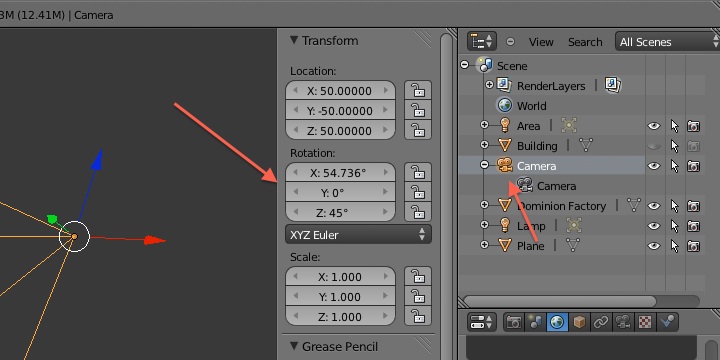
Next, click on the Camera tab of the right sidebar. Under Lens, select Orthographic, and change Orthographic Scale to 200.

Under the Render tab, select PNG as the output format and set the color mode to RGBA. This will give the render a transparent background.

For lighting, it's up to you to determine how you want the scene to be lit. For the example entities, Ambient Occlusion was set to 1 and Environment Lighting was set to 0.2. Both options are under the World tab on that same sidebar.

Additionally, a plane can be placed under your model to produce a drop shadow around the base your model. Just make sure that the plane is transparent so it doesn't show up in the render.

Now you can press F12 to render your entity.
Once you've saved the render, open it up in Photoshop so it can be resized and positioned properly.

Images displayed on the canvas are rendered to fit the maximum zoom level. As the zoom level changes, the images are scaled down. At the maximum zoom level, the side length of an isometric grid square is 150px, which works out to be 150px high by 260px wide in real-world pixels.
To allow for tall entities, Dominion aligns the bottom edge of entities with the bottom vertex of the grid square and the left edge of the entity with the left vertex of the grid square. This allows for the height of entities to vary and still be properly aligned with the grid.
Create a new document in Photoshop with a width of 260px and pretty big height, such as 390px. Technically, the height can be anything as long as it is enough room for the entity. Make sure the background is set at transparent.

Now select all and copy everything from your image from Blender. When you paste it into your new image, Photoshop will automatically center your entity.
In the above example image, the red rectangle represents the size of a grid square at maximum zoom. Move your entity until the base of it is where you want it to appear in the square.
Once you've got everything just how you want it, resize the image canvas so there is no excess image. This will reduce the size of the image in the end and will speed up game load times.
Save the image as a PNG to the ./assets/entities/ directory. Now you're ready to write some code.
Displaying an entity in Dominion is actually a fairly easy task with minimal coding. For the most part, there are two parts to displaying an entity:
- loading the image for the entity
- adding the entity to the entities array and make it visible
Loading the entity's image only requires two lines of code. At the top of game.js:
/**
 * entity resources
 */
var factory = new Image();
factory.src = "./assets/entities/factory.png";
The first line creates an image object. Make sure to name it accordingly. The second line defines the path to the image you created earlier.
Once that's all said and done, it's time to move onto creating and adding an entity to the entities array. Also in game.js:
/**
 * game variables
 */
$(document).ready(function()
{
	/*** other code ***/

	// entities
	addEntity(new Entity("factory", factory, new Point(4,5), true));

	/*** more other code ***/
});
In this example, we've simply using the addEntity() function to add a new Entity object to the entities array. The Entity object has four basic attributes:
-
name(string): Name of the entity. This is what you'll use to reference the entity on the screen -
image(image object): Image object for this entity. This is the image object you created earlier. Multiple entities can use the same image object. -
point(point object): Point object for this entity. Defines the location of the entity. Simply usenew Point(x,y), replacingxandywith grid coordinates. -
visible(boolean): True or false. Determines whether object should be drawn on canvas.
After that, you're done.