Tutorial
- Editing in progress**
Before you start using LTLMoP, please make sure you have installed all the dependencies here. To start LTLMoP, open cmd on Windows or terminal on Linus and Mac. Go to the LTLMoP/src directory. Start LTLMoP by running
python specEditor.py
Once the LTLMoP GUI popped up, go to File > Save and give your project a name. We advise you to start a new folder and save your project there. Here our project will be called tutorial.spec and saved inside LTLMoP > src > examples > tutorial folder.
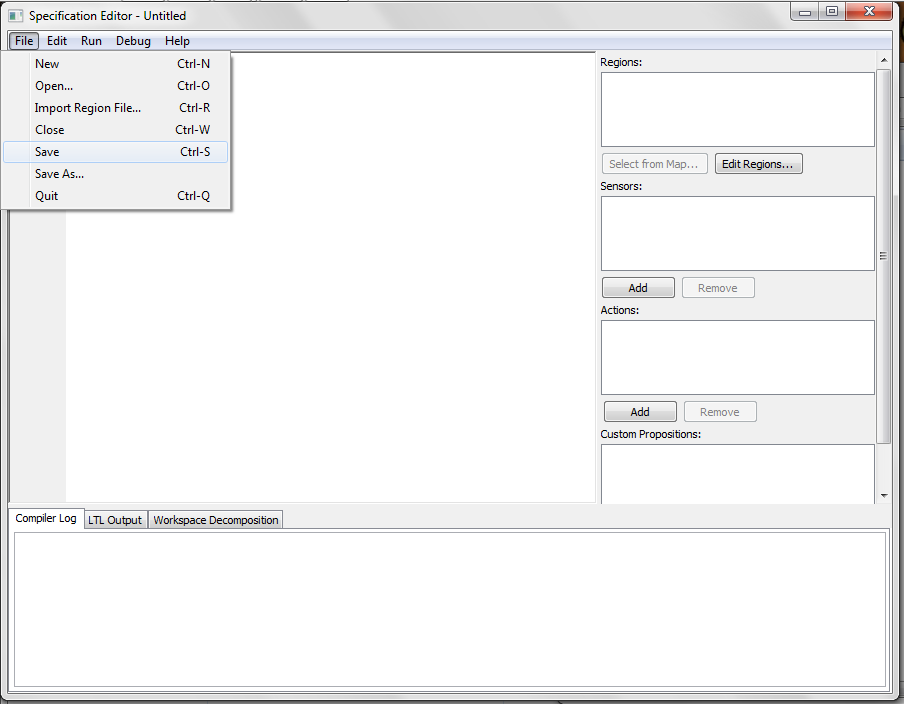

Now we can create the map for our mission. Click the Edit Regions... button on the right and a new GUI will pop up.

Here is the description of the tools on the left:
| Tools | Description |

|
Select objects in the editor. |

|
Create a polygon with multiple points. Click on the starting point to close the polygon. |

|
Draw a rectangle by clicking on two arbitrary points in the editor. |

|
Add a point(vertex) to rectangles or polygons in your map. Click on the edge of the object that you want to add a point. |

|
Remove a point(vertex) on rectangles or polygons in your map. Click on your selected point to remove a vertex on the object. |

|
Add calibration points to your map. You are required to add at least three calibration points in case of using a physical robot or Gazebo robot simulator. These points should be as far as possible from each other. |
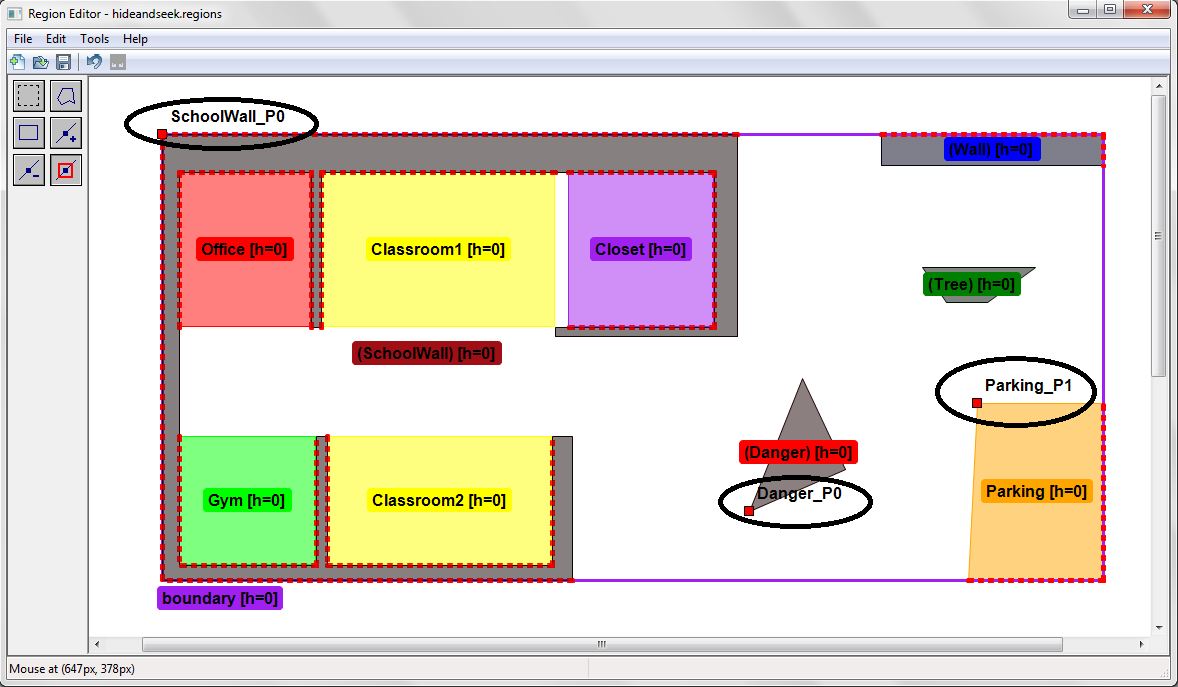
Here is an example of a map created.
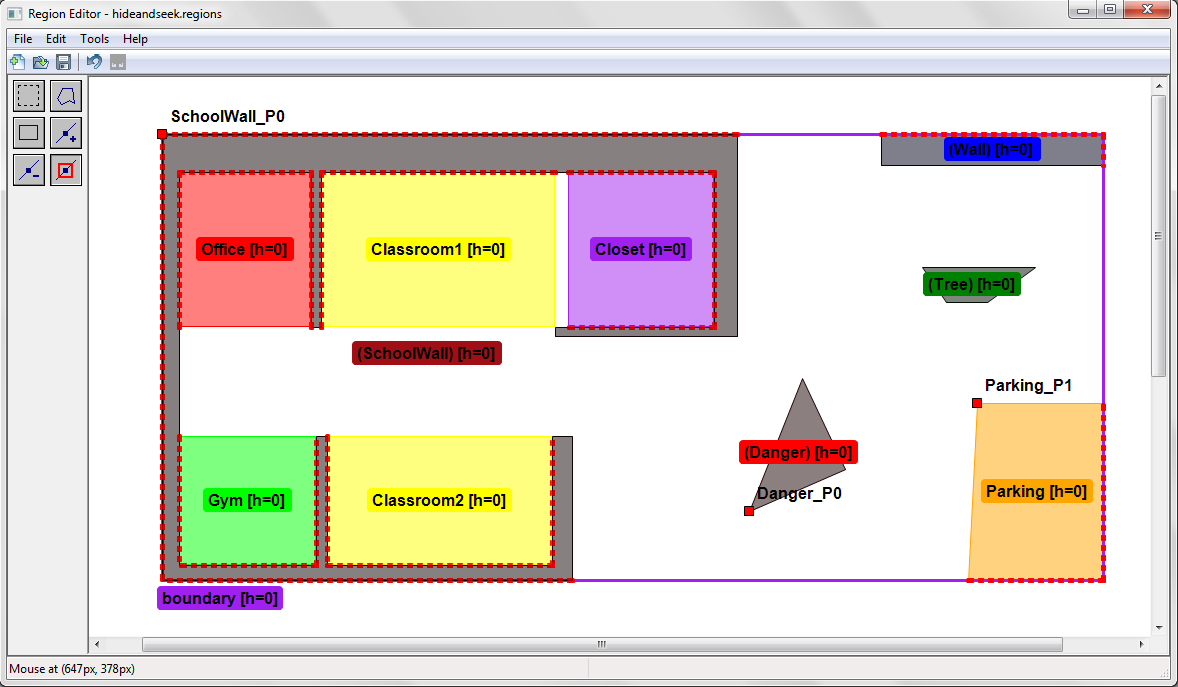
Note that:
1. Please make sure all the regions are connected. If you see a red dotted line between two regions, this means the two regions are connected. (* If you intend to have your region connected to the white space, the red dotted line will not be shown.)
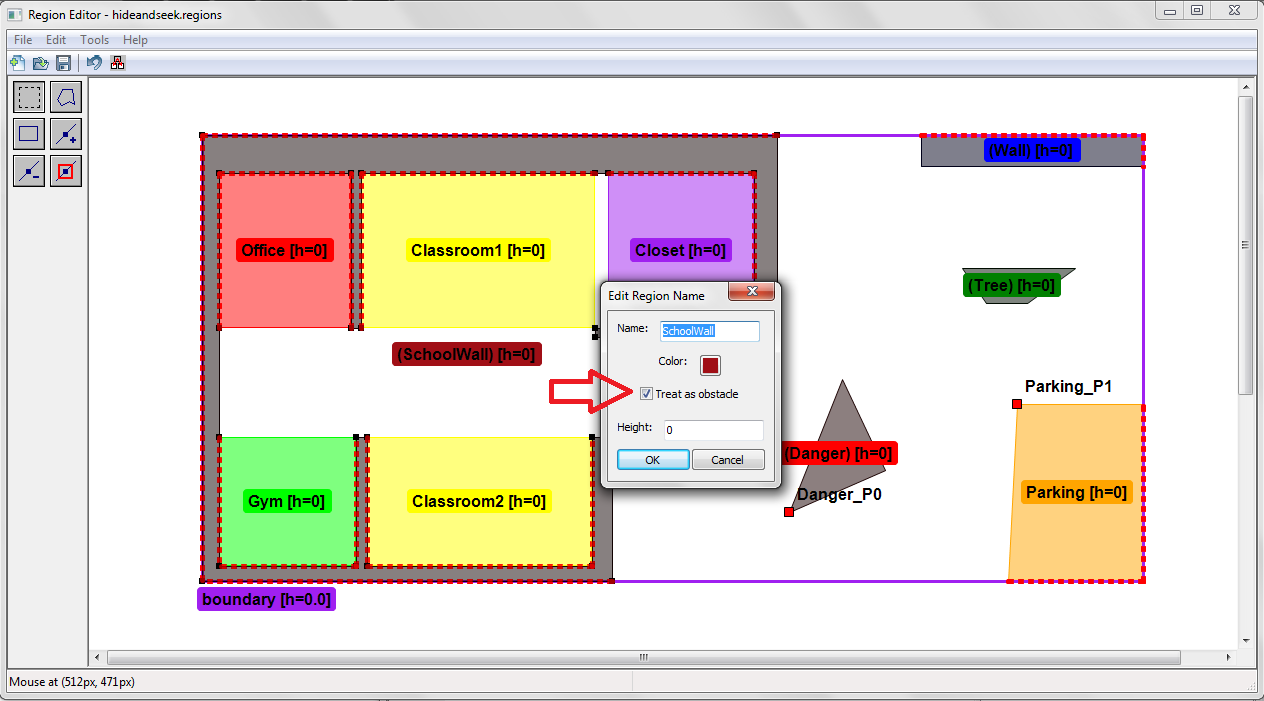
2. Obstacles could be added in the map. This is done by double clicking on a region intended to be an obstacle. Check the Treat as obstacle box and click ok to save it. Double check that the region turns grey, indicating it is an obstacle.
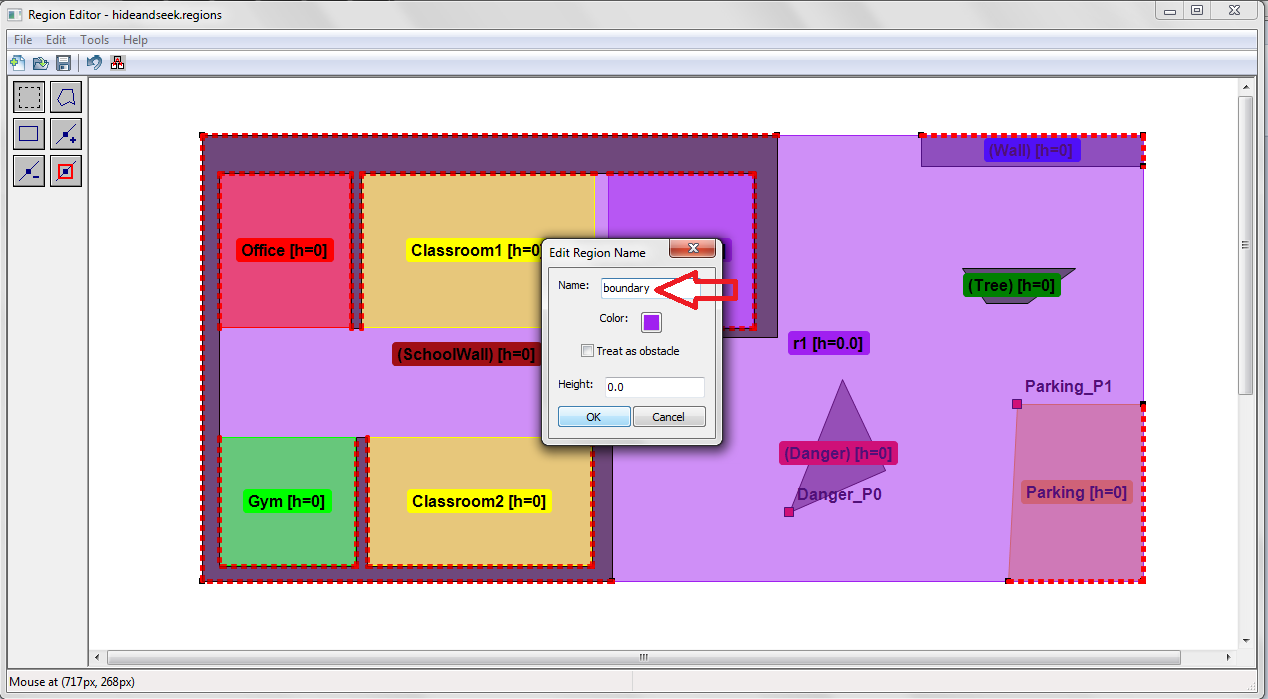
3. A boundary is required for the map. This could be created using the polygon tool and goes around all the regions. Then rename the region as boundary by double clicking on the region.
4. Be sure to add 3 calibration points to your map.
Please refer to the grammar of structured English here.
Please see the options for robots here (add a page for robots? ). Here we use basicSim, a simulated point robot.
Once a robot is chosen, go to and compile the specification.
-Java SE Download Page](http://www.oracle.com/technetwork/java/javase/downloads/index.html)