
🤗 Please consider subscribing to my YouTube channel. Your subscription goes a long way toward supporting my work. If you would like to contribute even more, you can also buy me a coffee.

CapiBridge is an open-source Two-Way gateway for low-power devices. It supports various communication technologies, including LoRa, ESP-NOW, and WiFi. The gateway receives JSON strings from LoRa and ESP-NOW DIY devices and publishes them to an MQTT server. It automatically separates the JSON string into dynamic MQTT topics based on keys within the JSON, such as "b" for battery or "m" for motion, making it highly compatible with Home Assistant. This gateway simplifies adding new DIY nodes/sensors to your smart home by standardizing the communication protocol across all your DIY projects, focusing on simplicity and unified protocol handling.
🛒 Where to buy http://www.PricelessToolkit.com
- PirBOX-LITE LoRa Long-Range Motion Sensor for Mailbox/Garage.....
- PirBOX-MAX LoRa Long-Range 2-Way Motion Sensor with reed switch inputs and relays
- SOILSENS-V5W Soil Moisture Sensor
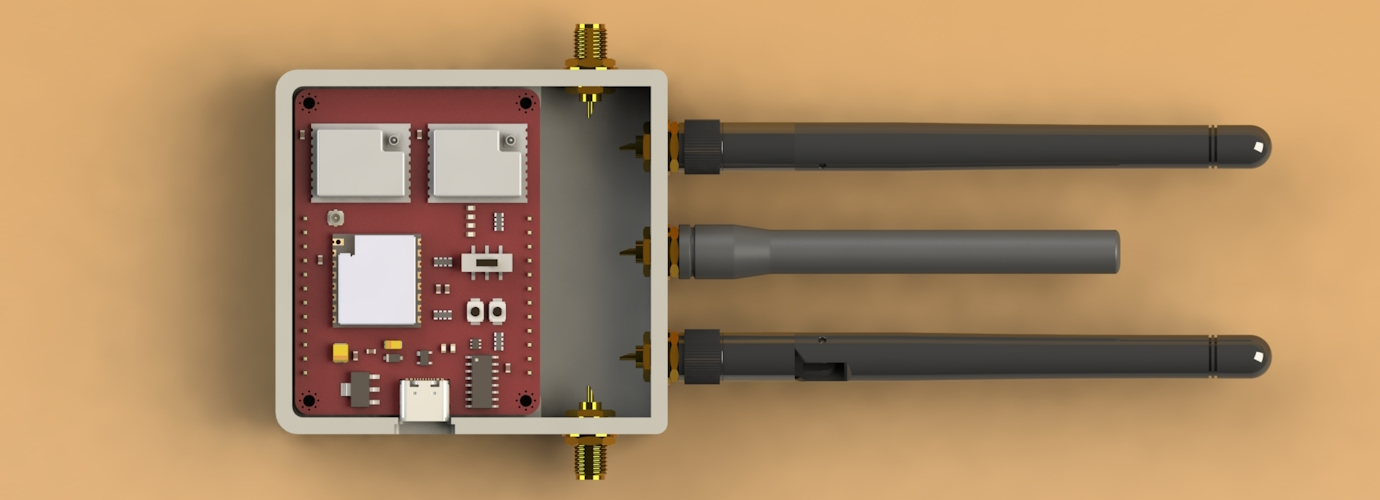
- 1x LoRa Module 868 or 433MHz
- 2x ESP32-C3
- ESP1 Free GPIOs
- IO7, IO10
- ESP2 Free GPIOs
- IO10, IO3, IO1, IO0, IO4, IO5, IO6, IO7
- Power Pins 5V, 3.3V, GND
- USB-C with auto reset
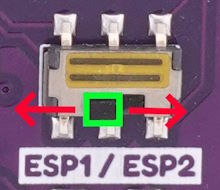
- UART switch for selecting ( ESP1 | ESP2 )
- Buttons for flashing and resetting
- Debug LEDs
- USB - TX, RX
- ESP1 to ESP2 - TX, RX
- One LED for LoRa
- One LED for ESP-NOW
Important
A high-quality phone charger should be used to ensure a stable 5V power supply.
- 17.04.2026
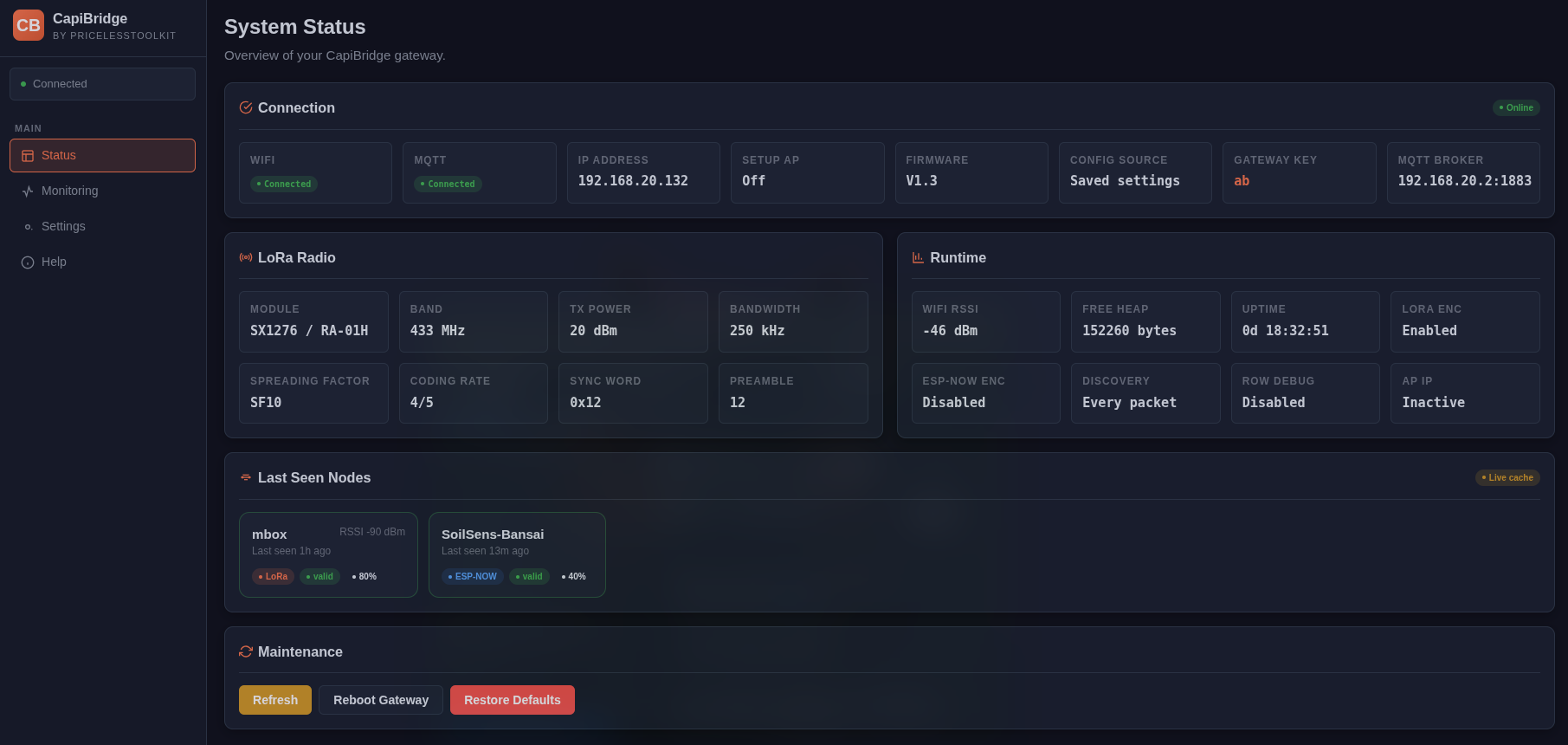
- WebUI for configuration and monitoring.
- 28.03.2026
- Added support for "Ra-01S" 433Mhz Module.
#define LORA_MODULE LORA_MODULE_SX1268 // Ra-01S 433Mhz Module "433Mhz Version" Module CapiBridge v2
Important
If you're new to Arduino-related matters, please refrain from asking basic questions like "how to install Arduino IDE". There are already plenty of excellent tutorials available on the internet. If you encounter any issues to which you can't find the answer -> Here , feel free to join our Facebook Group or open a new discussion topic in the dedicated tab. Remember that providing detailed information about the problem will help me offer more effective assistance. More information equals better help!
Note
Arduino IDE 2.3.2
#include <Arduino.h>
#include <SPI.h>
#include <RadioLib.h>
#include <WiFi.h>
#include <PubSubClient.h>
#include <ArduinoJson.h>
#include <esp_now.h>
CapiBridge is based on ESP32-C3, so if you are using ESP32 for the first time, you need to install the ESP32 board and all libraries in your Arduino IDE.
- In your Arduino IDE, go to File> Preferences.
- Enter
https://raw.githubusercontent.com/espressif/arduino-esp32/gh-pages/package_esp32_index.jsoninto the “Additional Boards Manager URLs” field. Then, click the “OK” button - Open the Boards Manager. Go to Tools > Board > Boards Manager and search for ESP32 and press the install button for the “esp32 by Expressif Systems“
- Open Library Manager, search for PubSubClient and press the install button, do the same for other libraries.
Note
For ESP1.ino
Initial configurations are done in the file config.h and the rest in WebUI.
///////////////////////////////////////////////////////////////////////////////

//#define LORA_MODULE LORA_MODULE_SX1276    // Ra-01 433 Ra-01H 868/915Mhz "SX1276" Module (orders shipped before Aug 2025)
#define LORA_MODULE LORA_MODULE_SX1262      // Ra-01SH 868/915Mhz "SX1262"  Module CapiBridge v2
//#define LORA_MODULE LORA_MODULE_SX1268    // Ra-01S 433Mhz Module "433Mhz Version" Module CapiBridge v2

#define BAND 868.0                          // 433.0 / 868.0 / 915.0

#define WEBUI_PASSWORD "password"           // Web UI password protection
#define WEBUI_USERNAME "admin"              // Login for the Web UI

#define WIFI_SSID "Your-WIFI-Name"
#define WIFI_PASSWORD "WIFI-Password"

//////////////////////////////////////////////////////////////////////////////
- Open ESP1.ino sketch and configure config.h file see https://github.com/PricelessToolkit/CapiBridge?tab=readme-ov-file#esp1ino-sketch-configuration
- Set the UART switch on the CapiBridge to the 'ESP1' position.
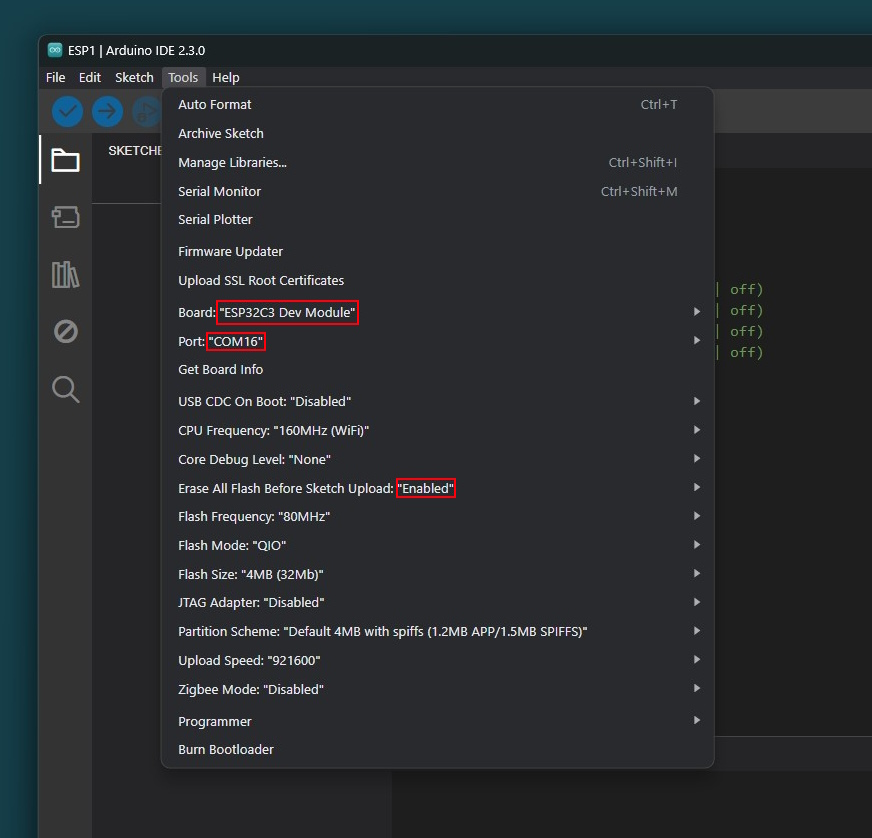
- Click Upload and wait until the upload is done.
- Set the UART switch on the CapiBridge to the 'ESP2' position.
- Open ESP2.ino sketch.
Note
ESP2 for ESPNOW requires no initial setup. Once the sketch is uploaded, it automatically prints the MAC address in the serial monitor for integration with ESPNOW nodes/sensors.
- Click Upload.
- Set the UART switch back to the ESP1 position to see received JSON messages.
Everything will be ready shortly; the CapiBridge RSSI entity should appear in the Home Assistant MQTT devices list within a minute or two.
Note
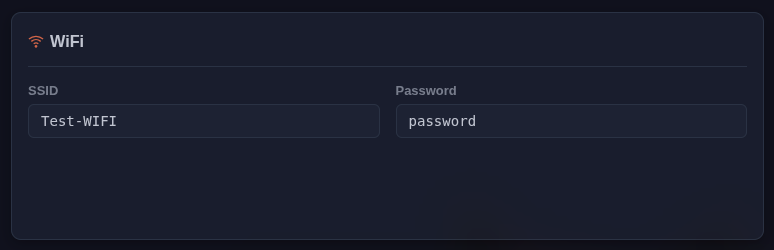
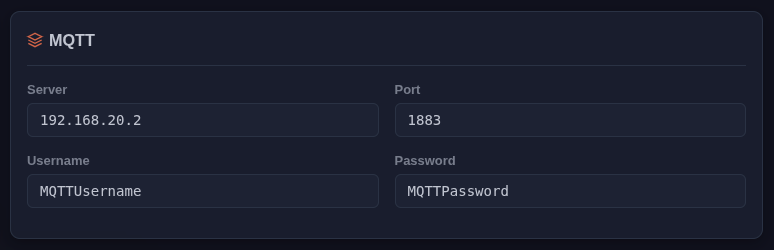
After uploading the code, open the Configuration webpage http://YOUR-CAPIBRIDGE-IP and configure the rest.
Important
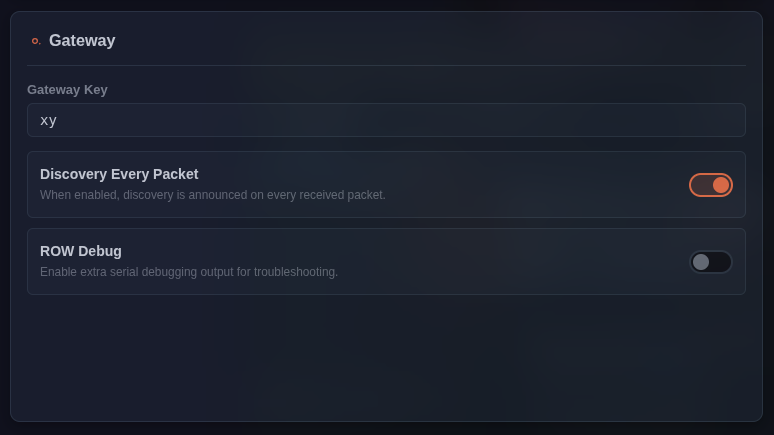
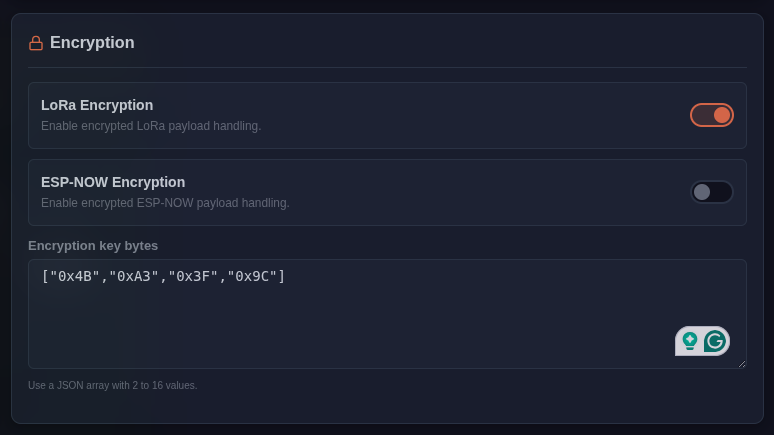
Unique GATEWAY_KEY within the JSON to differentiate your data from others, and encryption_key to globally encrypt the payload. Must match the key in Nodes/Sensors.
-
Choose a few numbers between
1and255
These will be your secret key values.
Example:5,162,77,33 -
Open your calculator:
- Windows: Open the Calculator app → Click the ☰ menu → Choose Programmer
- Or use any online converter (Google: "decimal to hex converter")
-
Convert each number to HEX:
- Type your decimal number (e.g.,
5) - Switch to HEX mode
- You’ll see the result (e.g.,
0x05)
- Type your decimal number (e.g.,
-
Use the converted HEX values in WEBUI:
Important
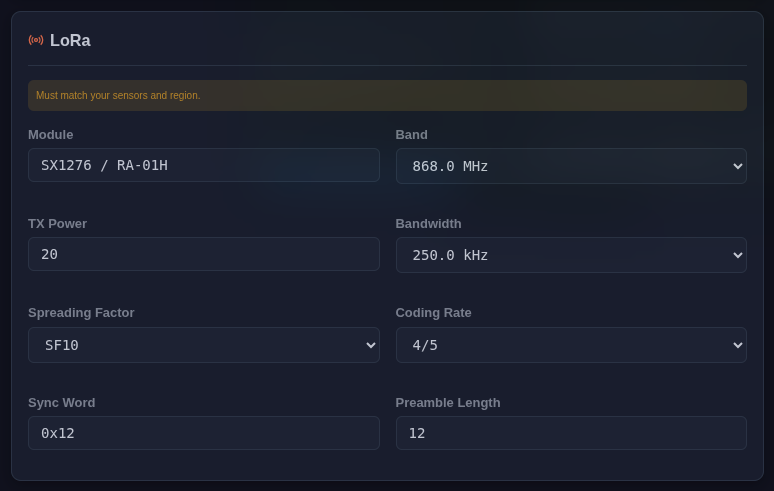
LoRa configuration must match the configuration in Nodes/Sensors.
Important
For optimizing the SPREADING_FACTOR (SF) in your network, it's crucial not to default to SF11, aiming for maximum distance without considering its downsides. SF11, while extending range, significantly slows down data transmission. For example, if your furthest sensor is only 100 meters away, opting for SF7 is more efficient. SF7 is faster, consuming less power compared to SF11. Therefore, it's essential to choose the SF wisely based on your specific needs and understand the trade-offs. Avoid setting SF11 by default without assessing the impact on speed, power consumption, and time on air (ToA) for others.
Note
With MQTT-Autodiscovery, there's no need to configure anything in Home Assistant manually. Any sensor or node that sends a JSON string with special keys ('k' for the gateway private key and 'id' for the node name, both of which are mandatory) will be automatically discovered. Refer to the table below for details, and of course, full ESP32 examples are provided.
{
  "k": "xy",
  "id": "ESP32",
  "b": "99",
  "rw": "Test123",
  "dr": "on"
}
Full Suported MQTT-Autodiscovery List
| Key | Description | Unit of Measurement | Required |
|---|---|---|---|
k |
Private Gateway key | - | Yes |
id |
Node Name | - | Yes |
r |
RSSI | dBm | No |
b |
Battery percent | % | No |
v |
Voltage | Volts | No |
pw |
Current | mAh | No |
l |
Luminance | lux | No |
m |
Motion | Binary on/off | No |
w |
Weight | grams | No |
s |
State | Anything | No |
t |
Temperature | °C | No |
t2 |
Temperature 2 | °C | No |
hu |
Humidity | % | No |
mo |
Moisture | % | No |
rw |
ROW | Anything | No |
bt |
Button | Binary on/off | No |
atm |
Pressure | kph | No |
cd |
Dioxyde de carbone | ppm | No |
dr |
Door | Binary on/off | No |
wd |
Window | Binary on/off | No |
vb |
Vibration | Binary on/off | No |
This example broadcasts JSON sensor data from an ESP32 via ESP-NOW.
You can enable/disable XOR encryption with a single switch.
- Broadcasts to
FF:FF:FF:FF:FF:FF - JSON includes
k(gateway key) andid(device id), plus sample sensor fields - ENCRYPTION toggle controls raw XOR in-place (gateway must use the same key)
- Keep payload under ~249 bytes
Minimal Example (with encryption toggle). Click here
#include <Arduino.h>
#include <esp_now.h>
#include <WiFi.h>
#include <esp_wifi.h>
#include <ArduinoJson.h>

// ---------- USER SETTINGS ----------
#define DEVICE_ID            "TestESP"
#define GATEWAY_KEY          "xy"
#define ESPNOW_WIFI_CHANNEL  1
#define SEND_PERIOD_MS       5000

// XOR encryption toggle and key
#define ENCRYPTION 0   // 0 = off, 1 = on
#define encryption_key_length 4
#define encryption_key { 0x4B, 0xA3, 0x3F, 0x9C }
// -----------------------------------

// Broadcast MAC
static const uint8_t BROADCAST_MAC[6] = {0xFF,0xFF,0xFF,0xFF,0xFF,0xFF};
unsigned long lastSend = 0;

// XOR in place (raw bytes)
static inline void xorInPlace(uint8_t* data, size_t len) {
  static const uint8_t key[] = encryption_key;
  const size_t K = encryption_key_length;
  for (size_t i = 0; i < len; ++i) data[i] ^= key[i % K];
}

// Build small JSON payload (add your real sensor values)
static size_t buildSensorJson(char* out, size_t cap) {
  JsonDocument doc;          // ArduinoJson v7 style
  doc["k"]  = GATEWAY_KEY;   // REQUIRED: gateway private key
  doc["id"] = DEVICE_ID;     // REQUIRED: node/device id
  doc["t"]  = 21.5;          // temperature °C (example)
  doc["hu"] = 46;            // humidity %  (example)
  return serializeJson(doc, out, cap);
}

static bool sendBroadcast() {
  char buf[160];
  size_t len = buildSensorJson(buf, sizeof(buf));
  if (len == 0 || len >= sizeof(buf)) return false;

  // Optional debug: plaintext
  // Serial.write((const uint8_t*)buf, len); Serial.println();

  // Toggle XOR encryption
  #if ENCRYPTION
    xorInPlace(reinterpret_cast<uint8_t*>(buf), len);
  #endif

  return esp_now_send(BROADCAST_MAC, reinterpret_cast<const uint8_t*>(buf), len) == ESP_OK;
}

// Send callback (handles both IDF v4 and v5 cores)
#if defined(ESP_IDF_VERSION_MAJOR) && (ESP_IDF_VERSION_MAJOR >= 5)
void onDataSent(const wifi_tx_info_t*, esp_now_send_status_t status) {
  Serial.println(status == ESP_NOW_SEND_SUCCESS ? "SUCCESS" : "FAIL");
}
#else
void onDataSent(const uint8_t*, esp_now_send_status_t status) {
  Serial.println(status == ESP_NOW_SEND_SUCCESS ? "SUCCESS" : "FAIL");
}
#endif

void setup() {
  Serial.begin(115200);
  WiFi.persistent(false);
  WiFi.mode(WIFI_STA);
  esp_wifi_set_ps(WIFI_PS_NONE);
  esp_wifi_start();

  // Lock to gateway's Wi-Fi channel
  esp_wifi_set_promiscuous(true);
  esp_wifi_set_channel(ESPNOW_WIFI_CHANNEL, WIFI_SECOND_CHAN_NONE);
  esp_wifi_set_promiscuous(false);

  if (esp_now_init() != ESP_OK) {
    Serial.println("ESP-NOW init failed");
    while (true) delay(1000);
  }
  esp_now_register_send_cb(onDataSent);

  // Add broadcast peer (unencrypted at ESP-NOW level; XOR is app-layer)
  esp_now_peer_info_t peer{};
  memcpy(peer.peer_addr, BROADCAST_MAC, 6);
  peer.ifidx   = WIFI_IF_STA;
  peer.channel = ESPNOW_WIFI_CHANNEL;
  peer.encrypt = false;
  esp_now_add_peer(&peer);
}

void loop() {
  if (millis() - lastSend >= SEND_PERIOD_MS) {
    lastSend = millis();
    bool ok = sendBroadcast();
    Serial.println(ok ? "Sent" : "Send failed");
  }
}
👉 full example with all supported keys is available in the Node_Examples folder.
You can find working code examples in the following repositories:
This snippet shows how to use a simple XOR cipher with ESP-NOW.
Both sender and receiver must use the same key.
xorInPlace()encrypts or decrypts data in-place.- Call it before sending to encrypt.
- Call it after receiving to decrypt.
// --- XOR helper (must match on sender + receiver) ---
#define encryption_key_length 4
#define encryption_key { 0x4B, 0xA3, 0x3F, 0x9C }

static inline void xorInPlace(uint8_t* data, size_t len) {
  static const uint8_t key[] = encryption_key;
  const size_t K = encryption_key_length;
  for (size_t i = 0; i < len; ++i) data[i] ^= key[i % K];
}

// --- SENDER ---
void sendExample() {
  char msg[] = "hello world";
  size_t len = strlen(msg);

  // Encrypt before sending
  xorInPlace((uint8_t*)msg, len);
  esp_now_send(BROADCAST_MAC, (uint8_t*)msg, len);
}

// --- RECEIVER ---
void onDataRecv(const uint8_t* mac, const uint8_t* data, int len) {
  char buf[128];
  memcpy(buf, data, len);

  // Decrypt after receiving
  xorInPlace((uint8_t*)buf, len);
  buf[len] = '\0';  // make string safe

  Serial.print("Decrypted: ");
  Serial.println(buf);
}To send a command via LoRa or ESP-NOW, publish a JSON payload to the following MQTT topic:
homeassistant/sensor/CapiBridge/command
LoRa Payload
{"k":"xy","id":"PirBoxM","rm":"lora","com":"xxxxxx"}ESP-NOW payload
{"k":"xy","id":"PirBoxM","rm":"espnow","com":"xxxxxx"}Descriptions
| Key | Description | Example |
|---|---|---|
k |
Private gateway key (auth) | "xy" |
id |
Target node name (device ID) | "PirBoxM" |
rm |
Radio mode (lora / espnow) |
"lora", "espnow" |
com |
Command code (text/number) | "xxxxxx" |
To send commands through the Home Assistant Dashboard, use the button example below.
type: horizontal-stack
cards:
  - show_name: true
    show_icon: true
    type: button
    name: Relay 1
    icon: mdi:numeric-1-box
    tap_action:
      action: call-service
      service: mqtt.publish
      service_data:
        topic: homeassistant/sensor/CapiBridge/command
        payload: "{\"k\":\"xy\",\"id\":\"PirBoxM\",\"rm\":\"lora\",\"com\":\"10\"}"
  - type: button
    name: Relay 2
    icon: mdi:numeric-2-box
    tap_action:
      action: call-service
      service: mqtt.publish
      service_data:
        topic: homeassistant/sensor/CapiBridge/command
        payload: "{\"k\":\"xy\",\"id\":\"PirBoxM\",\"rm\":\"lora\",\"com\":\"01\"}"
  - type: button
    name: Relay 1 and 2
    icon: mdi:numeric-3-box
    tap_action:
      action: call-service
      service: mqtt.publish
      service_data:
        topic: homeassistant/sensor/CapiBridge/command
        payload: "{\"k\":\"xy\",\"id\":\"PirBoxM\",\"rm\":\"lora\",\"com\":\"11\"}"
Note
Please note that when sending a JSON payload from the HA dashboard, the payload needs to be slightly changed; you need to put the payload into "" and add \ before every ". For example "{\"k\":\"xy\",\"id\":\"PirBoxM\",\"rm\":\"lora\",\"com\":\"11\"}"
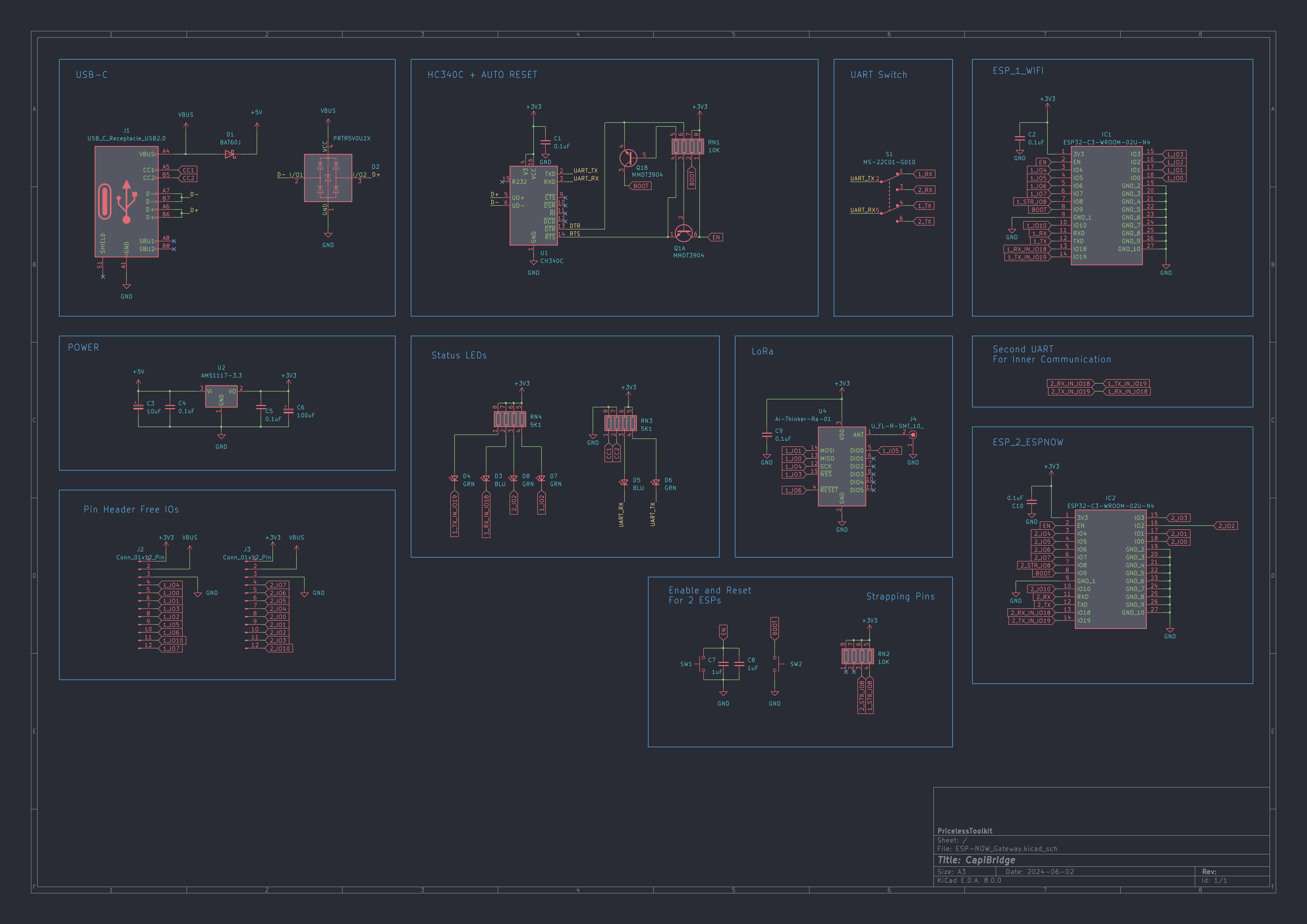
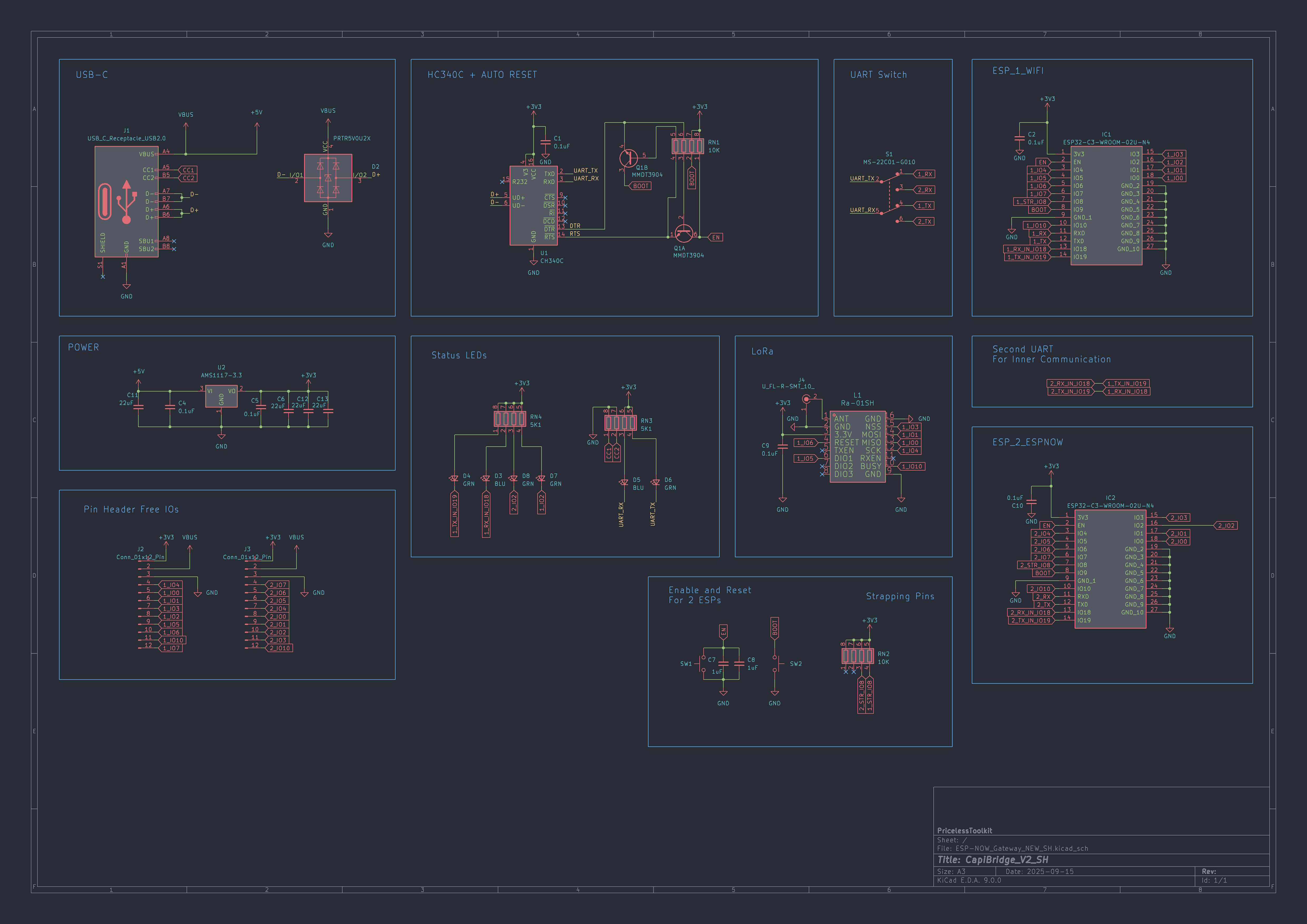
This project is open-source, allowing you to assemble CapiBridge on your own. To simplify this process, I've provided an "Interactive HTML Boom File" located in the PCB folder. This interactive file helps you identify where to solder each component and polarity, reducing the chances of errors to a minimum. But if you don't feel confident in assembling it yourself, you can always opt to purchase a pre-assembled board from my Shop https://www.pricelesstoolkit.com
View schematic. Click here
Links for antennas and cables.
- 2.4Ghz Antenna + Cable https://s.click.aliexpress.com/e/_DE0sJ7N
- Cable UFL to SMA https://s.click.aliexpress.com/e/_Dnee0tV
- Antenna 433 MHz SMA male https://s.click.aliexpress.com/e/_Dm2X9vv
- Antenna 868 MHz SMA male https://s.click.aliexpress.com/e/_Dczm4y7
If your DIY sensor/assembly is not showing up in Home Assistant, here are some tips that may help you find the problem.
-
Check if the node LoRa settings are the same as the LoRa Gateway config, like Frequency, and spreading factor...
-
Connect CapiBridge to PC with switch position selected ESP1, open Arduino IDE Serial monitor "Speed 115200 baud" and check received JSON strings for errors.
-
Download MQTT Explorer and connect to your MQTT server. Check the
homeassistant/sensor/Your_Node_Nametopic for any errors. -
If you have a spare ESP32, you can monitor raw ESP-NOW broadcast traffic along with the sender’s MAC addresses.
Simple ESP32 code that prints all ESP-NOW broadcast traffic — click to expand
#include <Arduino.h>
#include <esp_now.h>
#include <WiFi.h>
#include <esp_wifi.h>
#include <esp_err.h>

// ---------------- Pins / Serial ----------------
#define LED_PIN 2
#define BAUD    115200

// ---------------- ESPNOW ----------------
#define ESPNOW_WIFI_CHANNEL 1
static const uint8_t BROADCAST_MAC[6] = {0xFF,0xFF,0xFF,0xFF,0xFF,0xFF};

unsigned long LedStartTime = 0;

// -------- Helpers --------
static bool printStaMac() {
  uint8_t mac[6] = {0};
  if (esp_wifi_get_mac(WIFI_IF_STA, mac) != ESP_OK) return false;
  bool allZero = true; for (int i=0;i<6;i++) if (mac[i]) { allZero=false; break; }
  Serial.print("My MAC: ");
  if (allZero) Serial.println("00:00:00:00:00:00");
  else { for (int i=0;i<6;i++){ if(i) Serial.print(':'); Serial.printf("%02X", mac[i]); } Serial.println(); }
  return !allZero;
}

// -------- Callbacks --------
#if defined(ESP_IDF_VERSION_MAJOR) && (ESP_IDF_VERSION_MAJOR >= 5)
// IDF v5 / Arduino-ESP32 3.x
void OnDataRecv(const esp_now_recv_info_t *info, const uint8_t *data, int len) {
  char buf[256];
  if (len >= (int)sizeof(buf)) len = sizeof(buf) - 1;
  memcpy(buf, data, len);
  buf[len] = '\0';

  if (info && info->src_addr) {
    for (int i=0; i<6; i++) {
      if (i) Serial.print(':');
      Serial.printf("%02X", info->src_addr[i]);
    }
    Serial.print(" -> ");
  }

  Serial.println(buf);

  digitalWrite(LED_PIN, LOW);   // blink
  LedStartTime = millis();
}
#else
// IDF v4 / Arduino-ESP32 2.x
void OnDataRecv(const uint8_t *mac, const uint8_t *data, int len) {
  char buf[256];
  if (len >= (int)sizeof(buf)) len = sizeof(buf) - 1;
  memcpy(buf, data, len);
  buf[len] = '\0';

  if (mac) {
    for (int i=0; i<6; i++) {
      if (i) Serial.print(':');
      Serial.printf("%02X", mac[i]);
    }
    Serial.print(" -> ");
  }

  Serial.println(buf);

  digitalWrite(LED_PIN, LOW);   // blink
  LedStartTime = millis();
}
#endif

void setup() {
  Serial.begin(BAUD);
  delay(1000);
  while (!Serial && millis() < 5000) { delay(10); }

  pinMode(LED_PIN, OUTPUT);
  digitalWrite(LED_PIN, HIGH); // LED off

  WiFi.persistent(false);
  WiFi.mode(WIFI_STA);
  esp_wifi_set_ps(WIFI_PS_NONE);
  esp_wifi_start();
  delay(50);

  if (!printStaMac()) {
    esp_wifi_stop(); delay(50); esp_wifi_start(); delay(100);
    printStaMac();
  }

  esp_wifi_set_promiscuous(true);
  esp_wifi_set_channel(ESPNOW_WIFI_CHANNEL, WIFI_SECOND_CHAN_NONE);
  esp_wifi_set_promiscuous(false);

  Serial.print("ESPNOW Channel: "); Serial.println(ESPNOW_WIFI_CHANNEL);

  if (esp_now_init() != ESP_OK) {
    for(;;) delay(1000);
  }

  esp_now_peer_info_t bcast{};
  memcpy(bcast.peer_addr, BROADCAST_MAC, 6);
  bcast.ifidx   = WIFI_IF_STA;
  bcast.channel = ESPNOW_WIFI_CHANNEL;
  bcast.encrypt = false;
  esp_err_t e = esp_now_add_peer(&bcast);
  (void)e; // ignore errors

  esp_now_register_recv_cb(OnDataRecv);
}

void loop() {
  if (millis() - LedStartTime >= 100) digitalWrite(LED_PIN, HIGH);
}
