-
Notifications
You must be signed in to change notification settings - Fork 22
Expand file tree
/
Copy pathbackup
More file actions
901 lines (592 loc) · 32.6 KB
/
backup
File metadata and controls
901 lines (592 loc) · 32.6 KB
1
2
3
4
5
6
7
8
9
10
11
12
13
14
15
16
17
18
19
20
21
22
23
24
25
26
27
28
29
30
31
32
33
34
35
36
37
38
39
40
41
42
43
44
45
46
47
48
49
50
51
52
53
54
55
56
57
58
59
60
61
62
63
64
65
66
67
68
69
70
71
72
73
74
75
76
77
78
79
80
81
82
83
84
85
86
87
88
89
90
91
92
93
94
95
96
97
98
99
100
101
102
103
104
105
106
107
108
109
110
111
112
113
114
115
116
117
118
119
120
121
122
123
124
125
126
127
128
129
130
131
132
133
134
135
136
137
138
139
140
141
142
143
144
145
146
147
148
149
150
151
152
153
154
155
156
157
158
159
160
161
162
163
164
165
166
167
168
169
170
171
172
173
174
175
176
177
178
179
180
181
182
183
184
185
186
187
188
189
190
191
192
193
194
195
196
197
198
199
200
201
202
203
204
205
206
207
208
209
210
211
212
213
214
215
216
217
218
219
220
221
222
223
224
225
226
227
228
229
230
231
232
233
234
235
236
237
238
239
240
241
242
243
244
245
246
247
248
249
250
251
252
253
254
255
256
257
258
259
260
261
262
263
264
265
266
267
268
269
270
271
272
273
274
275
276
277
278
279
280
281
282
283
284
285
286
287
288
289
290
291
292
293
294
295
296
297
298
299
300
301
302
303
304
305
306
307
308
309
310
311
312
313
314
315
316
317
318
319
320
321
322
323
324
325
326
327
328
329
330
331
332
333
334
335
336
337
338
339
340
341
342
343
344
345
346
347
348
349
350
351
352
353
354
355
356
357
358
359
360
361
362
363
364
365
366
367
368
369
370
371
372
373
374
375
376
377
378
379
380
381
382
383
384
385
386
387
388
389
390
391
392
393
394
395
396
397
398
399
400
401
402
403
404
405
406
407
408
409
410
411
412
413
414
415
416
417
418
419
420
421
422
423
424
425
426
427
428
429
430
431
432
433
434
435
436
437
438
439
440
441
442
443
444
445
446
447
448
449
450
451
452
453
454
455
456
457
458
459
460
461
462
463
464
465
466
467
468
469
470
471
472
473
474
475
476
477
478
479
480
481
482
483
484
485
486
487
488
489
490
491
492
493
494
495
496
497
498
499
500
501
502
503
504
505
506
507
508
509
510
511
512
513
514
515
516
517
518
519
520
521
522
523
524
525
526
527
528
529
530
531
532
533
534
535
536
537
538
539
540
541
542
543
544
545
546
547
548
549
550
551
552
553
554
555
556
557
558
559
560
561
562
563
564
565
566
567
568
569
570
571
572
573
574
575
576
577
578
579
580
581
582
583
584
585
586
587
588
589
590
591
592
593
594
595
596
597
598
599
600
601
602
603
604
605
606
607
608
609
610
611
612
613
614
615
616
617
618
619
620
621
622
623
624
625
626
627
628
629
630
631
632
633
634
635
636
637
638
639
640
641
642
643
644
645
646
647
648
649
650
651
652
653
654
655
656
657
658
659
660
661
662
663
664
665
666
667
668
669
670
671
672
673
674
675
676
677
678
679
680
681
682
683
684
685
686
687
688
689
690
691
692
693
694
695
696
697
698
699
700
701
702
703
704
705
706
707
708
709
710
711
712
713
714
715
716
717
718
719
720
721
722
723
724
725
726
727
728
729
730
731
732
733
734
735
736
737
738
739
740
741
742
743
744
745
746
747
748
749
750
751
752
753
754
755
756
757
758
759
760
761
762
763
764
765
766
767
768
769
770
771
772
773
774
775
776
777
778
779
780
781
782
783
784
785
786
787
788
789
790
791
792
793
794
795
796
797
798
799
800
801
802
803
804
805
806
807
808
809
810
811
812
813
814
815
816
817
818
819
820
821
822
823
824
825
826
827
828
829
830
831
832
833
834
835
836
837
838
839
840
841
842
843
844
845
846
847
848
849
850
851
852
853
854
855
856
857
858
859
860
861
862
863
864
865
866
867
868
869
870
871
872
873
874
875
876
877
878
879
880
881
882
883
884
885
886
887
888
889
890
891
892
893
894
895
896
897
898
899
900
901
# LiaScript Tutorial: eLearing Africa 2022
## Setup
1. Create an account at: https://github.com
2. Download the Editor at: https://atom.io
3. To install the Plugins, hit <kbd>Ctrl</kbd> + <kbd>Shift</kbd> + <kbd>P</kbd> and type "settings".
Goto "install" and search the following plugins:
1. liascript-preview
2. liascript-snippets
3. language-markdown
4. markdown-table-editor
> **important keyboard short-cuts**
>
> * Fuzzy Search: <kbd>Ctrl</kbd> + <kbd>Shift</kbd> + <kbd>P</kbd>
> * Save: <kbd>Shift</kbd> + <kbd>S</kbd>
> * Move lines: <kbd>Ctrl</kbd> + <kbd>ᐃ/ᐁ</kbd>
> * __LiaScript__:
>
> - Snippets: <kbd>l</kbd> <kbd>i</kbd> <kbd>a</kbd>
> - Programming languages: <kbd>h</kbd> <kbd>i</kbd> <kbd>l</kbd> <kbd>i</kbd>
> - Voices: <kbd>v</kbd> <kbd>o</kbd> <kbd>i</kbd> <kbd>c</kbd> <kbd>e</kbd>
## Share your course via ...
**`https://LiaScript.github.io/course/?YOUR_COURSE_URL`**
{{1}}
* [GitHub](https://github.com)
* [GitLab](https://gitlab.com)
{{2}}
* [DropBox](https://DropBox.com)
* [nextCloud](https://nextCloud.com)
{{3}}
* [Brave Browser](https://brave.com) via [IPFS](https://ipfs.io)
* [Beaker Browser](https://beakerbrowser.com) via [Hyper](https://hypercore-protocol.org)
!?[Beaker-Browser demo](https://beakerbrowser.com/beaker-site-demo.mp4)<!-- autoplay="true" -->
* [Onion-Share](https://onionshare.org)
{{4}}
* free webspace
* [CodiLia](https://github.com/liaScript/codilia)
## Markdown?
> ~~__Markdown is intended to be as easy-to-read and easy-to-write as is feasible.__~~
>
> Readability, however, is emphasized above all else.
> A Markdown-formatted document ~~__should be publishable as-is__~~, as plain text, without looking like it’s been marked up with tags or formatting instructions.
> While Markdown’s syntax has been influenced by several existing text-to-HTML filters — including Setext, atx, Textile, reStructuredText, Grutatext, and EtText — the single ~~__biggest source of inspiration__~~ for Markdown’s syntax is the format of ~~__plain text email__~~.
>
>To this end, Markdown’s syntax is comprised entirely of punctuation characters, which ~~__punctuation characters have been carefully chosen so as to look like what they mean__~~.
> E.g., asterisks around a word actually look like \*emphasis\*. Markdown ~~__lists look like, well, lists__~~.
> Even ~~__blockquotes look like quoted passages of text__~~, assuming you’ve ever used email.
>
> -- by [John Gruber](https://daringfireball.net/projects/markdown/syntax#philosophy)
Headers
By now you should have noticed, that # (hash-tags) are used to structure your content.
The number of # defines the header-type and indentation.
------------------------
Task:
Try to add hash-tags in front of the header and experiment with it.
### Paragraphs
A paragraph and other markdown-blocks, that we will get to know, are separated visually from each other by empty lines.
These lines are thus interpreted as one single paragraph.
---
Task:
Add two more paragraphs and try out, if the number of empty lines in between has an effect on the representation of the content.
### Lists
Bullet points in an unordered list indicated by starting *, -, or + and require indentation:
* A list always starts with the first bullet point
* A bullet point can consist of multiple parts.
The only thing you will have to keep in mind is the correct indentation.
* A list can also contain further lists:
+ These do not necessarly have to start with an asterisks
+ But it is good practice if you use different symbols for different nesting
------------------------
Task:
Add some more bullet points the list, where you write down some comments your experiences with indentation.
#### Numbered lists
Markdown has also support for numbered lists, which can be used in combination with "unordered" lists.
1. First
2. Second
3. ...
Task:
Write some usefull comments on the usage of numbered lists
and create an example, where you combine numbered and not numbered bullet points.
### Formating
Highlighting peaces of the text with only a text-editor might seem tricky at first.
But, you can use different elements to tag your content.
* `code`: this type is required if you want to highlight elements as code, the markdown interpeter will leave everything as it is (including Markdown syntax)
* italic: surround the word or the text with either `*` or `_`.
* bold: think of two times as important as italic, thus it is surround by two `**` or `__`.
* bold and italic: how would you now try to define this and try out some nested combinations.
* Task: If you are using WhatsApp, you could write some messages with this formatting.
WhatsApp has support for some pieces of markdown-syntax.
* crossed out: if you use `~` similarly to bold and italic, you will get a similar effect.
* underlined: ???
* crossed out and underlined: follow the markdown idea ;-)
* superscript: it is not Markdown but LiaScript, but you can use `^` to surround supperscript elements
### Block-quotes
> If you want to highlight an entire text as important, then add a `> ` to the the beginning of every line.
> Early emails were an inspiration for this notation.
>
> **Within the following parts, we will use this syntax to mark tasks**
---
Question: Can blockquotes be nested?
### Links & Refernces
Nothing within the Internet works without links. You can use them everywhere within the document, but Markdown has also support for named and internal links.
https://liascript.github.io/course/?https://raw.githubusercontent.com/liaScript/docs/master/README.md#1
The syntax for named links is: `[name](url)`
> **Task 1:** Try to write the previous link as a named link.
>
> **Task 2:** Try to highlight your new link as bold.
---
Internal links follow a similar pattern, but instead of URLs you will have to reference the section title, starting with a hash-tag and with a title where spaces are replaced by dashes:
`#Title-Without-Spaces`
> **Task:** Create an internal link to the (Numbered lists) section.
#### Images
Images are a special case of links, which you want to embed into your document and not only reference. Thus, these are important links, which are highlighted by a starting `!`.
> **Task:** Change the link below to an image.
>
> What happend to the name of this link?
> Try to change the image URL and see the result.
>
> __Every part is important__
[Markdown logo](https://upload.wikimedia.org/wikipedia/commons/4/48/Markdown-mark.svg)
> The name of link can also be an image, try add a link with the markdown-logo that references section "Markdown?"
[Name](#markdown?)
### Code and HTML
Of course you can use any kind of HTML that runs natively within your browser with any kind of styling as depicted.
<h2 style="color: green;
font-size: 40px;
border: 4px dotted pink">
LiaScript-ruleZ
</h2>
But, if you want to add code with syntax-Highlighting, you have surround it with a block of 3 backticks \`.
After the first backtick you can specify the language you use.
> **Task:**
>
> Surround the code above with 3 backticks and use the HTML syntax-highlighting.
##### `<details>` & `<summary>`
<details style="background: #EEE">
<summary>**Honest Textbook ads (click to enlarge)**</summary>
https://www.youtube.com/watch?v=lhSjYT7pWkw
</details>
##### `<lia-keep>`
> This is not standard, but if you surround your content with `<lia-keep>`, then everything within is treated as HTML.
> No additional Markdown/LiaScript parsing is involved.
``` markdown
<lia-keep>
| Header 1 | Header 2 | Header 3 |
| :--------- | :--------- | :--------- |
| Item 1 | Item 2 | Item 3 |
</lia-keep>
```
### Tables
How would you write down a table with only a typewriter?
Probably similar to the way as it is done here.
| Head 1 | Head 2 | Head 3 |
|:------ |:------:| ------:|
| Item 1 | Item 2 | Item 3 |
| ... | ... | ... |
* Cells are separated by horizontal `|`
* The first line is the table head
* The "colons" define the orientation of the "column":
- left: `:---`
- right: `---:`
- centered: `:---:`
> **Task:** Add additional lines to the table and change the column orientation
## LiaScript?
Markdown is used for creating static content and blogging. With LiaScript we tried to extend the visual metaphors and extend the language in various ways.
It allows to embed:
* Animations
* Text2Speech
* Quizzes
* Multimedia
* ASCII-Art
* interactive tables
* online programming
* and more ...
> **Aufgabe:** Stellen Sie sicher, dass Sie sich für die nächsten Schritte im Präsentations-Modus und stellen sie die Sprachausgabe ein.
### Adding Meta-Information
If you go to the very first line of your course, you will see something like a HTML comment.
Within this comment you can provide additional information about you and your course and are visible to the user, if you go to the information field.
``` markdown
<!--
author: Your Name
email: your@mail.org
logo: https://upload.wikimedia.org/wikipedia/commons/2/2a/Corporate_Woman_Giving_a_PowerPoint_Presentation.svg
version: 0.0.1
language: de
narrator: UK English Female
comment: Es wird gezeigt, wie typische bekannte Präsentationselemente auch
mithilfe von LiaScript genutzt werden können.
tags: LiaScript, PowerPoint, Tutorial
-->
```
> **Tasks:** Change meta-information for your course.>
>
> with the `icon:` command, you can provide your own logo of your institution.
Further Settings:
* language: You can provide a translation for your course, currently supported are: `ar`, `bg`, `de`, `en`, `es`, `fa`, `hy`, `ko`, `nl`, `ru`, `tw`, `ua`, `zh`
https://github.com/LiaScript/lia-localization
* narrator: defines the default voice, type "voice" to get a preview onto all supported voices.
### Multimedia
From links to ! images --> ? audio --> !? video --> ?? anything else:
* Audio: `?[alt-info](url)`
* Video: `!?[alt-info](url)`
* Anything else: `??[alt-info](url)`
> Task1: Embed the links below as audio content
[singing birds](https://bigsoundbank.com/UPLOAD/mp3/1068.mp3)
[soundcloud](https://soundcloud.com/glennmorrison/beethoven-moonlight-sonata)
> Task2: Go to youtube and add some video content
> Task3: Embed the content of the link below into your course
[A circuit simulator](https://www.falstad.com/circuit/circuitjs.html)
[Piggy Bank](https://sketchfab.com/3d-models/198016-piggy-bank-14bfd106baf14d62aebf6eafbe25b3c3 "Piggy Bank. 14th-15th Century. Java, Majapahit Dynasty. Terracotta. Overall: 24.2 cm (9 1/2 in.). John L. Severance Fund, 1980.16")
> Task4: experiment with other websites of your choice and try to add some more captions to your elements.
#### Gallery
> **Galleries are simply paragraphs with only multimedia content!**
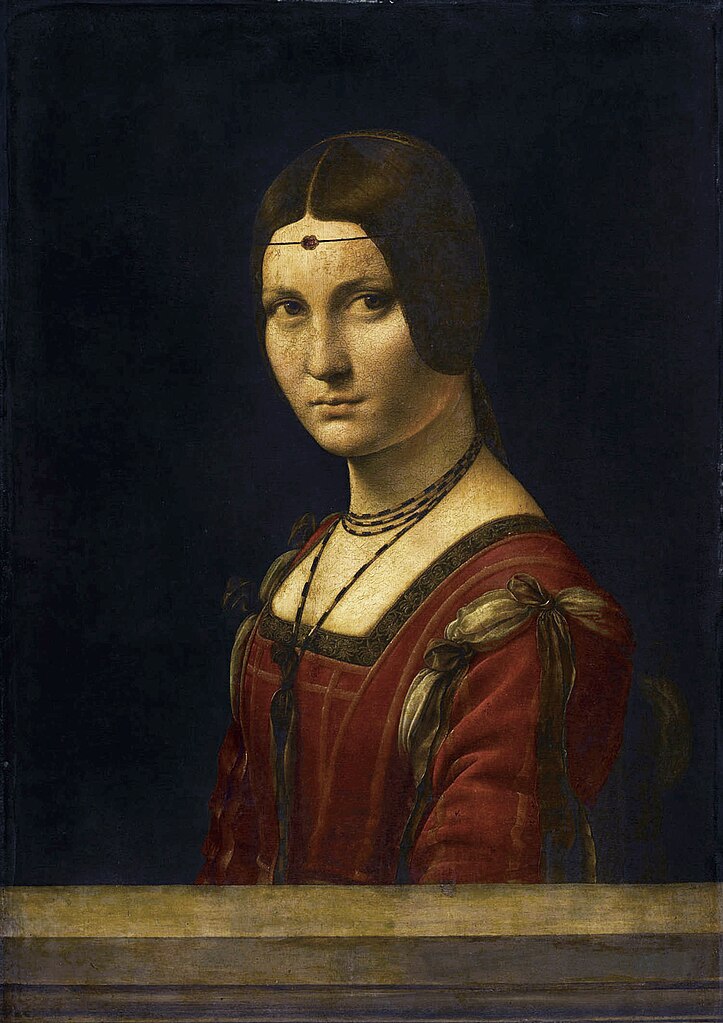

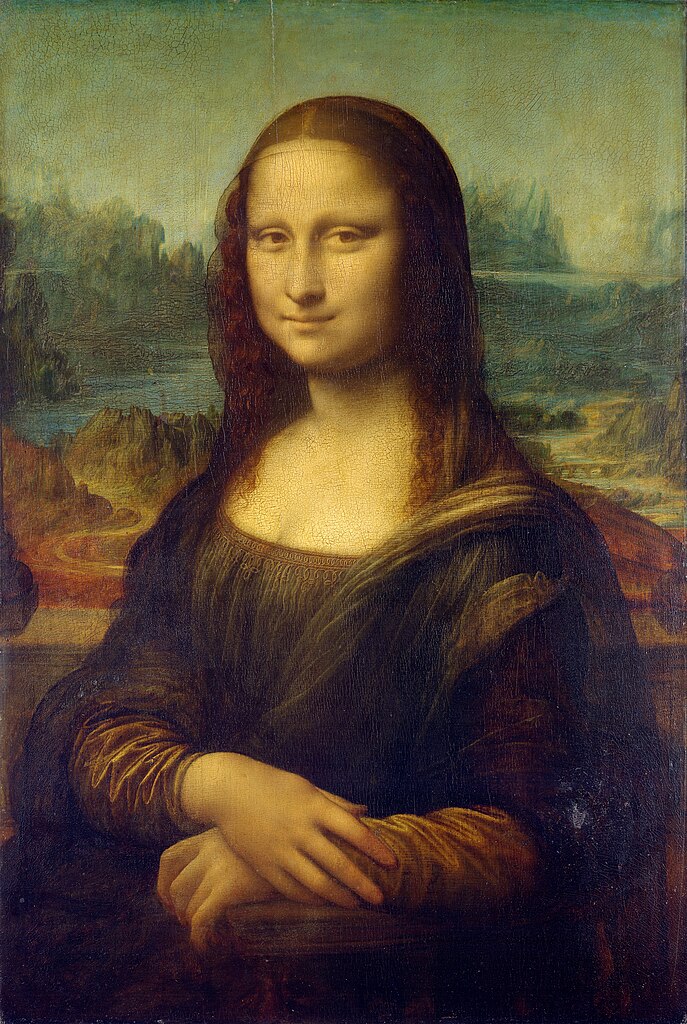


> **Task1:** Make a gallery
>
> **Task2:** Add some movies and other elements to the gallery.
### Animations
> Your user can decide, which presentation mode is used.
> We currently support Textbook, Slides, and Presentation.
You can use these curly braces to let blocks appear and disappear.
Simply add these points the the beginning of your block.
* fade-in: `{{2}}`
* fade-in and out: `{{1-3}}`
> **Task:** Add some animations to the content below.
Let me appear at first.
And disappear at step 2.
| let | me |
| :----- | :-------- |
| appear | at step 2 |
> As the the last and final quote.
> I wanted to be displayed at the very end.
#### Micro-Animations
You can also "inline" animations, simply by unpacking the curly braces:
* fade-in: `{2}{TADA}`
* fade-in and out: `{1-3}{a __small__-note}`
> **Task:** Try to add a table, where the table content will appear step-wise.
> Check the different presentations in Textbook mode.
**Block and mikro-animations can be combined.**
### Text to speech
The currently used default language is `UK English Female`.
LiaScript currently uses responsive voice as the TTS-Api:
https://responsivevoice.org
You can use more voices, simply by typing "voice".
With this notation `--{{1}}--` you can add some more explanation that will be spoken out loud to animation-step 1. You can also change the voice for per comment `--{{2 US English Male}}--`.
> **Task:** Add some comment tags to the head of the paragraphs below and change their voices.
>
> Try to add some examples of your mother tongue.
The entire ***Markdown*** paragraph right below the effect definition in double minus notation is sent to responsivevoice to speak the text out loud. If you click on the ear button at the navigation panel, then this paragraph gets rendered at the place where it is defined.
Der Ganze Satz sollte deutsch ausgesprochen werden!
#### Task
> At this point you can try out by your own, to combine animations and comments.
>
> Try out, how your content is presented in different modes.
### Quiz
It is proven that students perform better, when they have the possibility to reflect.
Quizzes are an ideal way to check the understanding.
LiaScript currently has support for four different types of quizzes, with the possibility to tweak them.
#### Textinput
A text input is simply a filed that follows after your question.
The solution is placed within a stylized input field.
In LiaScript quizzes are always associated with double backets.
`[[Solution]]`
> **Task:** Remove the backtics, change the solution and add your questions.
#### Single Choice
Es werden mehrere Lösungsmöglichkeiten vorgegeben, üblicherweise werden solche Aufgaben im Browser über sogenannte Radio-Buttons dargestellt. In LiaScript wird diese Notation einfach übernommen und mithilfe von runden Klammern innerhalb der eckigen angezeigt und das X markiert die einzig richtige Lösung:
[( )] Option 1
[(X)] <-- **Die richtige Auswahlmöglichkeit**
[( )] Eine weitere falsche Option
> **Aufgabe:** Fügen Sie noch weitere Optionen ein, bzw. verändern Sie die Position der Lösung.
#### Multiple Choice
Es werden mehrere Lösungsmöglichkeiten vorgegeben, von denen auch mehrere auswählbar sind. Diese Aufgaben werden zumeist durch sogenannte Checkboxen abgebildet, die in LiaScript wie folgt abgebildet werden:
[[X]] **<-- richtig**
[[ ]] falsch
[[ ]] **<-- richtig**
[[X]] falsch
> **Aufgabe:** Passen Sie das obere Quiz an, damit die Lösung den Vorgaben entspricht. Fügen Sie ggf. weitere Optionen zu, bzw. entfernen Sie alle bis auf eine.
#### Matrix
Bei dieser Darstellung werden die beiden zuvor vorgestellten Quizze in einer zwei-dimensionalen Matrix kombiniert. Die oberste Zeile definiert die möglichen Optionen, während die Zeilen Multiple und Single Choice Quizze kombinieren.
[ [head1] [ ;-) ] [ Option3 ] ]
[ ( ) ( ) (X) ] <-- Single Choice
[ [ ] [X] [X] ] <-- Multiple Choice
#### Weitere Optionen
Zu Quizzen können verschiedene weitere Hilfen hinzugefügt werden, sowie erweiterte Auflösungen. Die vorgestellten Anpassungen können allen Quiz-Typen angefügt werden…
##### Hilfen
Gegebenenfalls kann es notwendig sein, dass Hilfen/Tipps zu den Quizzen hinzugefügt werden sollen, sodass der Nutzer selber entscheiden kann, sich eine Hilfe geben zu lassen, bevor er/sie auf den Auflöse-Button klickt.
Wie heißt der Markdown Dialekt, der hier genutzt wird:
[[LiaScript]]
[[?]] Bitte achten Sie auf die korrekte Schreibweise
[[?]] Die Lösung beginnt mit Lia.....
> **Aufgabe:** Fügen Sie noch einen weiteren Hinweis hinzu. Wenn sie wollen, dann können Sie auch Hinweise an die vorhergehenden Quizze anfügen.
##### Auflösungen
Mithilfe von zwei Linienzügen, die durch mindestens drei aufeinander folgenden `***` definiert werden, können erweiterte Auflösungen definiert werden, die mehrere Markdown-Blöcke enthalten können. Diese werden nur gezeigt, falls der Nutzer die richtige Lösung gegeben hat, bzw. auf Auflösungen klickt.
[[LiaScript]]
[[?]] Bitte achten Sie auf die korrekte Schreibweise
[[?]] Die Lösung beginnt mit Lia.....
**************************************************
LiaScript ist eine interaktive Erweiterung zu
Markdown, zur Entwicklung interaktiver und freier
Lehrinhalte. Mehr Informationen finden Sie unter:
https://LiaScript.github.io
Nur ein weiteres Diagramm
1.9 |
| ***
y | * *
- | r r r r r r r*r r r r*r r r r r r r
a | * *
x | * *
i | B B B B B * B B B B B B * B B B B B
s | * *
|** * * * * *
-1 +------------------------------------
0 x-axis 1
**************************************************
#### Bedingte Ausgaben
Für das Erlernen einer Sprache, bzw. um verschiedene Aufgabenstellungen zu vertonen, kann es hilfreich sein einen Abspiel-Button für verschieden Segmente zu haben. Dieser kann als Kombination zwischen Effekt und Sprache gesehen werden. Auch hierfür wird die doppelt geschweifte Klammer-Notation genutzt, nur das diese um einen zusätzlichen Play-Button erweitert werden:
* Block: `{{|>}}` oder `{{!>}}`
* Mikro: `{|>}{Hallo Welt}`
Sie können hier ebenfalls unterschiedliche Stimmen verwenden und diese Elemente auch wie Animationen ein und ausblenden.
> **Aufgabe:** Spielen Sie mit ein paar Einstellungen und lassen Sie sich kleine Textstellen vorlesen, bzw. kombinieren Sie diese mit Animationen.
#### Styling
<!-- style="color: red; width: 45%; font-size: 24px; float: left" -->
Bilder, Videos, ja selbst Tabellen und Verweise, im Grunde alles kann noch nachträglich mit den Mitteln von HTML bearbeitet werden. Wenn Sie einen HTML-Kommentar einem Markdown Block voranstellen dann gelten die Definition für den gesamten Block, hängen Sie es an, dann gilt es nur für **das eine Element**<!-- style="color: green" -->. Dies eignet sich vor allem für Bilder um variable Breiten und Höhen zu definieren, egal wie groß der Bildschirm ist.
<!-- style="float: right; width: 45%; padding-top: 25px" -->
<!-- style="float: left; width: 100%; text-align: center" -->
Weitere Informationen zu CSS-Styling und HTML-Attributen finden Sie unter: https://www.w3schools.com/Css/
### ASCII-Art
In LiaScript existiert die Möglichkeit mit dem ASCII-Zeichensatz, sprich nur mit den Zeichen der Tastatur (oder einem erweiterten Zeichensatz) schnell Bilder und Skizzen zu malen, ohne das ein zusätzliches „externes“ Tool genutzt werden muss.
**Diagramme:**
Zum einen können mit einem stilisiertem Diagramm schnell Kurvenverläufe oder Messpunkte dargestellt werden. Die Farben und Symbole werden durch die verwendete Zeichen definiert. Mit `B B B B B` kann z. B. eine blaue Linie mit großen Punkten gezeichnet werden.
Combining dots and polylines
1.9 |
| DOTS
y | *
- |
a | *
x | *
i | *
s |
|*
-1 +------------------------------------
0 x-axis 1
> **Aufgabe:** Zeichnen Sie im oberen Diagramm zum Beispiel mit kleinen r’s und mit großen R’s je eine Linie und klicken Sie dann auf das „store“ Symbol um ihr Bild zu speichern.
**Real ASCII-ART:**
Ein Markdown Code-Block wird mit dem Code-Wort `ASCII` markiert, damit der Inhalt als Bild dargestellt wird:
``` ascii
+-------------+ .--------------.
+------#| Box 1 |------*| Box 2 +-------.
\ +-------------+ '-o------------' |
\ / |
^ / ______|______
\ v | V |
+--- ein ---<--- Kreislauf ---O----------| Box 3 |
|_____________|
```
Wenn es für Sie interessant ist, dann können Sie unter dem folgenden Link noch weitere Möglichkeiten/Inspirationen sehen:
https://github.com/andre-dietrich/elm-svgbob
### Tabellen
Markdown-Tabellen können auch als Datensätze wie in Excel interpretiert werden und direkt als Diagramme dargestellt werden. In LiaScript wird automatisch, anhand der Struktur der Daten, versucht eine geeignete Darstellung zu identifizieren. Im besten Fall müssen Sie nichts tun und die entsprechende Visualisierung wird gewählt, ansonsten können Sie auch selber definieren, welche Darstellungsform gewählt werden soll.
#### Linien-Diagramme
Oberhalb der Tabelle in LiaScript befindet sich ein kleines Diagramm-Symbol, das andeutet, dass Linien-Diagramme für die Darstellung angenommen werden. Wenn Sie darauf klicken, dann wechselt die Darstellung auf das entsprechende Diagramm.
| x | y1 | y2 | y3 |
| ---:| ---:| ---:| ---:|
| 1 | 1 | 1 | 15 |
| 2 | 2 | 4 | 15 |
| 3 | 3 | 9 | 15 |
| 4 | 4 | 16 | 15 |
| 5 | 5 | 25 | 15 |
| 6 | 6 | 36 | 15 |
#### Balken-Diagramme
In den meisten Diagrammen wird die erste Spalte als x-Achse gesehen, sollte diese keine Zahlen enthalten, jedoch über „Kategorien“ verfügen, dann wird eine andere Darstellungsform gewählt, im unteren Beispiel handelt es sich um ein Balkendiagramm.
| Animal | weight in kg | Lifespan years | Mitogen |
| --------------- | ------------:| --------------:| -------:|
| Mouse | 0.028 kg | 2 | 95 |
| Flying squirrel | 0.085 kg | 15 | 50 |
| Brown bat | 0.020 kg | 30 | 10 |
| Sheep | 90 kg | 12 | 95 |
| Human | 68 kg | 70 | 10 |
> **Aufgabe:** Sortieren Sie die Spalten in der Tabellen-Darstellung und schauen Sie, welchen Effekt das auf das Bild hat.
#### Torten-Diagramme
Eine Tabelle mit nur einer Zeile wird als Torten-Diagramm dargestellt.
| Music-Style 1994 | Classic | Country | Reggae | Hip-Hop | Hard-Rock | Samba |
|:---------------- | -------:| -------:| ------:| -------:| ---------:| -----:|
| Student rating | 50 | 50 | 100 | 200 | 350 | 250 |
Das Gleiche gilt für die untere Tabelle, mit dem Kommando `<!-- data-transpose -->` wird nur gesagt, das die Daten für die Darstellung transponiert werden sollen, um so eine bessere Lesbarkeit der Tabelle zu geben. Im Weiteren zeigt die Tabelle, wie Mikro-Animationen eingesetzt werden können, um die Darstellung zu verändern.
<!-- data-transpose -->
| Music-Style {0-1}{1994} {1}{2014} | Student rating |
|:--------------------------------- | -------------------:|
| Classic | {0-1}{50} {1}{20} |
| Country | {0-1}{50} {1}{30} |
| Reggae | 100 |
| Hip-Hop | {0-1}{200} {1}{220} |
| Hard-Rock | {0-1}{350} {1}{400} |
| Samba | {0-1}{250} {1}{230} |
> **Aufgabe:** Schalten Sie im Präsentationsmodus weiter und beobachten Sie die unterschiedliche Darstellung in der Tabelle und im Diagramm.
#### Mehr Diagramme
LiaScript unterstützt noch mehr Diagramm-Typen unter dem folgenden Link finden Sie noch weitere Nutzungsmöglichkeiten:
<preview-lia
src="https://raw.githubusercontent.com/liaScript/docs/master/README.md"
link="https://liascript.github.io/course/?https://raw.githubusercontent.com/liaScript/docs/master/README.md#67">
</preview-lia>
### Formeln
LiaScript, wie auch mehrere andere Markdown-Dialekte, unterstützt die Nutzung von Formeln, hierbei wird auf die Möglichkeiten von KaTeX zurückgegriffen:
https://katex.org/docs/supported.html
Die folgende Darstellung zeigt nur die zwei Nutzungsmöglichkeiten, wobei die Formeldefinition entweder durch ein einfaches `$`-Zeichen oder innerhalb doppelter `$$`-Zeichen markiert wird:
* Im $ f(a,b,c) = (a^2+b^2+c^2)^3 $ Text
* Als eigenständiger Block:
$$
\sum_{i=1}^\infty\frac{1}{n^2}
=\frac{\pi^2}{6}
$$
> **Aufgabe:** Lassen Sie im folgen Text `n= 2 \pi f` als Formel erscheinen.
Die Drehfrequenz wird wie folgt berechnet: n = 2 \pi f
### Ausführbarer Code
Code kann direkt ausgeführt werden, indem an eine Markdown Code-Block ein `<script>...</script>` angehängt wird, das definiert, wie mit den Eingaben verfahren werden soll. Handelt es sich wie im unteren Beispiel um JavaScript, dann genügt es `@input` im script-tag einzufügen, dieser Inhalt wird dann bei jeder Ausführung mit den aktuellen Inhalten des Editors überschrieben (substituiert).
``` js
console.warn("Hallo Welt");
33*55;
```
<script>@input</script>
> **Aufgabe:** Verändern Sie das obige Programm in der LiaScript Darstellung und führen Sie es aus. Springen Sie mit den „Pfeiltasten“ in ihren Versionen vor und zurück und verändern auch diese Inhalte. Beobachten Sie wie neue Versionen angehängt werden.
#### Projekte
Sie können auch komplizierter Projekte anlegen, indem Sie mehrere Markdown Code-Blöcke direkt aneinander hängen. Zur Unterscheidung eignen sich hier auch „Dateinamen“ die mit einem vorangestellten `+` oder `-` zeigen, ob die Datei aufgeklappt, bzw. zugeklappt dargestellt werden soll. Das sScript-tag umfasst nun ein etwas kompliziertes Programm, das ausgeführt werden soll, wobei `@input(n)` angibt, welcher Inhalt wo substituiert werden soll.
``` js -EvalScript.js
let who = data.first_name + " " + data.last_name;
if(data.online) {
who + " is online"; }
else {
who + " is NOT online"; }
```
``` json +Data.json
{
"first_name" : "Sammy",
"last_name" : "Shark",
"online" : true
}
```
<script>
// insert the JSON dataset into the local variable data
let data = @input(1);
// eval the script that uses this dataset
eval(`@input(0)`);
</script>
> **Aufgabe:** Ersetzen Sie in der Datei "Data.json" den Eintrag `"online" : true` durch `"online" : false`.
### Macros & Bibliotheken
LiaScript bietet die Möglichkeit zusätzliche Funktionalität mithilfe von Macros zu definieren. Diese werden, kurz gesagt, mit einem vorangestellten `@` markiert. Einige davon haben sie schon gesehen, wie `@input`. Andere vielleicht schon selber definiert:
* `@author`
* `@email`
* `@comment`
Diese werden im Kopf der eines jeden Dokumentes definiert und können überall im Kurs verwendet werden. Diese können auch parametrisiert werden, w. z. B. das `@input` Macro. Was jedoch allen gemein ist, ist das hier eine einfache Textersetzung vorgenommen wird. Damit wird das mehrfache Schreiben komplizierter HTML- / CSS- / JavaScript- / Markdown-Ausdrücke automatisiert.
> **Aufgabe:** Entfernen Sie die Backticks in der oberen Liste und beobachten Sie was passiert. Vielleicht verändern sie auch nochmal den Autor oder Ihre E-mail.
#### Import
Sie können die Macros anderer Kurse auch in ihren eigenen Kurs importieren, dazu müssen sie nur jeweiligen Kurse mittels `import: url` eingebunden werden. Dieser Kurs importiert schon einige „Templates“, die wir auf den folgenden kurz nutzen werden.
``` md
<!--
author: Your Name
email: your@mail.org
...
@btn: <span class="lia-icon"><lia-keep>@0</lia-keep></span>
import: https://github.com/LiaTemplates/KekuleJS
-->
```
Eine kleine Sammlung verschiedener Kurse finden Sie auch unter:
https://github.com/LiaTemplates
## 🧪🧑🔬 Chemie
Das folgende Template bindet zwei Funktionen von KekuleJS ein, die hier definiert sind:
https://github.com/LiaTemplates/KekuleJS
* `@Kekule.molecule2d`
* `@Kekule.molecule3d`
``` xml @Kekule.molecule2d
<cml xmlns="http://www.xml-cml.org/schema">
<molecule>
<atomArray>
<atom id="a1588768090561" elementType="C" x2="0.4125" y2="0.6348"/>
<atom id="a1588768090562" elementType="C" x2="-0.4125" y2="0.6348"/>
<atom id="a1588768090563" elementType="C" x2="-0.6674" y2="-0.1498"/>
<atom id="a1588768090564" elementType="N" x2="0" y2="-0.6348"/>
<atom id="a1588768090565" elementType="C" x2="0.6674" y2="-0.1498"/>
</atomArray>
<bondArray>
<bond id="b1588768090566" order="S" atomRefs2="a1588768090561 a1588768090562"/>
<bond id="b1588768090567" order="D" atomRefs2="a1588768090562 a1588768090563"/>
<bond id="b1588768090568" order="S" atomRefs2="a1588768090563 a1588768090564"/>
<bond id="b1588768090569" order="S" atomRefs2="a1588768090564 a1588768090565"/>
<bond id="b1588768090570" order="D" atomRefs2="a1588768090565 a1588768090561"/>
</bondArray>
</molecule>
</cml>
```
> **Aufgabe:** Ersetzen Sie im oberen Code-Block das Macro `@Kekule.molecule2d` durch `@Kekule.molecule3d` und beobachten Sie, was passiert.
## 🔧🧑🏽🔧 Maschinenbau
https://github.com/LiaTemplates/mec2
``` json @mec2
{
"id":"chaos-pendulums",
"gravity":true,
"nodes": [
{ "id":"A0","x":200,"y":400,"base":true },
{ "id":"A1","x":280,"y":480,"m":2 },
{ "id":"B1","x":279,"y":481,"m":2 },
{ "id":"C1","x":278,"y":482,"m":2 },
{ "id":"D1","x":277,"y":483,"m":2 },
{ "id":"A2","x":360,"y":560,"m":3 },
{ "id":"B2","x":359,"y":561,"m":3 },
{ "id":"C2","x":358,"y":562,"m":3 },
{ "id":"D2","x":357,"y":563,"m":3 },
{ "id":"A3","x":440,"y":640,"m":4.7 },
{ "id":"B3","x":439,"y":641,"m":4.7 },
{ "id":"C3","x":438,"y":642,"m":4.7 },
{ "id":"D3","x":437,"y":643,"m":4.7 }
],
"constraints": [
{ "id":"a1","p1":"A0","p2":"A1","len":{ "type":"const" } },
{ "id":"a2","p1":"A1","p2":"A2","len":{ "type":"const" } },
{ "id":"a3","p1":"A2","p2":"A3","len":{ "type":"const" } },
{ "id":"b1","p1":"A0","p2":"B1","len":{ "type":"const" } },
{ "id":"b2","p1":"B1","p2":"B2","len":{ "type":"const" } },
{ "id":"b3","p1":"B2","p2":"B3","len":{ "type":"const" } },
{ "id":"c1","p1":"A0","p2":"C1","len":{ "type":"const" } },
{ "id":"c2","p1":"C1","p2":"C2","len":{ "type":"const" } },
{ "id":"c3","p1":"C2","p2":"C3","len":{ "type":"const" } },
{ "id":"d1","p1":"A0","p2":"D1","len":{ "type":"const" } },
{ "id":"d2","p1":"D1","p2":"D2","len":{ "type":"const" } },
{ "id":"d3","p1":"D2","p2":"D3","len":{ "type":"const" } }
],
"views": [
{ "show":"pos","of":"A3","as":"trace","id":"view1","stroke":"rgba(255,0,0,.5)" },
{ "show":"pos","of":"B3","as":"trace","id":"view2","stroke":"rgba(0,255,0,.5)" },
{ "show":"pos","of":"C3","as":"trace","id":"view3","stroke":"rgba(255,255,0,.5)" },
{ "show":"pos","of":"D3","as":"trace","id":"view4","stroke":"rgba(255,0,255,.5)" }
]
}
```
## 📐👩🏫 Mathematik
https://github.com/LiaTemplates/Algebrite
``` m
(3 * x - 5x)^3 * (x + x)
60!
```
@Algebrite.eval
``` m
f=sin(t)^4-2*cos(t/2)^3*sin(t)
f=circexp(f)
defint(f,t,0,2*pi)
```
@Algebrite.eval
## 🩺🧑🏼⚕️ Medizin
https://github.com/LiaTemplates/VTK
Das laden des medizinischen Datensatzes kann etwas Zeit in Anspruch nehmen
@VTK.load(https://data.kitware.com/api/v1/file/58e665158d777f16d095fc2e/download)
## 🖼👩💻Visualisierung
``` cpp
// Global variables
float radius = 50.0;
int X, Y;
int nX, nY;
int delay = 16;
// Setup the Processing Canvas
void setup(){
size( 400, 200 );
strokeWeight( 10 );
frameRate( 15 );
X = width / 2;
Y = height / 2;
nX = X;
nY = Y;
}
// Main draw loop
void draw(){
radius = radius + sin( frameCount / 4 );
// Track circle to new destination
X+=(nX-X)/delay;
Y+=(nY-Y)/delay;
// Fill canvas grey
background( 100 );
// Set fill-color to blue
fill( 0, 121, 184 );
// Set stroke-color white
stroke(255);
// Draw circle
ellipse( X, Y, radius, radius );
}
// Set circle's next destination
void mouseMoved(){
nX = mouseX;
nY = mouseY;
}
```
@Processing.eval